





I can use apprise in Home Assistant and in my scripts and got signal, slack, email and many more working perfectly!
How I Built a Unified Notification Hub Using Apprise and Signal API
The Problem: Notification Chaos
If you’re like me, you probably have alerts coming from everywhere:
- Docker containers need to notify you when they crash
- Home Assistant wants to tell you when the door opens
- Monitoring scripts need to report when disk space is low
- Your Jellyfin server should alert you when transcoding fails
The problem? Each service wants to send notifications differently. Some support email, others want webhooks, a few can do Slack, and almost none support Signal natively.
Enter Apprise — the notification abstraction layer that changed how I handle alerts forever.
What is Apprise?
Apprise is a Python library (and API) that supports dozens of notification services through a single, unified interface. Think of it as a universal translator for notifications.
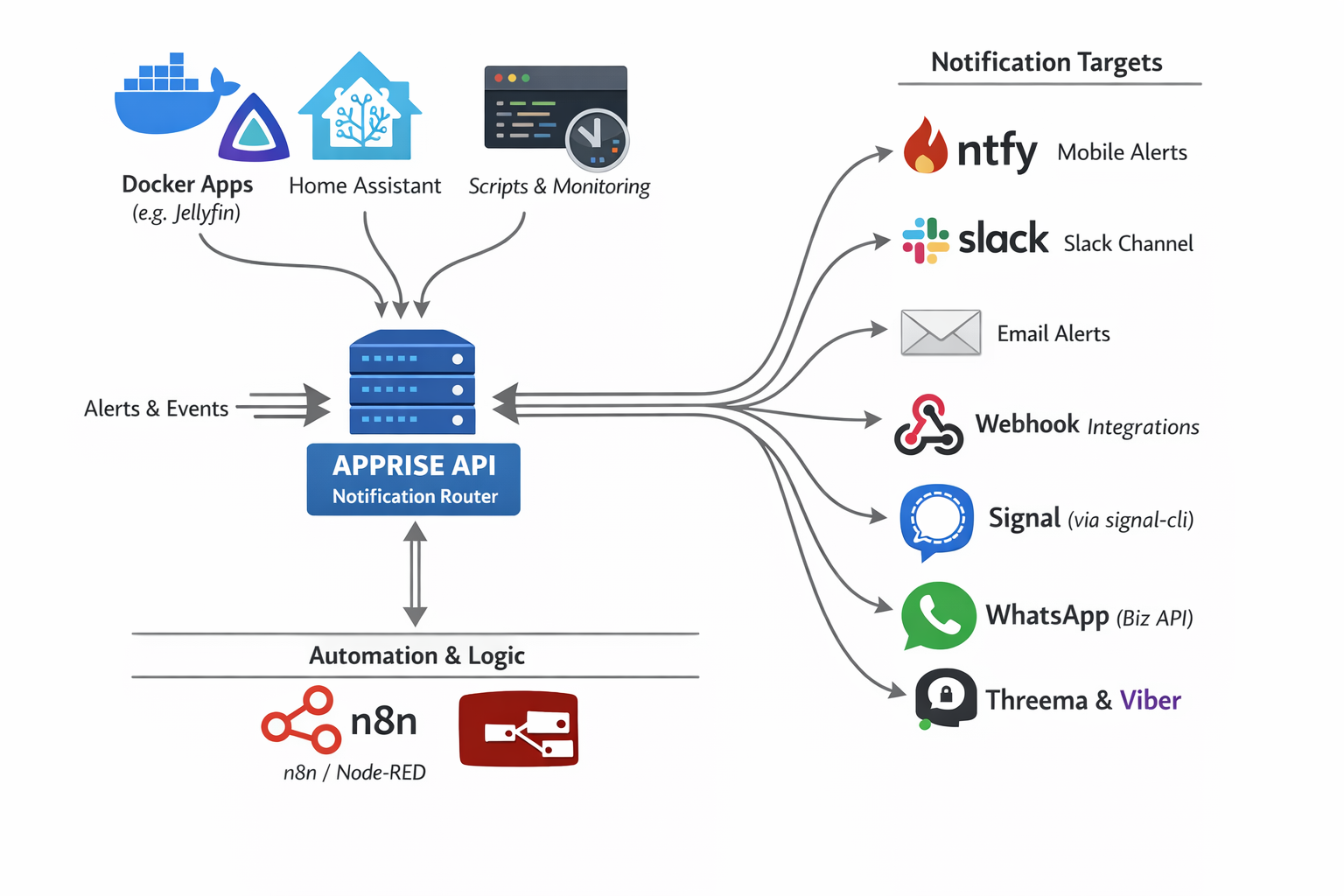
As you can see in the diagram above, Apprise acts as a notification router sitting between your services and your notification targets:
Input Sources:
- Docker Apps (Jellyfin, Nextcloud, etc.)
- Home Assistant
- Custom Scripts & Monitoring Tools
- Automation Platforms (n8n, Node-RED)
Output Targets:
- 📱 ntfy (Mobile Alerts)
- 💬 Slack
- 🔗 Webhooks
- 📞 Signal (via signal-cli)
- 📱 WhatsApp (Business API)
- 🔐 Threema & Viber
And that’s just a subset — Apprise supports 120+ notification services!
The Setup: Apprise API + Signal
In this guide, I’ll show you how to set up:
- Apprise API — A REST API server for managing and sending notifications
- Signal CLI REST API — A bridge to send messages via Signal
- Integration — Connecting them so you can send Signal messages through Apprise
Why Signal?
Signal offers end-to-end encryption, privacy-focused design, and most importantly — it’s free for personal use. Perfect for receiving important alerts without relying on corporate platforms.
Step 1: Deploy Apprise API
Create a docker-compose.yml file for Apprise:
I’ve selected TCP Port 8800 as I am already using 8000 on my homelab.
services:
  apprise-api:
    image: caronc/apprise:latest
    container_name: apprise-api
    restart: unless-stopped
    ports:
      - "8800:8000"
    environment:
      - APPRISE_STATEFUL_MODE=simple
      - APPRISE_WORKER_COUNT=1
      - APPRISE_WORKER_OVERFLOW=10
      - LOG_LEVEL=info
    volumes:
      - ./apprise/config:/config
      - ./apprise/plugins:/plugin
Key Configuration Explained:
| Setting | Purpose |
|---|---|
APPRISE_STATEFUL_MODE=simple |
Persists your notification configurations between restarts |
APPRISE_WORKER_COUNT=1 |
Single worker process (sufficient for home use) |
APPRISE_WORKER_OVERFLOW=10 |
Queue overflow threshold for handling burst requests |
LOG_LEVEL=info |
Balanced logging verbosity |
Start the service:
docker-compose up -dApprise API will now be available at http://localhost:8800
Step 2: Deploy Signal CLI REST API
Signal doesn’t have a native API, but the community has created bridges. We’ll use signal-cli-rest-api:
again, I am using TCP Port 9922 as I am using 8080 on my homelab already.
services:
  signal-api:
    image: bbernhard/signal-cli-rest-api
    container_name: signal-api
    environment:
      - MODE=native
    volumes:
      - ./signalcli-data:/home/.local/share/signal-cli
    ports:
      - "9922:8080"
    restart: unless-stopped
Important: The MODE=native setting uses the native Signal protocol library (libsignal) for better compatibility.
Start the service:
docker-compose up -dPS. You can merge the two docker compose services into one if you prefer.
Step 3: Link Your Signal Account
Now for the magic — linking your Signal account to the API.
Open your browser and navigate to:
http://localhost:9922/v1/qrcodelink?device_name=signal-apiThis will produce a QR image, that you need to scan with your mobile Signal app.
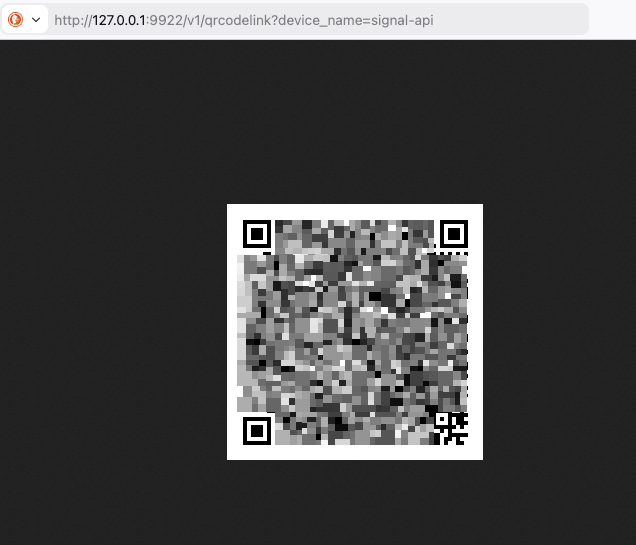
You’ll see a QR code (similar to the one above, but not blurred).
To link:
- Open Signal on your phone (Android or iOS)
- Go to Settings → Linked Devices
- Tap the + button to add a new device
- Scan the QR code
Once linked, your Signal account is now accessible via REST API!
Step 4: Register a Phone Number
Before sending messages, you need to register your phone number with Signal CLI. This is typically done automatically when you link the device, but if needed:
# Check if your number is registered
curl http://localhost:9922/v1/about
Step 5: Add Signal to Apprise
Now we connect Signal to Apprise. Apprise uses URL schemes to represent notification targets.
The Signal URL format is:
signal://<signal-api-host>:<port>/<recipient-phone-number>Add your Signal configuration to Apprise:
curl -s -X POST http://127.0.0.1:8800/add/signal
  -d "urls=signal://localhost:9922/+306970000xyz"
Replace
+306970000xyzwith your phone number!
Expected response:
Successfully saved configurationNote: Replace
+306970000xyzwith your actual phone number (in international format with+prefix).
Step 6: Send Your First Notification
Option A: Using the Apprise CLI
apprise -vv -t "Test Message Title" -b "Test Message Body"
   "signal://localhost:9922/+306970000xyz"
Option B: Using the Apprise API
curl -X POST http://localhost:8800/notify
  -H "Content-Type: application/json"
  -d '{
    "title": "Test Message Title",
    "body": "Test Message Body",
    "tag": "signal"
  }'
Option C: Send to Multiple Services at Once
Here’s where Apprise shines — send the same message to Signal, Slack, and email with one command:
apprise -t "Server Alert" -b "Disk usage at 90%"
  "signal://localhost:9922/+306970000xyz"
  "slack://token-a/token-b/token-c"
  "mailto://user:pass@gmail.com"
The Result
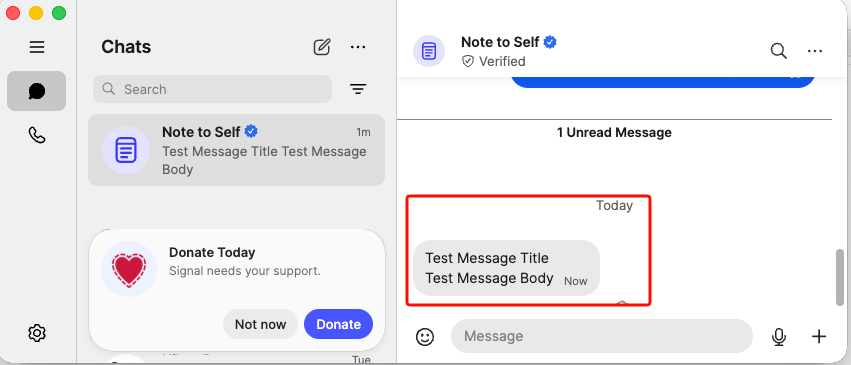
As you can see, the test message arrived successfully in Signal with both the title and body intact. This message was sent programmatically through the Apprise → Signal pipeline!
Real-World Use Cases
Now that you have the infrastructure set up, here are some practical applications:
Home Assistant Notifications
Add the below notify setup to your configuration.yaml:
# ebal, Sun, 15 Mar 2026 21:06:52 +0200
notify:
  - name: signal_notify
    resource: http://localhost:8800/notify
    url: "signal://localhost:9922/+306970000xyz"
    platform: apprise
and create a new Automation
- Go to Settings → Automations & scenes
- Tap the + button to create a new automation
- Copy yaml code and replace your Device and Entity ID.
alias: Fridge Door Open
description: Send a message through Signal when Fridge Door is opened for more than 5sec
triggers:
  - type: opened
    device_id: <device_id>
    entity_id: <entity_id>
    domain: binary_sensor
    trigger: device
    for:
      hours: 0
      minutes: 0
      seconds: 5
conditions: []
actions:
  - action: notify.signal_notify
    metadata: {}
    data:
      message: Fridge Door Open for more than 5sec
      title: HomeAssistant Alert
mode: single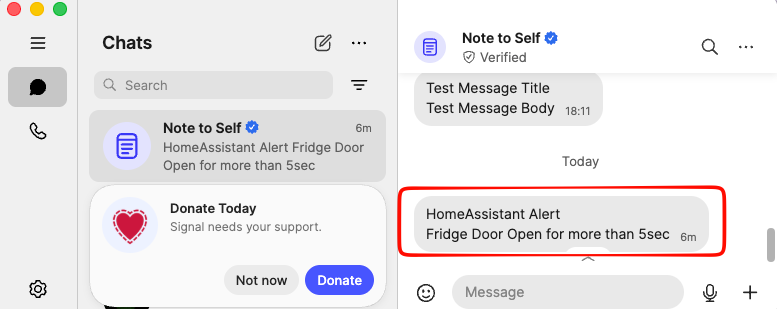
Docker Container Monitoring
# In your monitoring script
docker ps --format "{{.Names}}" | while read container; do
  if [ "$(docker inspect -f '{{.State.Running}}' $container)" != "true" ]; then
    apprise -t "Container Down" -b "$container has stopped"
      "signal://localhost:9922/+306970000xyz"
  fi
done
Automated Backup Alerts
#!/bin/bash
rsync -av /data /backup
if [ $? -eq 0 ]; then
  apprise -t "Backup Complete" -b "Daily backup finished successfully"
    "signal://localhost:9922/+306970000xyz"
else
  apprise -t "Backup FAILED" -b "Daily backup encountered errors"
    "signal://localhost:9922/+306970000xyz"
fi
System Health Checks
# Check disk space
USAGE=$(df / | tail -1 | awk '{print $5}' | sed 's/%//')
if [ $USAGE -gt 80 ]; then
  apprise -t "Disk Warning" -b "Root partition is ${USAGE}% full"
    "signal://localhost:9922/+306970000xyz"
fi
Advanced: Adding More Notification Channels
The beauty of Apprise is that adding new notification targets is as simple as adding a new URL:
# Add Slack
curl -X POST http://localhost:8800/add/slack
  -d "urls=slack://workspace/token"

# Add Email (Gmail)
curl -X POST http://localhost:8800/add/email
  -d "urls=mailto://user:password@gmail.com"

# Add ntfy (push notifications to mobile)
curl -X POST http://localhost:8800/add/ntfy
  -d "urls=ntfy://topic"

# Add Discord
curl -X POST http://localhost:8800/add/discord
  -d "urls=discord://webhook-id/webhook-token"
Troubleshooting
Signal Messages Not Sending
-
Check if Signal CLI is working:
curl http://localhost:9922/v1/about -
Verify your number is registered:
curl http://localhost:9922/v1/send +306970000xyz -d "message=test" -
Check container logs:
docker logs signal-api
That’s it !
-Evaggelos Balaskas