





Disclaimer, this blog post is a proof of concept and not a security proposal. Change the HOST PATH to a specific directory.
Prologue
Coding Agents are a useful tool. They can access remote servers using ssh and then run all investigation commands on the destination. They can gather information, read and review all files and also make changes. It can read your secrets and audit your system. For me it’s a tool, how to use it it’s up to you. I have rebuild my homeassistant into an old laptop which has no other secrets than accessing local devices and I can create my automations from my agent. It’s useful.
I also want to use agents or subagents to audit remote systems, do investigations and produce reports for me to read. But I do not want agents to modify the remote system in any way. It should read files, look around, and help me understand what is running there — without giving it a real login and, more importantly, without letting it change anything. No write access, no root access to the actual VPS, and ideally no chance of an “oops, deleted a config” or drop a database.
Idea and architecture
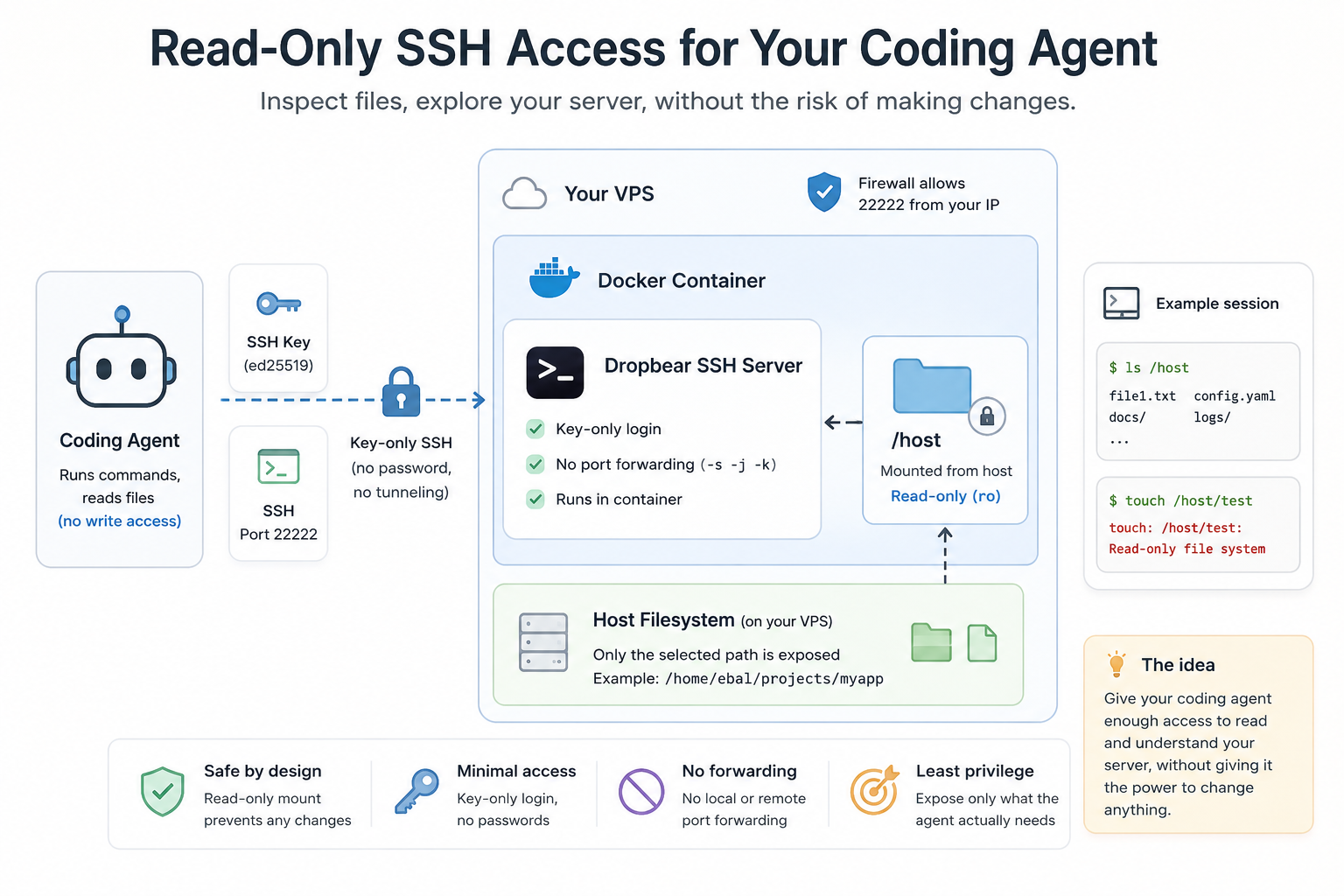
What I ended up with is pretty small and perhaps boring, which is exactly what I wanted: a tiny dropbear SSH server running in a docker container, with the part of the filesystem I want to expose mounted read-only.
This is how to reproduce it.
Dropbear is an SSH server and client. It is designed as a small-footprint alternative to OpenSSH, mostly for embedded systems, but it also works nicely for a throwaway, single-purpose SSH endpoint like this.
Step 1: make an SSH key just for this
Do not reuse your main SSH key for this. Generate a separate one, dedicated for the agent:
ssh-keygen -t ed25519
  -f ~/.ssh/dropbear_readonly
  -C "dropbear_readonly"
  -N ""
This gives you two files:
dropbear_readonly— keep this private. This is what the AI agent (or you) will use to log in.dropbear_readonly.pub— this one is fine to share. It actually goes on the server.
❯ ll
drwxr-xr-x   - ebal ebal 18 Aug 12:40 ..
drwxr-xr-x   - ebal ebal 18 Aug 12:41 .
.rw------- 411 ebal ebal 18 Aug 12:41 dropbear_readonly
.rw-r--r-- 103 ebal ebal 18 Aug 12:41 dropbear_readonly.pub
Step 2: the docker-compose.yml
ssh into the remote vps and inside a new service folder, create a file called docker-compose.yml:
---
services:
  ssh:
    image: alpine:latest
    restart: unless-stopped

    ports:
      - "${SSH_PORT:-22222}:22"

    volumes:
      - ${HOST_PATH:-/opt}:/host:ro
      - ./authorized_keys:/root/.ssh/authorized_keys:ro
      - dropbear-keys:/etc/dropbear

    command: >
      sh -c "
        apk add --no-cache dropbear bash &&
        mkdir -p /root/.ssh &&
        chmod 700 /root/.ssh &&
        exec dropbear -F -E -R -s -j -k -p 22
      "

    healthcheck:
      test: ["CMD", "pidof", "dropbear"]
      interval: 30s
      timeout: 3s
      retries: 3
      start_period: 10s

volumes:
  dropbear-keys:
The 2 parts you need to care about the most from a security point of view are these:
-
${HOST_PATH:-/opt}:/host:ro— this is the folder from the VPS that gets exposed inside the container. The important thing isro: the mount is read-only. -
Dropbear flags:
-s disables password authentication.
-j disables local forwarding, including Unix stream forwarding.
-k disables remote forwarding.
The container itself runs as root internally, but /host is still mounted read-only.
This is not a security advice.
Below you will also see an example with
/and important files like/host/var/run/docker.sockwill be exposed!
additional container hardening
read_only: true

security_opt:
  - no-new-privileges:true
Step 3: tell it which folder to share, and which port to use
I would not leave HOST_PATH at /opt unless that’s actually what you want to expose.
Again, it is better to point it at the specific project or directory the agent needs to inspect, rather than something broad like your whole home directory.
Create a .env file next to the compose file:
❯ cat > .env <<'EOF'
SSH_PORT=22222
HOST_PATH=/home/ebal/projects/myapp
EOF
or change the default values directly in the docker compose yaml file.
Step 4: add the public ssh key
Copy the .pub file you generated into an authorized_keys file in the same folder:
❯ mv dropbear_readonly.pub authorized_keys
 renamed 'dropbear_readonly.pub' -> 'authorized_keys'
Step 5: start dropbear
❯ docker compose upexample output:
❯ docker compose up

[+] up 2/2
 ✔ Network dropbear-ssh_default Created                                                                                                                                    0.4s
 ✔ Container dropbear-ssh-ssh-1 Created                                                                                                                                    0.3s
Attaching to ssh-1
ssh-1  | (1/7) Installing ncurses-terminfo-base (6.6_p20260516-r0)
ssh-1  | (2/7) Installing libncursesw (6.6_p20260516-r0)
ssh-1  | (3/7) Installing readline (8.3.3-r1)
ssh-1  | (4/7) Installing bash (5.3.9-r1)
ssh-1  |   Executing bash-5.3.9-r1.post-install
ssh-1  | (5/7) Installing skalibs-libs (2.15.0.0-r0)
ssh-1  | (6/7) Installing utmps-libs (0.1.3.3-r0)
ssh-1  | (7/7) Installing dropbear (2026.91-r0)
ssh-1  | Executing busybox-1.37.0-r31.trigger
ssh-1  | OK: 10.7 MiB in 23 packages
ssh-1  | [1] Aug 18 09:51:22 Not backgrounding
ssh-1  | [20] Aug 18 09:51:32 Child connection from 192.168.1.72:56149
ssh-1  | [20] Aug 18 09:51:34 Pubkey auth succeeded for 'root' with ssh-ed25519 key

w Enable Watch   d Detach
Then check that it actually came up:
❯ docker compose ps

NAME                  STATUS
dropbear-readonly-ssh-1  Up 12 seconds (healthy)
Step 6: test the login from your laptop
Back on your own machine:
❯ ssh -i ~/.ssh/dropbear_readonly -p 22222 root@your-vps-ipYou should land in a shell. /host is the project folder from your VPS, mounted read-only.
Is it real a readonly filesystem ?
Let’s test it, shall we ?
2420d93953fd:~# tail /host/etc/passwd

fwupd:x:969:969:Firmware update daemon:/var/lib/fwupd:/usr/bin/nologin
passim:x:968:968:Local Caching Server:/usr/share/empty:/usr/bin/nologin
alpm:x:967:967:Arch Linux Package Management:/:/usr/bin/nologin
beszel:x:1003:1005::/home/beszel:/bin/false
cups:x:209:209:cups helper user:/:/usr/bin/nologin
ntp:x:87:87:Network Time Protocol:/var/lib/ntp:/bin/false
minio:x:103:103:Minio Daemon User:/var/lib/minio:/usr/bin/nologin
pcscd:x:963:963:PC/SC Smart Card Daemon:/:/usr/bin/nologin
privoxy:x:42:42:Privoxy:/:/usr/bin/nologin
systemd-imds:x:948:948:systemd Instance Metadata:/:/usr/bin/nologin

2420d93953fd:~# rm -f /host/etc/passwd
rm: can't remove '/host/etc/passwd': Read-only file system

2420d93953fd:~# touch /host/root/file1
touch: /host/root/file1: Read-only file system
That Read-only file system error is basically the whole point.
That’s what you want to see.
Step 7: point the coding agent at it
Now give the coding agent the same three things you just used yourself:
- the host
- the port (
22222) - the private key (
dropbear_readonly)
Depending on the agent, that might be an SSH config entry, or just those values entered into some kind of remote filesystem / SSH setup.
Once connected, it can read and list files under /host, but it can’t modify, delete, or create anything there. If it tries, it’ll get the same Read-only file system error you saw above.
Or even better, update your .ssh/config
Host readonly
    Hostname <your-vps-ip>
    Port 22222
    User root
    IdentityFile ~/.ssh/dropbear_readonly
That’s it.
-Evaggelos
PS. An alternative method
There is always a similar and different solution, to run a coding agent directly to the destination (remote) server and keep the agent only to a specific directory. With this alternative solution we need an agent to each remote server.
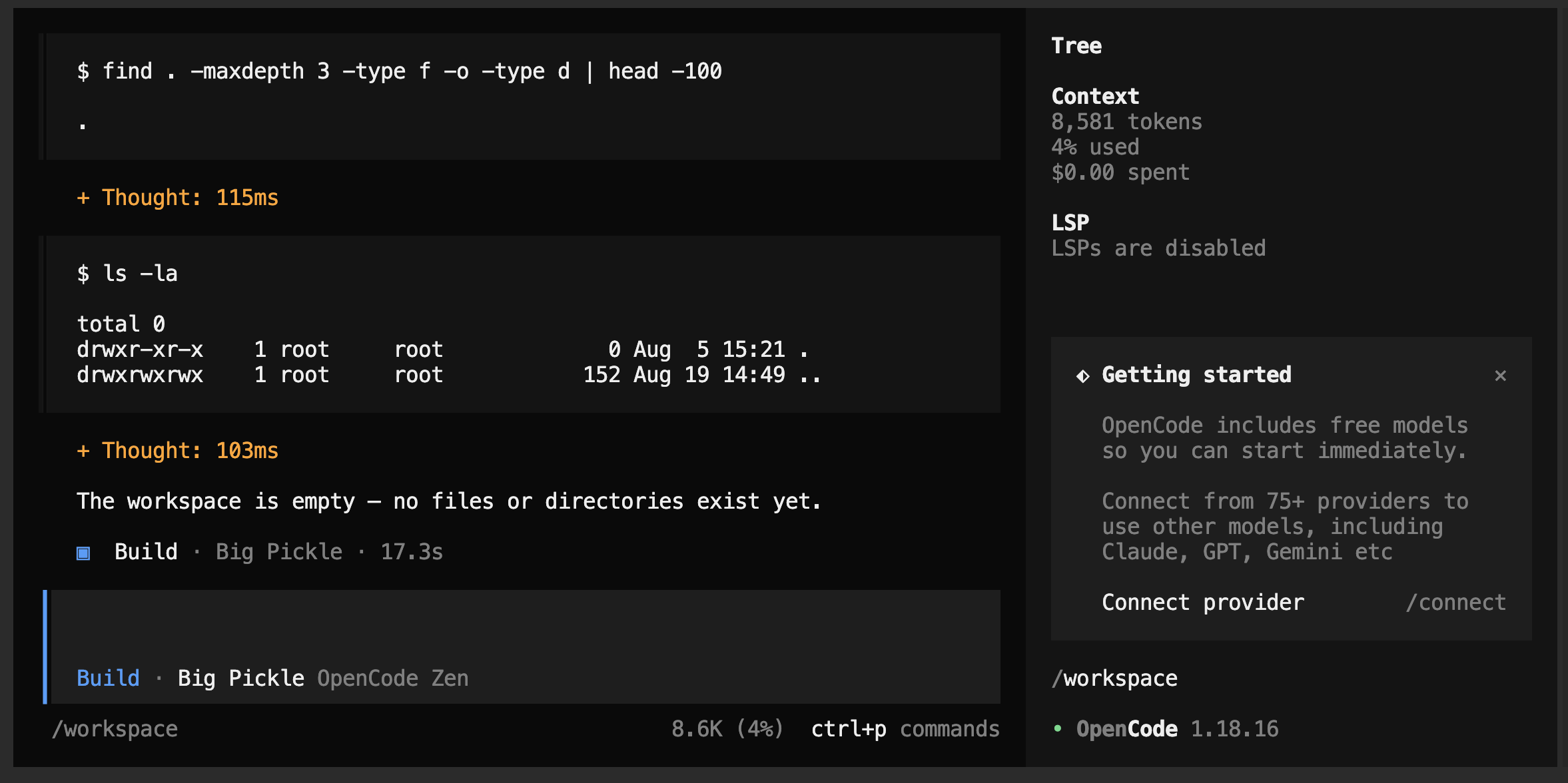
opencode in remote server example
so here is an example:
---
services:
  opencode-sandbox:
    # Pinned version - avoid ':latest',
    # recent builds have had regressions (e.g. TUI hangs)
    image: ghcr.io/anomalyco/opencode:1.18.16
    container_name: opencode_agent
    # Keep stdin open for the interactive TUI
    stdin_open: true
    # Allocate a TTY for interactive use
    tty: true
    # Mount local folder into the sandbox
    volumes:
      - ./sandbox:/workspace
    # Set /workspace as the default working directory
    working_dir: /workspace
    # Keep secrets (API keys) out of this file
    env_file:
      - opencode.env
    environment:
      - TZ=Europe/Athens
    # Prevent privilege escalation inside the container
    security_opt:
      - no-new-privileges:true
    # Cap memory - adjust to taste
    mem_limit: 2g
    # Cap CPU
    cpus: 2
    restart: unless-stopped
and the env example file: opencode.env
# ANTHROPIC_API_KEY=your_key_here
# OPENAI_API_KEY=your_key_here
❯ docker compose exec -ti opencode-sandbox opencodean example
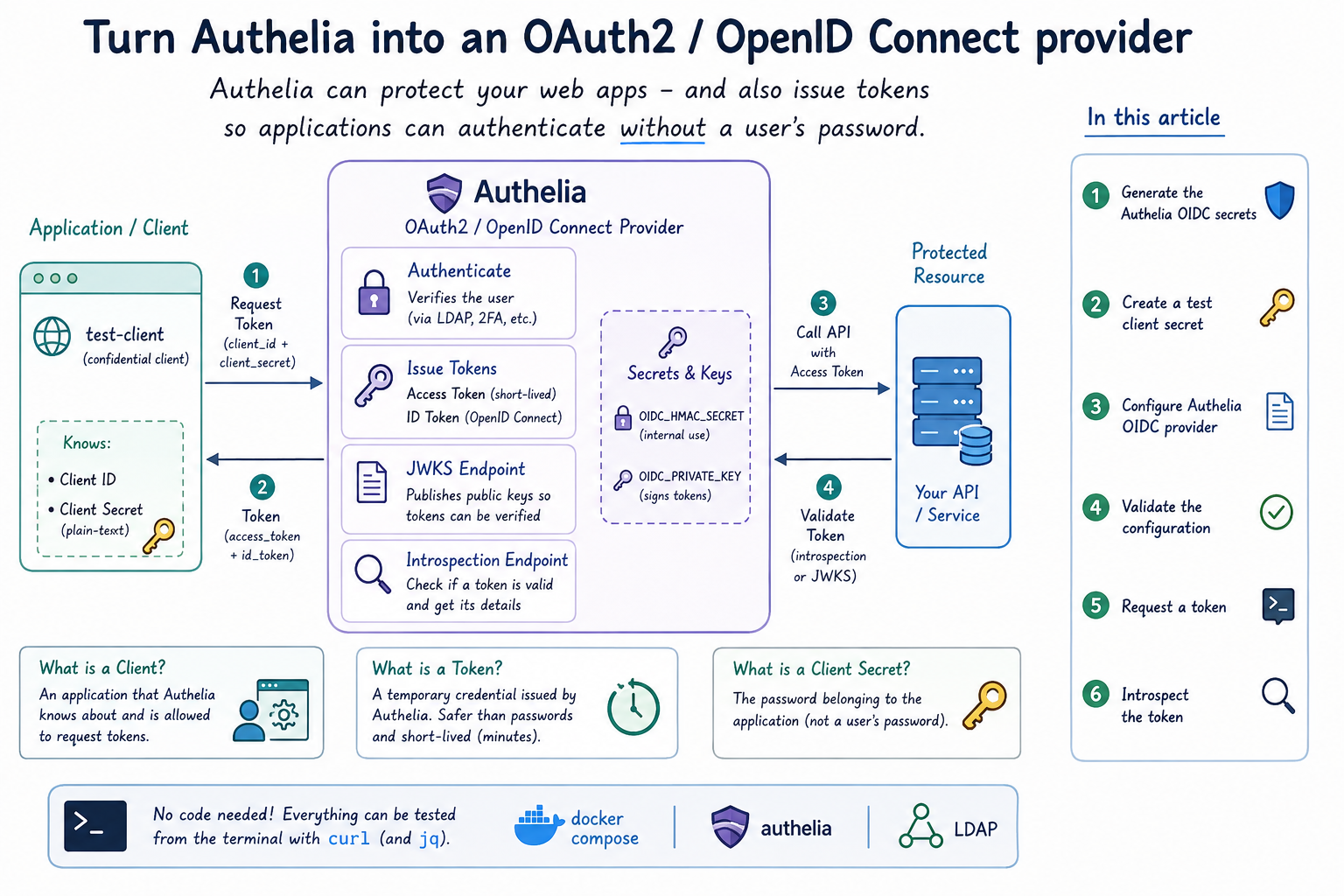
In my previous post I used Authelia in front of a self-hosted service to handle authentication before users are allowed. That works well when there is a human using a browser. Authelia can also act as an OAuth2 / OpenID Connect provider, which means applications can authenticate and obtain tokens without needing access from a user’s actual password.
In this article, I will enable OIDC, then register a small test client and verify that token generation works correctly. I am not connecting a “real” application yet, as it will be the subject of my next blog post.
You don’t need to write any code for this. Everything can be tested from the terminal with curl.
What you need before starting
I am assuming you already have the Authelia setup from the previous article running with docker compose.
You’ll also need:
opensslcurl- optionally
jq, which makes JSON output easier to read :)
On Arch:
sudo pacman -S jq curl opensslOn Debian/Ubuntu:
sudo apt -y install jq curl opensslI’m keeping the same directory structure as before:
./authelia/
├── authelia.env
├── docker-compose.yaml
├── config/
│   └── configuration.yml
└── secrets/
    ├── JWT_SECRET
    ├── LDAP_PASSWORD
    ├── SESSION_SECRET
    └── STORAGE_ENCRYPTION_KEY
We’ll add two more files under secrets/ and extend configuration.yml.
What is OAuth ?
Before getting into the configuration, there are three (3) terms that we need to know.
Client
A client is simply an application that Authelia knows about and allows to request tokens.
In this example the client will be called:
test-clientClient secret
This is essentially the password belonging to the application.
It is not a user’s password.
The client uses it’s ID together with this secret when requesting a token.
Token
A token is a temporary credential issued by Authelia. Instead of passing usernames and passwords between services, applications can work with these short-lived credentials. Which is great, because if a bad actor “read” this token, it’s not like your username/password and only lives for a minute or two!
Step 1 - Generate the Authelia OIDC secrets
So, Authelia needs an HMAC secret and a private key for its OIDC provider.
From inside the ./authelia directory, run the below commands:
# This command generates a secure, random string of characters
openssl rand -hex 64 | tr -d 'n' > ./secrets/OIDC_HMAC_SECRET

# This command generates a RSA Private Key
openssl genrsa -out ./secrets/OIDC_PRIVATE_KEY 4096
New secrets:
OIDC_HMAC_SECRET

OIDC_PRIVATE_KEY
The HMAC secret is used internally by Authelia.
The RSA private key will be used for signing tokens so they can later be verified.
Change the permissions of secret files
chmod 600 ./secrets/OIDC_HMAC_SECRET ./secrets/OIDC_PRIVATE_KEYStep 2 - Create a test client secret
For testing I shall register a client called:
test-clientFirst generate a random secret for it:
openssl rand -hex 32BE Careful , this is a different random key than the above !
example output:
f8dfed59027a5fb575929edde48f5117fb199a504b92a699351a1ab8caed05cfSave the output temporarily somewhere safe.
You will need two versions of this secret:
- the plain-text value, which the client will use later
- a hashed version, which goes into Authelia’s configuration
Generate the hash with Authelia itself:
export YOUR_RANDOM_CLIENT_SECRET="< your random secret here >"

docker compose exec authelia authelia crypto hash generate pbkdf2
  --variant sha512
  --password "${YOUR_RANDOM_CLIENT_SECRET}"
  --no-confirm
The result should look roughly like:
Digest: $pbkdf2-sha512$...Save it the hashed secret to a new secret file:
docker compose exec authelia authelia crypto hash generate pbkdf2
  --variant sha512
  --password "${YOUR_RANDOM_CLIENT_SECRET}"
  --no-confirm | awk '{print $NF}' > ./secrets/OIDC_CLIENT_SECRET_HASH
Keep the original plain-text secret. We will need it when testing the token endpoint.
Step 3 - Configure Athelia OIDC provider
Why some secrets are variables and some files?
Ideally we want to have a dynamic setup to easily rotate secrets etc, but and althouth authelia -technically- allows you to pass complex JSON objects via environment variables, it is messy and prune to errors. Especially with intentation and formating.
Open:
./config/configuration.ymland add a new top-level identity_providers section.
Do not remove any existing configuration.
identity_providers:

  # OpenID Connect (Identity Provider)
  oidc:
    # hmac_secret is now handled by docker-compose.yaml!
    # hmac_secret: '<paste the contents of OIDC_HMAC_SECRET here>'

    # The JWK's issuer configures JSON Web Keys
    jwks:
      - key_id: 'primary'
        algorithm: 'RS256'
        use: 'sig'
        key: {{ secret "/config/secrets/OIDC_PRIVATE_KEY" | mindent 10 "|" | msquote }}

    # Clients is a list of registered clients and their configuration.
    clients:
      - client_id: 'test-client'
        client_name: 'Test client for OIDC'
        # client_secret: '<paste the hashed secret from Step 2 here>'
        # or
        # client_secret: <read it from volume mount'
        client_secret: {{ secret "/config/secrets/OIDC_CLIENT_SECRET_HASH" }}

        public: false

        authorization_policy: 'one_factor'

        token_endpoint_auth_method: 'client_secret_post'

        scopes:
          - 'test-scope'

        grant_types:
          - 'client_credentials'

        response_types: []
update docker compose
and update docker compose yaml file to add secret and envirnment variable:
services:
  authelia:
    # ... your other authelia config ...

    volumes:
      - ./config:/config
      # Mount the private key file generated in the blog post into the container
      - ./secrets/OIDC_PRIVATE_KEY:/config/secrets/OIDC_PRIVATE_KEY:ro
      - ./secrets/OIDC_CLIENT_SECRET_HASH:/config/secrets/OIDC_CLIENT_SECRET_HASH:ro

    environment:
      # ...
      # Enable the template filter so Authelia can parse the {{ secret }} syntax
      - X_AUTHELIA_CONFIG_FILTERS=template
      # Notice the _FILE suffix at the end of the variable name
      - AUTHELIA_IDENTITY_PROVIDERS_OIDC_HMAC_SECRET_FILE=/run/secrets/AUTHELIA_IDENTITY_PROVIDERS_OIDC_HMAC_SECRET

    secrets:
      # ...
      - AUTHELIA_IDENTITY_PROVIDERS_OIDC_HMAC_SECRET

secrets:
  # ...
  AUTHELIA_IDENTITY_PROVIDERS_OIDC_HMAC_SECRET:
    file: ./secrets/OIDC_HMAC_SECRET
Alternative you can print the two secret files with:
cat ./secrets/OIDC_HMAC_SECRETcat ./secrets/OIDC_PRIVATE_KEYand copy their contents into the configuration.
client fields
A few fields are worth pointing out.
grant_types
We’re using:
grant_types:
  - 'client_credentials'
The client credentials flow is useful for machine-to-machine authentication.
There is no browser login involved. The application authenticates using their client_id and client_secret.
For what I want to test here, this is the simplest option.
scopes
For the time beging I am using:
scopes:
  - 'test-scope'
There is nothing special about the name. It is just a test scope that we will request later with curl.
Also, be careful with the YAML indentation. A misplaced space is enough to break the configuration. Ask me how I know this!
Step 4 - Validate the configuration
Before restarting anything, validate the configuration:
docker compose run --rm authelia authelia config validate --config /config/configuration.ymlIf everything is correct, you should see:
Configuration parsed and loaded successfully without errors.example output:
~> sudo docker compose run --rm authelia authelia config validate --config /config/configuration.yml

Container traefik-authelia-run-7afd8b44e1ad Creating
Container traefik-authelia-run-7afd8b44e1ad Created
Configuration parsed and loaded successfully without errors.
If validation fails, fix the configuration before continuing.
In my experience, indentation and incorrectly pasted keys are the first things worth checking.
Now restart Authelia:
docker compose restart authelia
# docker compose ps authelia

NAME          IMAGE                                       COMMAND                  SERVICE       CREATED          STATUS                    PORTS
authelia      authelia/authelia:4.39                      "/app/entrypoint.sh"     authelia      15 seconds ago   Up 14 seconds (healthy)   9091/tcp
watch the logs:
docker compose logs -f autheliaMake sure Authelia starts normally and there are no OIDC related configuration errors.
Press Ctrl+C once you’re satisfied everything is running or d to detach if started authelia with docker compose up authelia
Step 5 - Request a token
Now we can test the authelia oidc provider.
Replace:
authelia.example.orgwith your actual Authelia hostname.
and also:
YOUR_RANDOM_CLIENT_SECRETwith the original plain-text secret generated in Step 2.
Run:
curl -s -X POST https://authelia.example.org/api/oidc/token
  -d 'grant_type=client_credentials'
  -d 'client_id=test-client'
  -d 'client_secret=PASTE_YOUR_RANDOM_SECRET_HERE'
  -d 'scope=test-scope' | jq
A successful response should look similar to this:
{
  "access_token": "authelia_at_< ... >",
  "expires_in": 3599,
  "scope": "test-scope",
  "token_type": "bearer"
}
At this point Authelia has successfully authenticated the client and issued an access token for 1hour !
Copy the value of:
access_tokenbecause we will use it in the next test.
my preferable way:
ACCESS_TOKEN=$(curl -s -X POST https://authelia.example.org/api/oidc/token   -d 'grant_type=client_credentials'   -d 'client_id=test-client'   -d "client_s
ecret=${YOUR_RANDOM_CLIENT_SECRET}"  -d 'scope=test-scope' | jq -r .access_token)
If you get an error, these are the first things I’d check:
invalid_client— verify theclient_idand client secretinvalid_scope— make sure the requested scope matches the configured scopeunauthorized_client— check thatclient_credentialsis included undergrant_types
Step 6 - Introspect the token
Generating a token is only half the test.
I also want to verify that Authelia can recognise the token afterwards and report whether it is still valid.
That’s what the introspection endpoint is for.
Type:
curl -s -X POST https://authelia.example.org/api/oidc/introspection
     -u "test-client:${YOUR_RANDOM_CLIENT_SECRET}"
     -d "token=${ACCESS_TOKEN}" | jq .
a valid token should return something similar to:
{
  "active": true,
  "client_id": "test-client",
  "exp": 1786554376,
  "iat": 1786550776,
  "scope": "test-scope"
}
The part we care about here is:
"active": trueThat confirms that Authelia recognises the token and considers it valid.
The response also includes the client ID, scope and expiry timestamp.
Once the token expires, introspecting the same token should return it as inactive.
That’s it
-Evaggelos
I like running a few services either on my private homelab or on various cloud VPS. I prefer self-hosted applications and my security/privacy setup is to have a different username/email with a different password for each one of them. With password managers like vaultwarden/Bitwarden this is easier. What I would like to do next is to restrict access and protect my cloud applications behind a single login page and add 2FA to them. That’s what Authelia does.
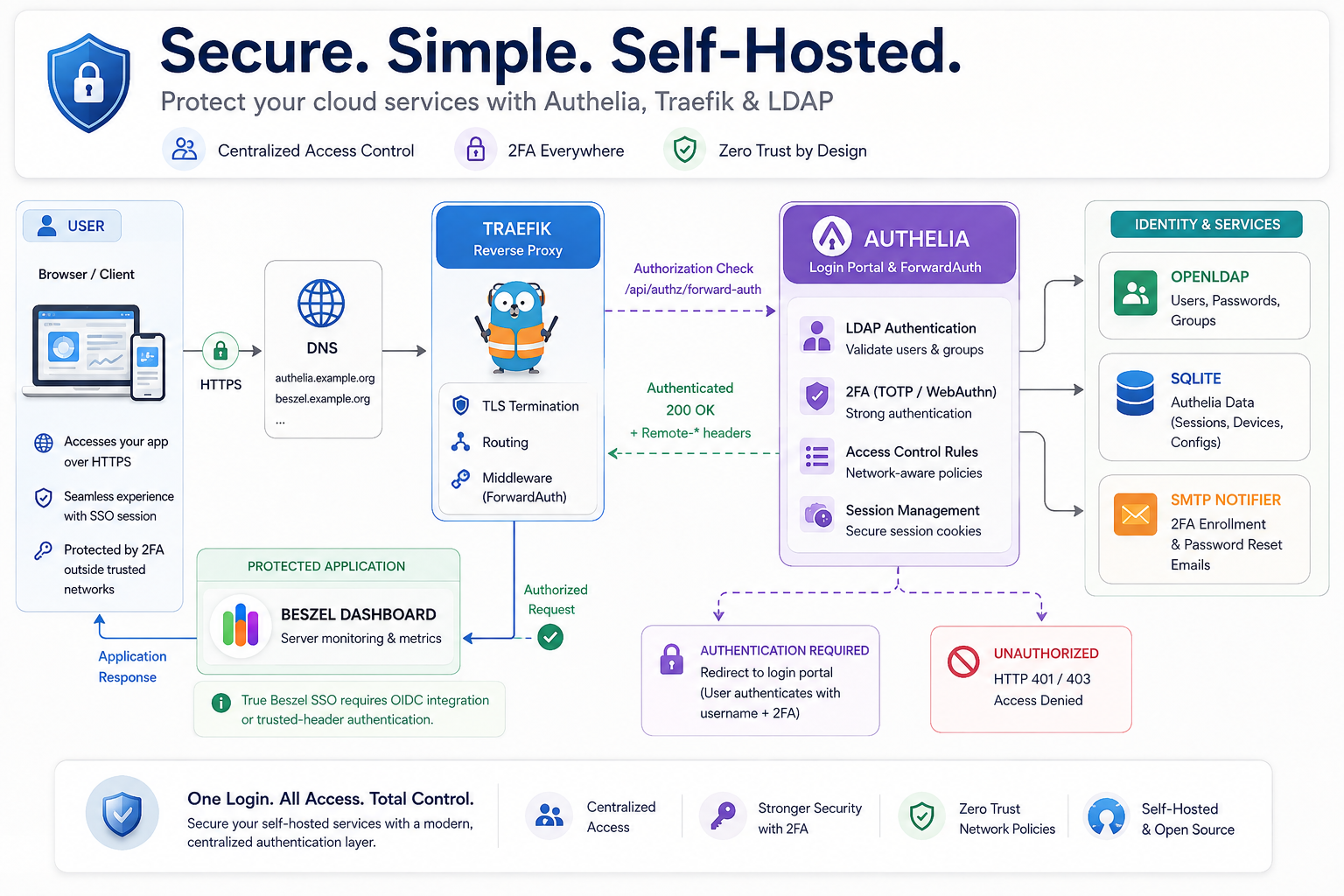
In this article I will walk you through on how to setup authelia, and to make it concrete, we will protect Beszel, which is a lightweight server-monitoring dashboard that tracks CPU, RAM, disk, and network usage of your machines. It’s a great first useful, simple, and easy to tell at a glance whether the login wall is working.
Prerequisites
- Authelia — the login page that decides who gets in
- Authelia MUST be served via the https scheme. This is not optional even for testing!
- Authelia is a companion of reverse proxies like Traefik (good news)
- Traefik — your existing reverse proxy, which it will tell to ask Authelia’s permission before letting anyone through your application
- Your existing LDAP server — the directory of usernames and passwords Authelia will check against
- I user openldap already, so it’s useful to use an existing database.
- Beszel — the example app we’ll put behind the login page
- a new DNS name for authelia, like
authelia.example.org
Authelia Architecture
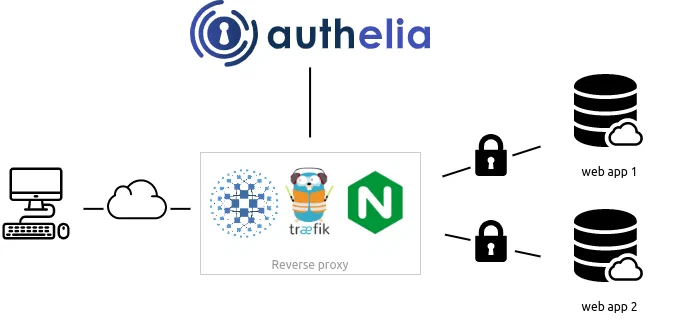
Directory layout
Here is the folder layout (under traefik directory):
./authelia/
├── authelia.env
├── docker-compose.yaml
├── config/
│   └── configuration.yml
└── secrets/
    ├── JWT_SECRET
    ├── LDAP_PASSWORD
    ├── SESSION_SECRET
    └── STORAGE_ENCRYPTION_KEY
Step 1 — Create the folders
Authelia needs two folders: one for its configuration file, and one for its secret keys. Actually the secret directory is a choice for storing the authelia secrets that we will create at the next step.
mkdir -p ./authelia/config
mkdir -p ./authelia/secrets
Step 2 — Generate the secret keys
Authelia relies on a few long, random strings to keep things secure: one to sign password-reset links, one to encrypt your login session, and one to encrypt its small local database. Rather than pasting these into a config file in plain sight, we’ll save each one into its own private file.
copy/paste the below commands in your terminal to generate all secrets:
openssl rand -hex 32 | tr -d 'n' > ./authelia/secrets/JWT_SECRET
openssl rand -hex 32 | tr -d 'n' > ./authelia/secrets/SESSION_SECRET
openssl rand -hex 32 | tr -d 'n' > ./authelia/secrets/STORAGE_ENCRYPTION_KEY
Now add your LDAP bind password:
echo -n "YOUR_LDAP_BIND_PASSWORD" > ./authelia/secrets/LDAP_PASSWORDFinally, update permissions to these files so only your user can read them:
chmod 600 ./authelia/secrets/*What each file is for:
| File | Purpose |
|---|---|
JWT_SECRET |
Signs password-reset links so they can’t be forged |
SESSION_SECRET |
Encrypts your login session cookie |
STORAGE_ENCRYPTION_KEY |
Encrypts Authelia’s local database (registered devices, sessions) |
LDAP_PASSWORD |
The password Authelia uses to log into your LDAP server and search it |
Do not commit this
secretsfolder to git, and never share these files, to avoid anyone to impersonate your authelia.
Step 3 — Authelia configuration file
Create a new configuration file at ./authelia/config/configuration.yml.
Replacing the <...> placeholders with your own details and domain.
I use example.com for the ldap server and example.org for application domain. Which means I have multiple domains on the LDAP.
---
identity_validation:
  reset_password:

definitions:
  network:
    internal:
      - '10.10.0.0/16'
      - '172.16.0.0/12'
      - '192.168.2.0/24'
      - '100.64.0.0/10'  # tailscale network
    my_static:
      - '<my_static_ip>/32'

authentication_backend:
  ldap:
    address: 'ldaps://<ldap_ip>:636'
    implementation: 'custom'
    tls:
      server_name: 'openldap.example.com'
    base_dn: 'dc=example,dc=com'
    additional_users_dn: 'ou=People'
    # login with either username or email address
    users_filter: '(&(|({username_attribute}={input})({mail_attribute}={input}))(objectClass=person))'
    additional_groups_dn: 'ou=Groups'
    groups_filter: '(&(member={dn})(objectClass=groupOfNames))'
    user: 'cn=admin,dc=example,dc=com'
    attributes:
      username: 'uid'
      display_name: 'cn'
      mail: 'mail'

access_control:
  default_policy: 'deny'

  rules:
    - domain: 'blog.example.org' # allow blog to everybody
      policy: 'bypass'

    - domain: 'beszel.example.org' # bypass beszel for my networks
      policy: 'bypass'
      networks:
        - 'internal'
        - 'my_static'

    - domain: 'beszel.example.org' # username/password to access beszel for all other networks.
      #policy: 'one_factor'
      policy: 'two_factor'

# session cookies to authorize user access to various protected websites
session:
  name: 'authelia_session'
  cookies:
    - domain: 'example.org'
      authelia_url: 'https://authelia.example.org'
      default_redirection_url: 'https://beszel.example.org'

# storage options: sqlite, mysql & postgres
storage:
  local:
    path: '/config/db.sqlite3'

# switch to SMTP in production
notifier:
  filesystem:
    filename: '/config/notification.txt'
...
Validate authelia configuration
if you need to verify authelia configuration at any point, use:
docker compose run --rm authelia authelia config validate --config /config/configuration.yml
a typical resul should be:
# docker compose run --rm authelia
  authelia config validate --config /config/configuration.yml

Container traefik-authelia-run-ef4ec807d5b6 Creating
Container traefik-authelia-run-ef4ec807d5b6 Created
Configuration parsed and loaded successfully without errors.
Step 4 — Create the Beszel user in LDAP
the LDAP directory is the source of truth for who gets in, so we need at least one user to log in with. On your LDAP server, generate a hashed password for that user. The main idea is that the the ldap user and the beszel user have the same credentials to autologin. Eitherwise you just need to login twice :)
slappasswd -h {SSHA} -s "YOUR_BESZEL_PASSWORD"Copy the output — it should look like {SSHA}abc123... — and create a file called beszel.ldif with this content (adjust uid, cn, mail to fit your setup):
dn: uid=beszel,ou=People,dc=example,dc=com
objectClass: inetOrgPerson
objectClass: organizationalPerson
objectClass: person
objectClass: posixAccount
objectClass: top
cn: Beszel User
givenName: Beszel
homeDirectory: /home/beszel
mail: beszel@example.org
sn: User
uid: beszel
uidNumber: 1001
gidNumber: 1001
userPassword: {SSHA}<hashed_password>
Now add it to your directory. Run this on your LDAP server (or from any machine that can reach it and has the ldap-utils tools installed):
ldapadd -x -D "cn=admin,dc=example,dc=com" -W -f beszel.ldifYou’ll be prompted for the LDAP admin password, then the user is created. That’s the account you’ll type into Authelia’s login page in Step 8.
the above ldap diff is an example, adapt it accordinly to your needs and setup.
Step 5 — Add Authelia to your docker-compose.yml
Create ./authelia/docker-compose.yaml with this content:
---
services:
  authelia:
    image: authelia/authelia:4.39.20
    container_name: authelia
    restart: unless-stopped
    volumes:
      - ./config:/config
    healthcheck:
      disable: false
    secrets:
      - AUTHELIA_JWT_SECRET
      - AUTHELIA_LDAP_PASSWORD
      - AUTHELIA_SESSION_SECRET
      - AUTHELIA_STORAGE_ENCRYPTION_KEY
    env_file:
      - ./authelia.env

secrets:
  AUTHELIA_JWT_SECRET:
    file: ./secrets/JWT_SECRET
  AUTHELIA_LDAP_PASSWORD:
    file: ./secrets/LDAP_PASSWORD
  AUTHELIA_SESSION_SECRET:
    file: ./secrets/SESSION_SECRET
  AUTHELIA_STORAGE_ENCRYPTION_KEY:
    file: ./secrets/STORAGE_ENCRYPTION_KEY
Then create ./authelia/authelia.env (change the timezone to yours). Change the log level to debug if also needed:
AUTHELIA_LOG_LEVEL=info

TZ=Europe/Athens

AUTHELIA_AUTHENTICATION_BACKEND_LDAP_PASSWORD_FILE=/run/secrets/AUTHELIA_LDAP_PASSWORD
AUTHELIA_SESSION_SECRET_FILE=/run/secrets/AUTHELIA_SESSION_SECRET
AUTHELIA_STORAGE_ENCRYPTION_KEY_FILE=/run/secrets/AUTHELIA_STORAGE_ENCRYPTION_KEY
AUTHELIA_IDENTITY_VALIDATION_RESET_PASSWORD_JWT_SECRET_FILE=/run/secrets/AUTHELIA_JWT_SECRET
A few things worth knowing about this block:
- No
ports:line. There is no need to expose Authelia directly to the internet — Traefik will talk to it privately, container-to-container, over the shared network. - No custom healthcheck needed. The Authelia image already includes one built in — Docker will automatically mark the container “healthy” or “unhealthy” without you configuring anything.
- The
secrets:block mounts each secret file into the container at/run/secrets/..., read-only. Theenv_filelines then just tell Authelia where to find each one. This keeps the actual secret values out ofdocker inspectoutput, unlike writing them straight as environment variables.
hey! do not forgot to update traefik docker-compose.yaml to include authelia docker compose yaml
include:
  # authelia.example.org: authentication and authorization server and portal
  - path: ./authelia/docker-compose.yaml
Step 6 — Tell Traefik about Authelia
I am using YAML dynamic configuration with Traefik and not labels, for me it’s more clear that way. I keep everyting under etc_traefik/dynamic/
First, we add the middleware aka the reusable “ask Authelia before letting this request through” rule. Create middlewares.yml if you have not yet a middleware yaml file.
http:
  middlewares:

    authelia:
      forwardAuth:
        # address: "http://authelia:9091/api/verify?rd=https://authelia.example.org/"
        address: "http://authelia:9091/api/authz/forward-auth"
        trustForwardHeader: true
        maxResponseBodySize: 8192
        authResponseHeaders:
          - Remote-User
          - Remote-Groups
          - Remote-Name
          - Remote-Email
Then, we create the router — so the login page itself is reachable at https://authelia.example.org and also auto create the TLS certifcate with letsencrypt.
authelia.yml:
http:
  routers:
    authelia:
      rule: 'Host(`authelia.example.org`)'
      entryPoints: ["websecure"]
      service: "authelia"
      tls:
        certResolver: letsencrypt

    authelia-http:
      rule: 'Host(`authelia.example.org`)'
      entryPoints:
        - web
      service: "authelia"
      middlewares:
        - redirect-to-https

  services:
    authelia:
      loadBalancer:
        servers:
          - url: "http://authelia:9091"
Notes:
certResolver: letsencrypt— use whatever you named your certificate resolver in Traefik’s main config (the one that gets you your Let’s Encrypt certificates). If yours has a different name, change it here.authelia-httpjust catches plainhttp://requests and redirects them tohttps://— this assumes you already have aredirect-to-httpsmiddleware defined in your Traefik dynamic config, which is a standard pattern.- Make sure both
authelia.example.organdbeszel.example.orgalready have DNS records (anArecord) pointing at your server, same as your other subdomains.
Step 7 — Put Beszel behind the login page
Now for the authelia part to beszel. Update beszel.yml in the same Traefik dynamic config folder. If Beszel already has a router file, it should look this:
http:
  routers:
    beszel:
      rule: 'Host(`beszel.example.org`)'
      entryPoints: ["websecure"]
      service: "beszel"
      tls:
        certResolver: letsencrypt
      middlewares:
        - authelia@file     # <-- this line is the only change

    beszel-http:
      rule: 'Host(`beszel.example.org`)'
      entryPoints:
        - web
      service: "beszel"
      middlewares:
        - redirect-to-https

  services:
    beszel:
      loadBalancer:
        servers:
          - url: "http://beszel:8090"
The whole magic is: - authelia@file in the middleware list. (The @file suffix just tells Traefik the middleware is defined in a dynamic file.
Any router you add that line to is now protected: visitors get redirected to the Authelia login page first.
TRUSTED_AUTH_HEADER
Do not forget to add TRUSTED_AUTH_HEADER to your beszel docker compose yaml file, to allow autologin!
beszel-docker-compose.yml
environment:
  USER_CREATION: false
  TRUSTED_AUTH_HEADER: "Remote-Email"
With this, it will
Step 8 — Start authelia.
From the ./authelia folder:
docker compose up -d authelia
docker compose logs -f authelia
Traefik is already watching its dynamic config folder, so it will pick up the new files automatically — no restart needed.
Monitor docker compose logs in the console.
Open https://authelia.example.org in your browser. You should see Authelia’s login page.
Then open https://beszel.example.org on a new tab.
- From home (on your local network, or from your fixed home IP): you should land straight on Beszel — no authelia login, thanks to the
bypassrule for trusted networks. - From anywhere else (try your phone on mobile data or brave via tor): you’ll be redirected to the authelia login page. Log in with the
beszeluser or email and the password you set in ldap, and you should autologin on Beszel, now authenticated. Magic ! - The public blog (
blog.example.org) stays open to everyone — check it still loads without a login.
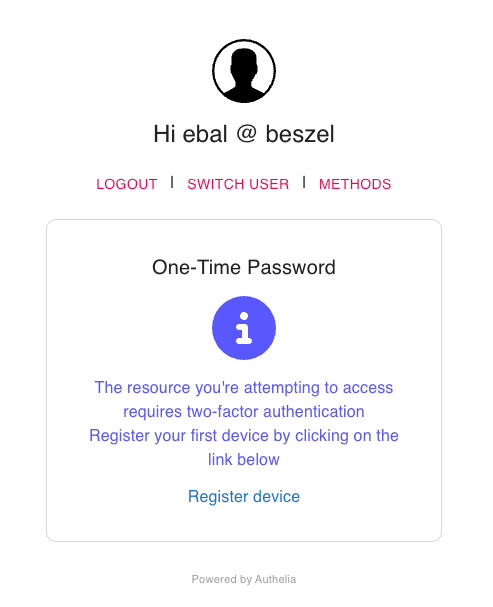
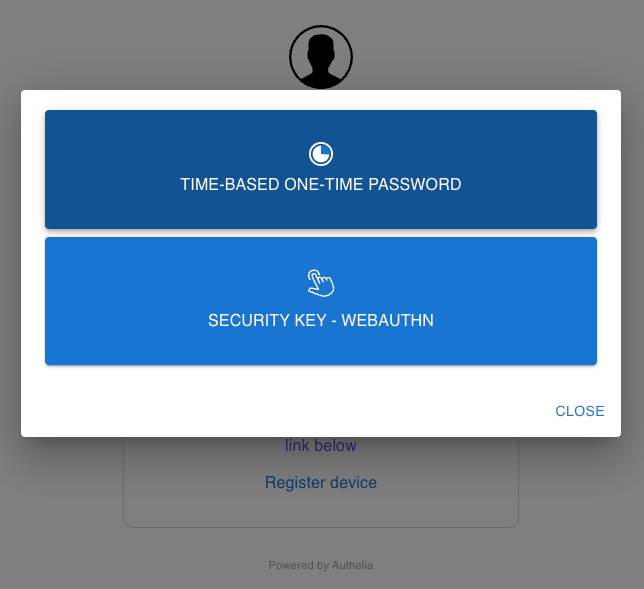
That’s it !
Evaggelos
I am in the process of migrating my self-hosted email server to a new virtual private server. I also want to upgrade and test some new features, more specifically add oauth2 capabilities with an authentication and authorization server. To avoid big mistakes and keeping my current backend, I looked into how to proxy IMAP traffic to a new mail setup.
Fortunately, dovecot, has the ability to act as an imap proxy. The setup is really easy. I will run everything local on my archlinux homepc, so I do not need to expose anything till I am ready. My preferred way to run services is via containers and docker compose make this really easy.
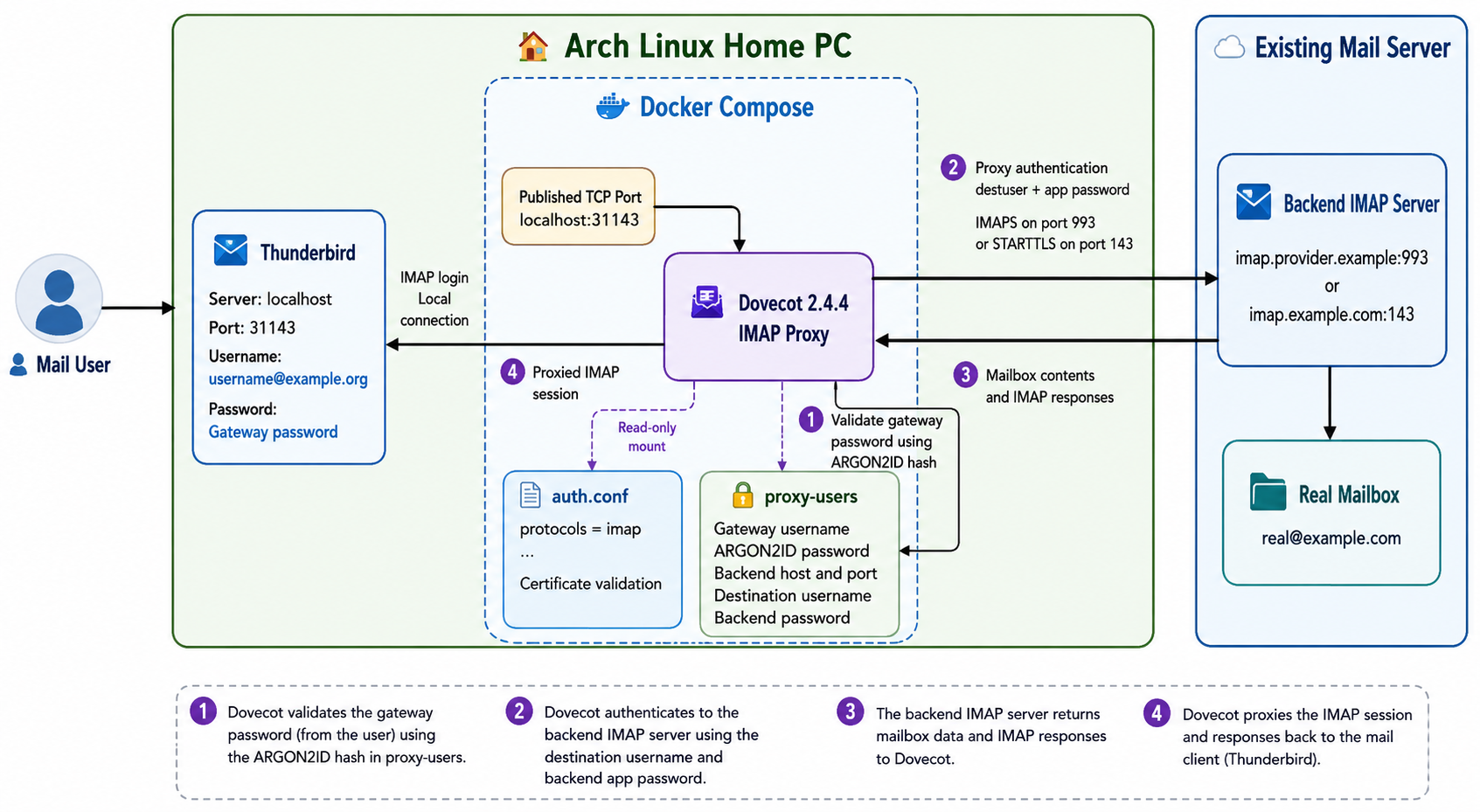
dovecot docker compose
Let’s start with the dovecot docker compose setup.
docker-compose.yml
---
services:
  dovecot:
    image: dovecot/dovecot:2.4.4
    container_name: dovecot
    restart: unless-stopped
    ports:
      - 31143:31143
    volumes:
      - ./auth.conf:/etc/dovecot/conf.d/auth.conf:ro
      - ./proxy-users:/etc/dovecot/proxy-users:ro
Note: You can either use latest tag if you prefer. It is a best practice to avoid latest so you always know what is the running version, but you can also use dovecot/dovecot:latest if you like.
Run the below command to download the container image:
docker compose -v pulldovecot configuration
Now, let’s dive into the configuration files.
auth.conf
# Tells Dovecot to only load and listen for the IMAP protocol.

# Enable only the IMAP protocol.
protocols = imap

# Authentication used by the IMAP client.
auth_mechanisms = plain login

# Required when the IMAP client connects without TLS.
# Safe only on a private, non-published Docker network.
auth_allow_cleartext = yes

# Authenticate the local gateway account and return proxy fields.
passdb passwd-file {
    passwd_file_path = /etc/dovecot/proxy-users
}

# Tells Dovecot which Certificate Authorities (CAs) to trust.

# Use ca-certificates to check TLS/SSL
ssl_client_ca_file = /etc/ssl/certs/ca-certificates.crt

# enforces strict certificate validation
ssl_client_require_valid_cert = yes
Let’s explain everything.
This is a local instance, so there is no need to be extravagance configuration.
- Enable only the IMAP protocol.
- Enable plain login for the imap client e.g. thunderbird.
- Allow clear text password, as we do not have TLS (for now).
- Use a text file for username, password and proxy to the real imap mail server.
- Enable TLS/SSL check (our real imap server uses startTLS) and
- Validate the certificate of our real imap server.
Start the dovecot docker compose service
docker compose -v up
No worries if it fails, the
Username and Password
Now the important thing, how to create a new user and how to proxy to the real imap mail server !
But before that, let’s create a new secure password:
docker compose exec dovecot doveadm pw -s ARGON2ID
This is a test password.
a full example
❯ docker compose exec dovecot doveadm pw -s ARGON2ID

Enter new password: <test>
Retype new password: <test>

{ARGON2ID}$argon2id$v=19$m=65536,t=3,p=1$I4BtU8w1KdKI6DNxdJ4aNQ$gP+dEXRDp7vD7IBirwHPe3HqXPwKfbDV+nh8qsdBhaE
It is important to keep the output.
Next item on the list, to select a new username.
And I chose: username@example.org 🙂
For SSL (TCP Port: 993), the proxy settings are:
host=imap.provider.example
port=993
ssl=yes
destuser=real@example.com
pass=app-password
For starttls the proxy settings are:
host=imap.example.com
port=143 starttls=yes
destuser=real@example.com
pass=REAL_APP_PASSWORD
proxy_mech=CRAM-MD5
And I’ve added the CRAM-MD5 (encrypted password) just for additional info.
Now, let’s put everything together
vim proxy-users
{ARGON2ID}$argon2id$v=19$m=65536,t=3,p=1$I4BtU8w1KdKI6DNxdJ4aNQ$gP+dEXRDp7vD7IBirwHPe3HqXPwKfbDV+nh8qsdBhaE::::::proxy=y host=imap.provider.example port=993 ssl=yes destuser=real@example.com pass=app-passwordAnd make sure you change ownership and permissions before you start the container.
sudo chown 1000:1000 proxy-users
sudo chmod 600 proxy-users
Let’s recreate or stop/start dovecot docker compose and test it
docker compose -v down
docker compose -v up -d
thunderbird
finally let’s check our mail client
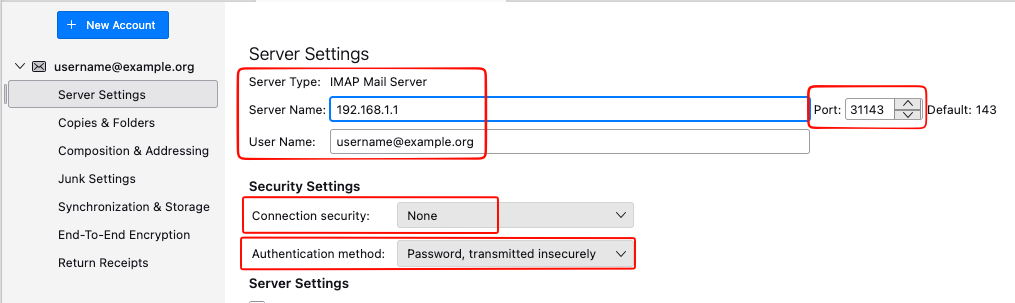
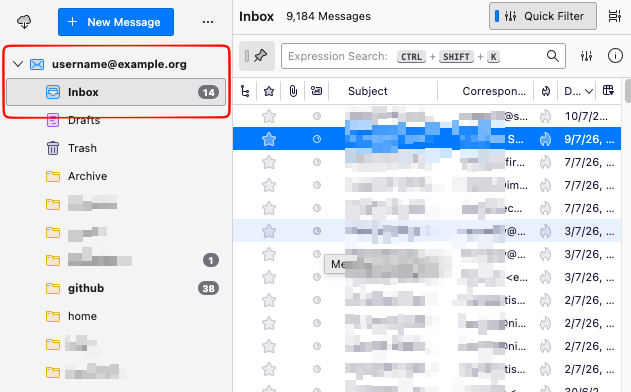
That’s it!
Evaggelos
coding agents are useful, but they forget. I’ve find it from time and time to either repeat my self or creating skills to reuse them. But I also use multiple agents and on different machines too which is also complicated. I was looking for a way to keep a common memory to my agents. And built my services and setup without … forgetting !
This guide shows a simple MVP setup for giving your AI coding agents one shared memory system.
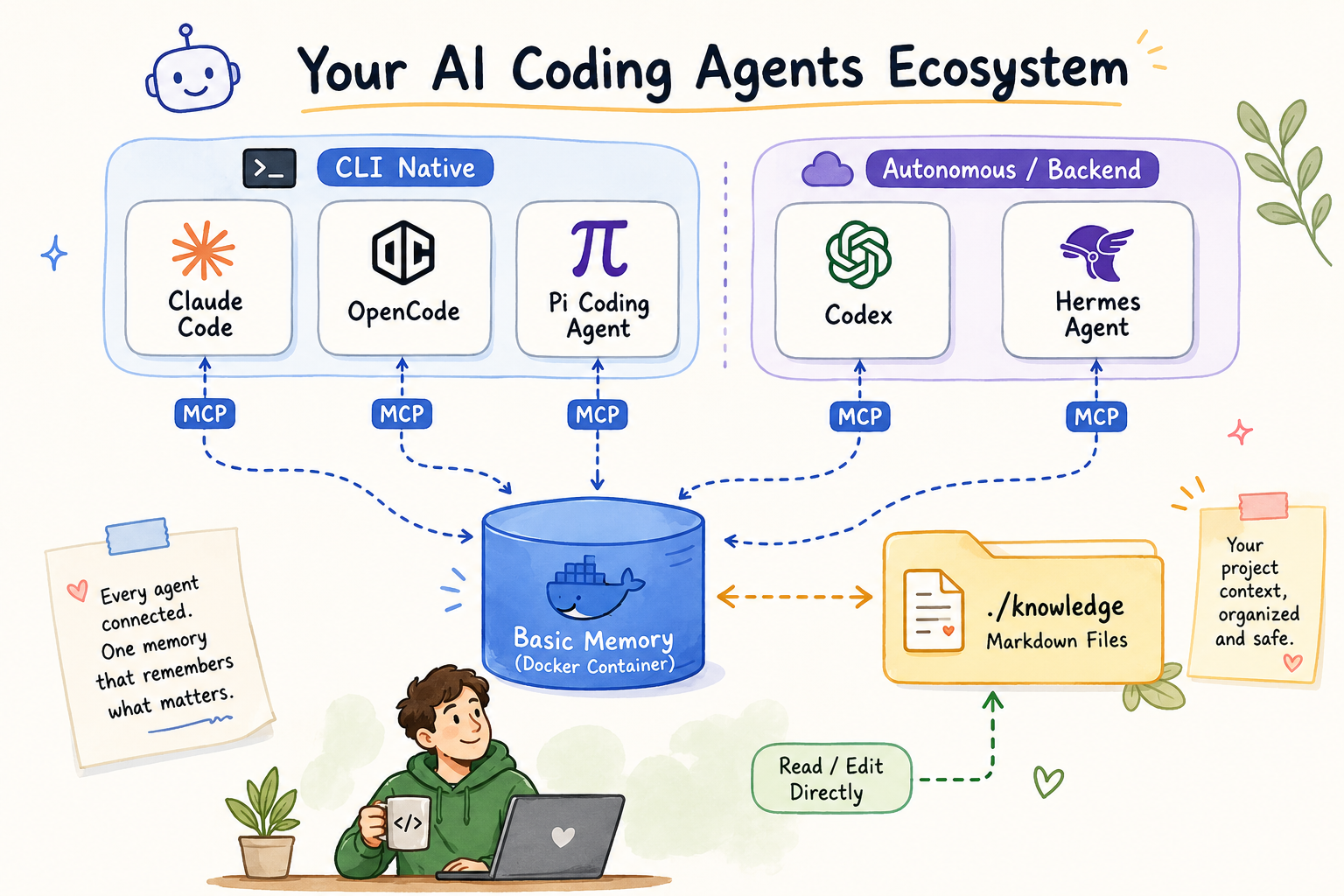
What we are building
I will be using Basic Memory as the memory service and connect agents through MCP, running it with docker compose using the official image.
Model Context Protocol (MCP) is an open standard introduced by Anthropic in November 2024 that enables AI agents and large language models (LLMs) to securely connect with external tools, data sources, and services
One agent writes a note, any agent — in any later session — can retrieve it back. You can also open the same files yourself, since they are just Markdown files on disk.So basic memory becomes a shared notebook for your coding agents.
What you need
You need:
- Docker
- Docker Compose
- Git (optional)
- A terminal
- One coding agent with MCP support
No model provider API key needed here. Basic Memory’s default semantic search runs on local FastEmbed embeddings.
Official docs:
- Basic Memory repo: https://github.com/basicmachines-co/basic-memory
- Basic Memory docs: https://docs.basicmemory.com/
- Basic Memory Docker guide: https://github.com/basicmachines-co/basic-memory/blob/main/docs/Docker.md
Why no model provider is needed
Some memory systems have an LLM read your conversation and extract facts before storing anything - every save costs a model call, and you need a provider API key for that.
Basic Memory skips this. The agent (or you) writes structured Markdown directly:
---
title: Testing Conventions
permalink: testing-conventions
tags: [testing]
---

# Testing Conventions

## Observations
- [tool] Use Vitest instead of Jest
- [rule] Do not edit generated files

## Relations
- relates_to [[Project Architecture]]
Observations, Relations, done. A local SQLite index gives full-text and semantic search over these files, no cloud calls.
Step 1: Start Basic Memory with Docker Compose
Default install is
uv tool install basic-memory(oruvx basic-memory mcp), a stdio MCP server per agent - no Docker needed. I wanted one server for all my agents, so Docker it is.
The pre-built image runs as UID/GID 1000, so create and own the folders first:
mkdir -p knowledge basic-memory-config
sudo chown -R 1000:1000 knowledge basic-memory-config
docker compose
docker-compose.yml
name: basic-memory

# runs the MCP server over SSE/HTTP on :8000 - no auth on that endpoint.
# keep it on a trusted network, or put a reverse proxy + auth in front of it.

services:
  basic-memory:
    image: ghcr.io/basicmachines-co/basic-memory:latest
    container_name: basic-memory-server

    volumes:
      - ./knowledge:/app/data:rw
      # config + sqlite index, container user is appuser -> /home/appuser
      - ./basic-memory-config:/home/appuser/.basic-memory:rw

    environment:
      - BASIC_MEMORY_DEFAULT_PROJECT=main
      - BASIC_MEMORY_SYNC_CHANGES=true
      - BASIC_MEMORY_LOG_LEVEL=INFO
      - BASIC_MEMORY_SYNC_DELAY=1000

    ports:
      - "8000:8000"

    command: ["basic-memory", "mcp", "--transport", "sse", "--host", "0.0.0.0", "--port", "8000"]

    restart: unless-stopped

    healthcheck:
      test: ["CMD", "basic-memory", "--version"]
      interval: 30s
      timeout: 10s
      retries: 3
      start_period: 30s
and start it:
docker compose -v up -dConfirm it’s healthy:
docker compose -v ps -a

# view logs
docker compose logs -f basic-memory
a healthy container looks like this in the logs:
❯ docker compose logs -f basic-memory
basic-memory-server  | [07/06/26 09:23:04] INFO     Starting MCP server 'Basic Memory'
basic-memory-server  |                              with transport 'sse' on
basic-memory-server  |                              http://0.0.0.0:8000/mcp
basic-memory-server  | INFO:     Uvicorn running on http://0.0.0.0:8000 (Press CTRL+C to quit)
Step 2: Confirm the project
The default project (main) is your ./knowledge folder, mounted into the container at /app/data. To add another project pointing at a different mounted folder:
docker exec basic-memory-server basic-memory project add my-project /app/data/my-project
docker exec basic-memory-server basic-memory project list
Decide upfront whether you want one shared notebook across all your repos, or one project per repo — it’s easier to choose now than to migrate later.
If you just want to have one shared notebook, then ignore project add my-project command.
Step 3: Connect Claude Code
Claude Code connects over SSE, worked fine against the Dockerized server:
claude mcp add --transport sse basic-memory http://localhost:8000/mcpVerify inside Claude Code:
/mcpExpect something like:
Local MCPs (/home/<user>/.claude.json [project: <project path>])
❯ basic-memory · ✔ connected · 23 tools
To remove it:
claude mcp remove basic-memoryThere’s also a Claude Code plugin for session-start briefings and /basic-memory:* commands, optional:
claude plugin marketplace add basicmachines-co/basic-memory --sparse .claude-plugin plugins/claude-code
claude plugin install basic-memory@basicmachines-co
OpenCode example
OpenCode has a native "remote" MCP type, also worked directly against the same server, no proxy. Add to ~/.config/opencode/opencode.json:
{
  "$schema": "https://opencode.ai/config.json",
  "mcp": {
    "basic-memory": {
      "type": "remote",
      "url": "http://localhost:8000/mcp",
      "enabled": true
    }
  }
}
Verify:
opencode mcp listExpect:
┌  MCP Servers
│
●  ✓ basic-memory connected
│      http://localhost:8000/mcp
│
└  1 server(s)
OpenCode’s config shape for remote MCP servers might change, check their docs if it stops working: https://opencode.ai/docs/mcp-servers/
Test it
Ask your connected agent, in plain language:
"Create a note about our project architecture decisions."A Markdown file should appear under ./knowledge on your host in real time. Open it — you’ll see the frontmatter, an Observations list, and a Relations list. That’s the entire format.
Then start a fresh session (or switch agents) and ask:
Retrieve all notes from basic-memoryIf the agent surfaces what you saved earlier, memory is working end to end. In practice it looks like this:
What to put in memory
Good:
- Project conventions
- Folder structure
- Testing framework
- Architecture decisions
- Things the agent should avoid
here is an example from my homepc:
❯ tree knowledge/
knowledge/
└── basic-memory
    ├── conventions
    │   └── Docker Healthcheck Convention.md
    ├── projects
    │   ├── Changelog Conventions.md
    │   ├── Deployment Preferences.md
    │   ├── Git Commit Conventions.md
    │   └── README Conventions.md
    └── services
        ├── Hermes Agent.md
        ├── Port Registry.md
        ├── Port Suggestion Registry.md
        └── Service Registry.md

5 directories, 9 files
Bad:
do not put
- Passwords
- Private keys
- Production tokens
- Customer private data
See the Security notes near the top — treat ./knowledge like any other sensitive project directory, and don’t commit it to a public repo unless that’s actually intended.
Troubleshooting
Agent can’t connect to the MCP server? run the proxy bridge manually and see what breaks:
uvx mcp-proxy http://localhost:8000/mcpYour coding agent cannot connect to an MCP server that isn’t reachable, obviously.
Notes not showing up, or search feels stale:
docker exec basic-memory-server basic-memory status
docker exec basic-memory-server basic-memory doctor
doctor checks file-vs-database consistency and rebuilds the local search index if it’s out of sync.
Running multiple projects and not sure which one is active:
docker exec basic-memory-server basic-memory project listI hope you find the article useful.
That’s it !
-Evaggelos
Containers is an package application with all the files, libraries, and runtime it needs. They are a common way to develop, test, and deploy server software, most known are docker containers at the moment and in macOS the two most common tools: Docker desktop and OrbStack.
Apple’s container tool takes a different approach: it creates and runs Linux containers using lightweight virtual machines on Apple silicon Macs. It works with OCI-compatible images, so you can pull images from standard registries and build images that can run in other OCI-compatible tools.
This guide walks through installing container, starting the system service, running an Ubuntu shell, and building a simple “Hello, world” web server.
What you need
- A Mac with Apple silicon: M1, M2, M3, M4, or newer
- macOS 26
- Administrator access to install the tool
Apple supports container on macOS 26 because it depends on newer virtualization and networking features. Older macOS versions may work for some workflows, but they are not officially supported. Command availability can also vary by macOS version.
Install container
Download the latest signed installer from the Apple container GitHub releases page:
https://github.com/apple/container/releases
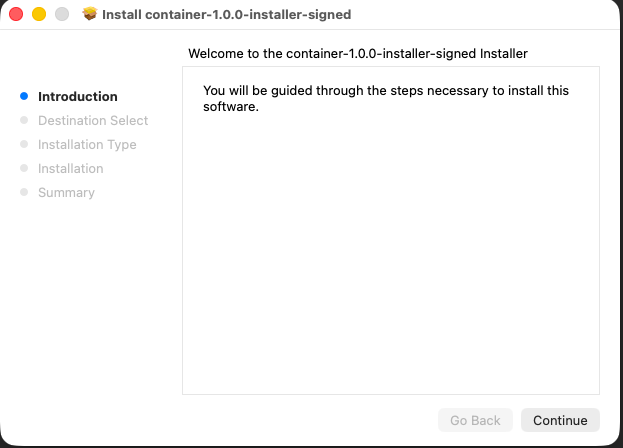
Open the .pkg file and follow the installer prompts.
follow the below instracturions
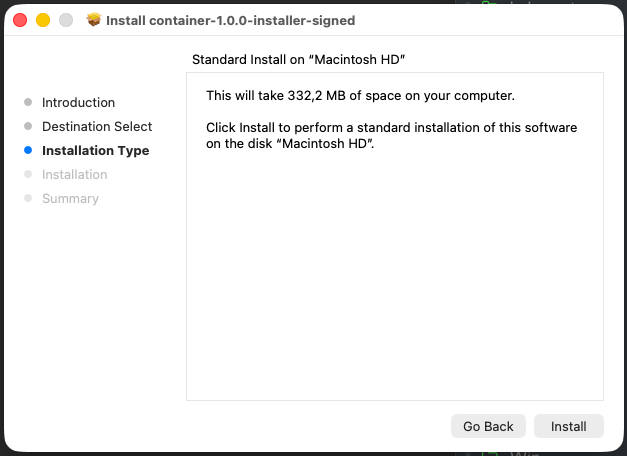
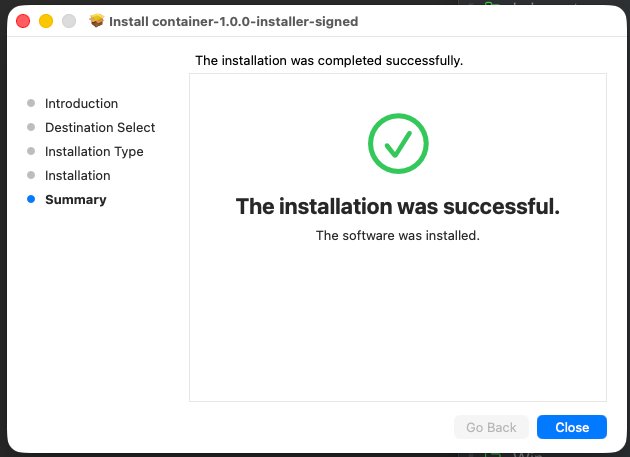
After installation, open Terminal and start the system service:
container system startThe first time you run this command, container may ask whether you want to install a recommended Linux kernel. Type y and press Enter.
Example output:
❯ container system start

Launching container-apiserver...
Testing access to container-apiserver...
Verifying machine API server is running...
No default kernel configured.
Install the recommended default kernel from [https://github.com/kata-containers/kata-containers/releases/download/3.28.0/kata-static-3.28.0-arm64.tar.zst]? [Y/n]: y
Installing kernel...
Check that the service is running:
container system statusoutput:
❯ container system status

FIELD              VALUE
status             running
appRoot            /Users/A93162639/Library/Application Support/com.apple.container/
installRoot        /usr/local/
logRoot
apiserver.version  container-apiserver version 1.0.0 (build: release, commit: ee848e3)
apiserver.commit   ee848e3ebfd7c73b04dd419683be54fb450b8779
apiserver.build    release
apiserver.appName  container-apiserver
Then list all containers:
container list --allAn empty table is fine. It means the service is running and you have not created any containers yet.
Test it with an Ubuntu shell
Now run your first Linux container and attach an interactive shell:
container run -it ubuntu:latest /bin/bashInside the container, try:
uname -a

cat /etc/os-release
You should see Linux system information and Ubuntu release details:
root@9bb5a5b9-40a6-4a55-8093-f76c7d70c8eb:/# uname -a
Linux 9bb5a5b9-40a6-4a55-8093-f76c7d70c8eb 6.18.15 #1 SMP Tue Mar 17 01:36:53 UTC 2026 aarch64 GNU/Linux

root@9bb5a5b9-40a6-4a55-8093-f76c7d70c8eb:/# cat /etc/os-release
PRETTY_NAME="Ubuntu 26.04 LTS"
NAME="Ubuntu"
VERSION_ID="26.04"
VERSION="26.04 LTS"
ID=ubuntu
ID_LIKE=debian
Your Ubuntu version and kernel version may differ depending on when you run the command. The important part is that you are inside a Linux environment running on your Mac.
Exit the container:
exit
Limit Resources: CPU - MEM
Another useful feature is when you want to limut resources, like CPU and Memory inside the apple container. You can simple do that by:
container run -it --cpus 2 --memory 2G ubuntu:latest /bin/bash
result:
root@e3beed8c-42f0-4aaa-8fc6-e1d8d969641f:/# top -bn1 -1
top - 21:03:33 up 0 min,  0 users,  load average: 0.06, 0.02, 0.00
Tasks:   2 total,   1 running,   1 sleeping,   0 stopped,   0 zombie
%Cpu0  :  0.0 us,  0.0 sy,  0.0 ni,100.0 id,  0.0 wa,  0.0 hi,  0.0 si,  0.0 st
%Cpu1  :  0.0 us,  0.0 sy,  0.0 ni,100.0 id,  0.0 wa,  0.0 hi,  0.0 si,  0.0 s
%Cpu2  :  0.0 us,  0.0 sy,  0.0 ni,100.0 id,  0.0 wa,  0.0 hi,  0.0 si,  0.0 st
MiB Mem :   2113.3 total,   1909.6 free,     71.0 used,    154.2 buff/cache       MiB Swap:      0.0 total,      0.0 free,      0.0 used.   2042.3 avail Mem

    PID USER      PR  NI    VIRT    RES    SHR S  %CPU  %MEM     TIME+ COMMAND
      1 root      20   0    5128   3808   3280 S   0.0   0.2   0:00.01 bash
      9 root      20   0    7060   4452   2548 R   0.0   0.2   0:00.00 top

root@e3beed8c-42f0-4aaa-8fc6-e1d8d969641f:/# grep -c ^processor /proc/cpuinfo
3

root@291ed90e-621e-460e-ae70-73f4befcb0a4:/# free
               total        used        free      shared  buff/cache   available
Mem:         2163972       68876     1959220           4      157972     2095096
Swap:              0           0           0
root@291ed90e-621e-460e-ae70-73f4befcb0a4:/#
root@291ed90e-621e-460e-ae70-73f4befcb0a4:/#
Now list running containers:
container listYou may see an empty table because the Ubuntu shell exited. To include stopped containers, run:
container list --allExample:
ID                                    IMAGE                            OS     ARCH   STATE    IP  CPUS  MEMORY   STARTED
9bb5a5b9-40a6-4a55-8093-f76c7d70c8eb  docker.io/library/ubuntu:latest  linux  arm64  stopped      4     1024 MB  2026-06-24T20:15:59Z
Build a “Hello, world” web server
Next, build a tiny Python web server image.
Create a new project directory:
mkdir hello-container
cd hello-container
Create a file called Dockerfile:
touch DockerfileOpen it in your editor and paste:
FROM docker.io/python:alpine

WORKDIR /app

RUN echo '<h1>Hello from Apple container!</h1>' > index.html

CMD ["python3", "-m", "http.server", "80"]
This image starts from a lightweight Python base image, creates a simple HTML page, and runs Python’s built-in web server on port 80.
Build the image
From the same directory as your Dockerfile, run:
container build --tag hello-web --file Dockerfile .The . at the end tells the builder to use the current directory as the build context. The command pulls the base image, runs the Dockerfile instructions, and tags the result as hello-web.
After your first build, you may see a builder container when you list containers. That is expected; container uses it to build images.
Run the web server
Start the container in the background:
container run --name my-site --detach --rm hello-webHere’s what the flags mean:
--name my-sitegives the container a friendly name.--detachruns it in the background.--rmautomatically removes the container when it stops.
List running containers:
container listLook for the IP address in the IP column. It may look something like this:
ID        IMAGE                                                OS     ARCH   STATE    IP               CPUS  MEMORY   STARTED
my-site   hello-web:latest                                     linux  arm64  running  192.168.64.4/24  4     1024 MB  2026-06-24T20:28:15Z
buildkit  ghcr.io/apple/container-builder-shim/builder:0.12.0  linux  arm64  running  192.168.64.3/24  2     2048 MB  2026-06-24T20:27:48Z
Open the site in your browser:
open http://192.168.64.4Replace 192.168.64.4 with the IP address shown on your machine.
You should see:
Hello from Apple container!
Optional: use localhost instead
If you prefer opening the site through localhost, publish the container port to your Mac. The container run command supports --publish / -p for mapping a container port to a host port.
Stop the current container first:
container stop my-siteThen run it again with port publishing:
container run --name my-site --detach --rm --publish 8080:80 hello-webOpen:
open http://localhost:8080This maps port 8080 on your Mac to port 80 inside the container.

View logs
To see what the web server is logging, run:
container logs my-siteYou should see HTTP request logs from Python’s web server.
result:
❯ container logs my-site
192.168.64.1 - - [24/Jun/2026 20:36:03] "GET / HTTP/1.1" 200 -
192.168.64.1 - - [24/Jun/2026 20:36:03] code 404, message File not found
192.168.64.1 - - [24/Jun/2026 20:36:03] "GET /favicon.ico HTTP/1.1" 404 -
Clean up
Stop the container:
container stop my-siteBecause you started it with --rm, container removes it automatically after it stops.
Check again:
container list --allThe my-site container should no longer appear.
That’s it,
Evaggelos!
I spent some time trying to connect a Yeelight Wireless Smart Dimmer to Home Assistant.
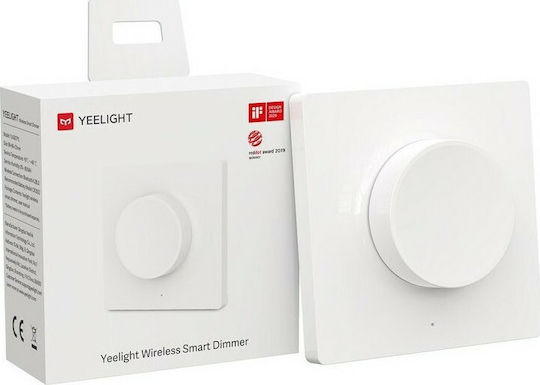
Disclaimer: This dimmer is compatible with Yeelight smart ceiling light series, Yeelight Crystal Pendant Lamp and Yeelight Smart Curtain Motor. Control the devices freely anytime and anywhere.
project page: Yeelight
YLKG07YL
The device I used is:
Dimmer Switch 2B0B
Model: YLKG07YL / YLKG08YL
Bluetooth name: yee-rc
Firmware: Xiaomi MiBeacon V3 encrypted
The goal was simple: use the Yeelight dimmer knob inside Home Assistant as I made a mistake buying it. I do not have a ceiling light but a few yeelight lamps. Thus I wanted to setup this dimmer to HA, so could use it to any device, to rotate it, to change brightness and press it to toggle a lamp or play a text to speech to my soundbar!
The final result works nicely with the Home Assistant Xiaomi BLE integration.
The project
The code I used is available here:
https://github.com/ebal/yeelight-dimmer-pythonThis repository is a fork, and contains a Python handler for the Yeelight YLKG07YL / YLKG08YL Bluetooth dimmer. It can receive, decrypt, and handle Bluetooth notifications from the dimmer. The repository README also shows how to run the demo script and retrieve the beacon_key, which is needed because the dimmer broadcasts encrypted sensor data. I forked the original project as my firmware version is newer than previous models and original project didnt work.d
Finding the dimmer
First, I scanned for Bluetooth LE devices.
sudo hcitool lescanor better, use bluetoothctl directly:
bluetoothctl scan onThe dimmer appeared as:
F8:24:41:C9:2B:0B yee-rcSo the MAC address of my dimmer was:
F8:24:41:C9:2B:0BGetting the beacon key
The Yeelight dimmer sends encrypted data, so Home Assistant needs a 24-character hexadecimal bindkey / beacon key.
The repository provides a demo script for this:
sudo python3 demo.py F8:24:41:C9:2B:0BWhen the script asks you to press the Pair button, press the small pairing button on the dimmer.
A successful run should print something like:
using mac F8:24:41:C9:2B:0B
! Press the "Pair" button at the dimmer...
Connecting... done
Authenticating.. done
beacon_key: xxxxxxxxxxxxxxxxxxxxxxxx
The beacon_key is the value that must be added to Home Assistant.
Adding it to Home Assistant
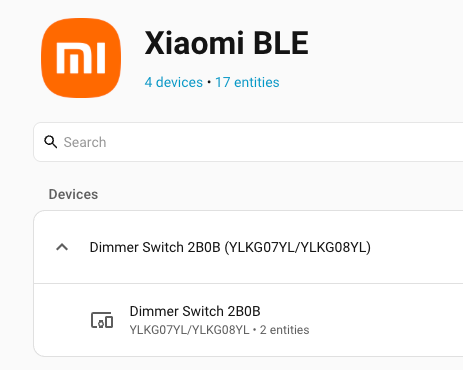
After getting the key, I added the dimmer through the Xiaomi BLE integration in Home Assistant.
Home Assistant detected it as a dimmer device. After that, I could use the 5 dimmer events in automations, such as:
Long Press
Press
Rotate Left
Rotate Left (Pressed)
Rotate Right
Rotate Right (Pressed)
Automations
to make it more interesting, here are some (random) automations:
Rotate right to increase brightness
When I rotate the dimmer to the right, I increase the brightness by 25.
alias: Dimmer_Rotate_Right
description: ""
triggers:
  - trigger: event.received
    target:
      device_id: defd42d5517df84480bc151db714a0d3
    options:
      event_type:
        - rotate_right
conditions: []
actions:
  - action: number.set_value
    target:
      entity_id: number.yeelink_de_470134772_colorb_brightness_with_zero_p_3_5
    data:
      value: >-
        {{
        [states('number.yeelink_de_470134772_colorb_brightness_with_zero_p_3_5')
        | float(0) + 25, 100] | min }}
mode: single
This reads the current brightness value, adds 25, and makes sure it does not go above 100.
Rotate left to decrease brightness
When I rotate the dimmer to the left, I decrease the brightness by 25.
alias: Dimmer_Rotate_Left
description: ""
triggers:
  - trigger: event.received
    target:
      device_id: defd42d5517df84480bc151db714a0d3
    options:
      event_type:
        - rotate_left
conditions: []
actions:
  - action: number.set_value
    target:
      entity_id: number.yeelink_de_470134772_colorb_brightness_with_zero_p_3_5
    data:
      value: >-
        {{
        [states('number.yeelink_de_470134772_colorb_brightness_with_zero_p_3_5')
        | float(0) - 25, 100] | min }}
mode: single
This works, but there should be some small improvements, to keep the brightness between 0 and 100.
I will update the blog post if needed in the future to fix this.
Press to toggle the lamp
Pressing the dimmer toggles the bedside lamp.
alias: Dimmer_Press
description: ""
triggers:
  - device_id: defd42d5517df84480bc151db714a0d3
    domain: xiaomi_ble
    type: dimmer
    subtype: press
    trigger: device
conditions: []
actions:
  - action: light.toggle
    metadata: {}
    target:
      entity_id: light.mibedsidelamp2_77c5_mijia_bedside_lamp_sw_auth
    data: {}
mode: single
This is the most useful automation for daily use: press the knob and the lamp turns on or off.
That’s it !
Evaggelos
I want a simple way to experiment with LLMs from my (very old) archlinux machine that has no GPU. OpenRouter provides a pay-as-you-go solution by selecting the model you want for the job you need. It’s quite easy and also provides some free models!
Important limitation
Free OpenRouter models usually have rate limits, availability limits, and sometimes slower routing. Some may disappear, change provider, or become temporarily unavailable. It’s not always reliable.
Running Open WebUI with OpenRouter Free Models
In this post we will build a simple local AI chat setup using Open WebUI, LiteLLM, and OpenRouter free models.
The goal is to have a clean web interface where we can chat with an OpenRouter model, while LiteLLM acts as a small proxy layer between Open WebUI and OpenRouter.
Disclaimer: You do not need LiteLLM. OpenRouter provides an OpenAI API. I am going to share both setups, as I use LiteLLM as a proxy for other use cases too.
The final architecture looks like this:
Browser
  -> Open WebUI
  -> OpenRouter
  -> Free LLM model
or with LiteLLM
Browser
  -> Open WebUI
  -> LiteLLM
  -> OpenRouter
  -> Free LLM model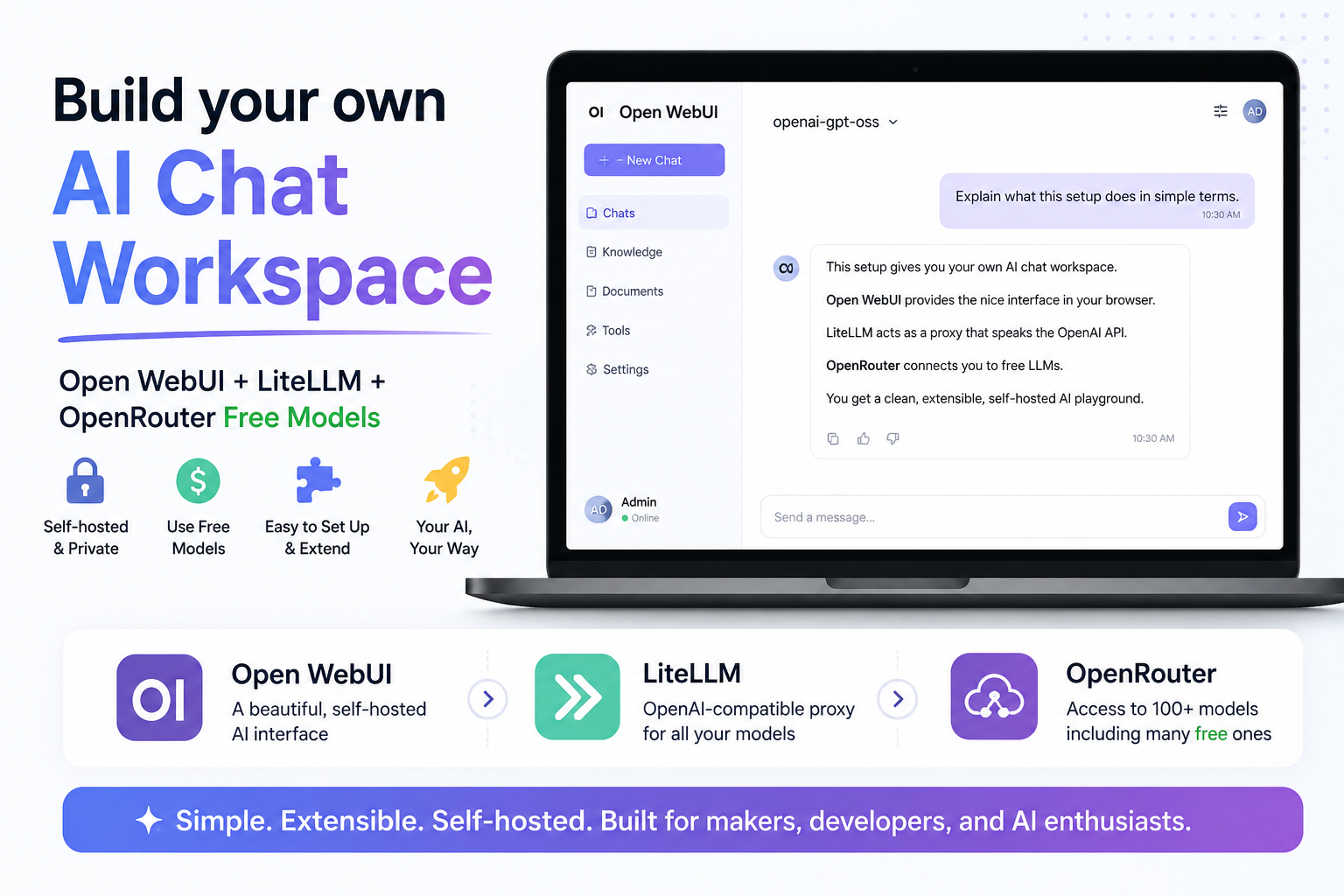
What are we building?
We are going to run two containers:
-
LiteLLM
A lightweight proxy that exposes an OpenAI-compatible API and forwards requests to OpenRouter or to any other LLM provider. -
Open WebUI
A self-hosted ChatGPT-like web interface that connects either to OpenRouter and/or to LiteLLM.
- Open WebUI will talk to OpenRouter in scenario A.
- Open WebUI will talk to LiteLLM, and LiteLLM will talk to OpenRouter in scenario B.
Requirements
You need:
- Docker
- Docker Compose
- An OpenRouter account
- An OpenRouter API key
You can create an API key from your OpenRouter account settings.
Project files
Create a new directory for the project:
mkdir openwebui
cd openwebui
Scenario A - OpenWebUI with OpenRouter
We will create a single docker compose file:
---
services:
  openwebui:
    image: ghcr.io/open-webui/open-webui:main-slim
    container_name: openwebui
    ports:
      - "8080:8080"
    volumes:
      - open-webui:/app/backend/data

volumes:
  open-webui:
In this scenario, I use Open WebUI slim edition.
Open WebUI provides a slim variant designed to reduce the initial container size by excluding pre-bundled AI models and heavy dependencies. Smaller initial size, but the first startup may take longer as the container downloads these necessary models.
Start OpenWebUI
Run:
docker compose -v up -dCheck that both containers are running:
docker compose -v psYou should see something like:
❯ docker compose -v ps -a

NAME      IMAGE                                    COMMAND          SERVICE    CREATED         STATUS   PORTS
openwebui ghcr.io/open-webui/open-webui:main-slim  "bash start.sh"  openwebui  31 minutes ago  Up 30 minutes (healthy)   0.0.0.0:8080->8080/tcp,  [::]:8080->8080/tcp
Setup OpenWebUI to OpeRouter
In bottom left, Go to:
Admin settings --> Settings --> Admin Settings --> Connections
Add OpenRouter as below
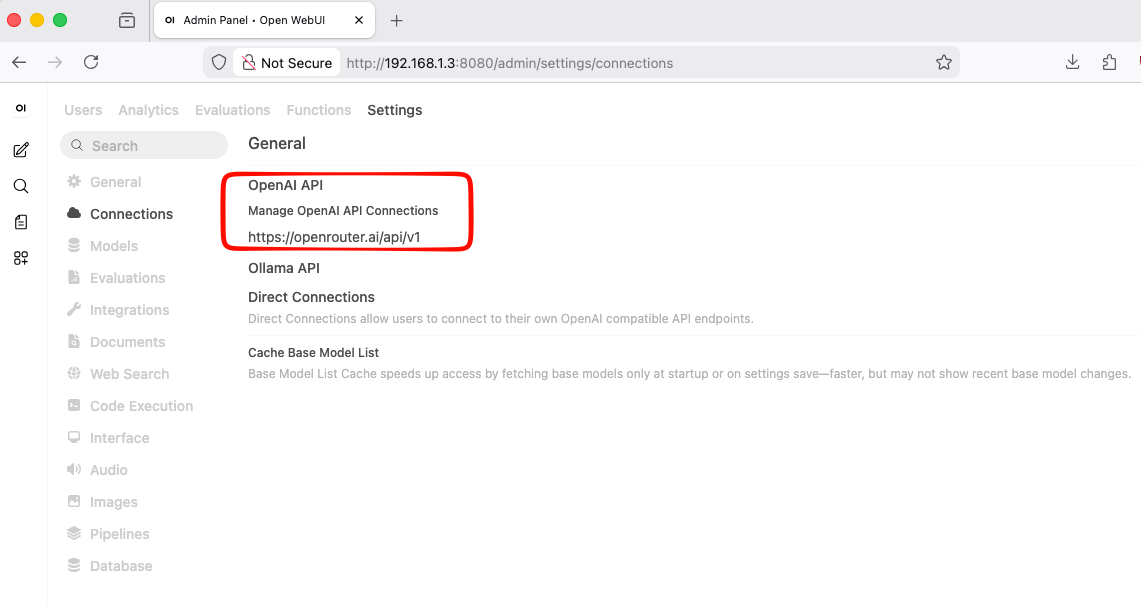
openwebui with openrouter
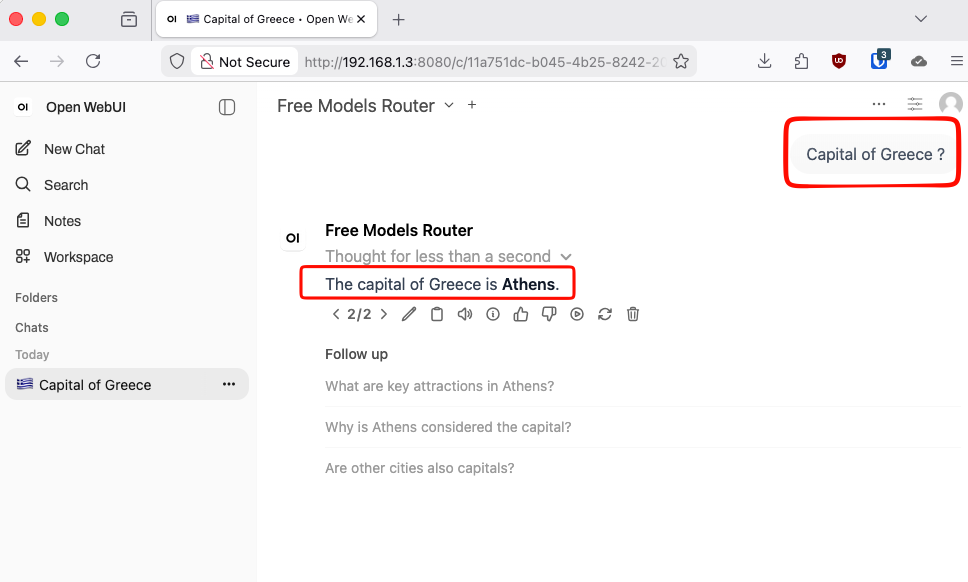
Scenario Β - OpenWebUI with LiteLLM to OpenRouter
We will create three files:
.env
docker-compose.yml
litellm_config.yaml
Environment file
Create a file named .env:
cat > .env <<'EOF'
OPENROUTER_API_KEY=sk-...
OPENROUTER_BASE_URL="https://openrouter.ai/api/v1"
OPENROUTER_MODEL="openrouter/openrouter/free"
OPENROUTER_MODEL_NAME="openrouter-free"
EOF
Replace this value with your real OpenRouter API key:
sk-...The simplest way to get free inference is with
openrouter/freewhich is a router that selects free models at random from the models available on OpenRouter.
LiteLLM configuration
Create litellm_config.yaml:
cat > litellm_config.yaml <<'EOF'
model_list:
  - model_name: os.environ/OPENROUTER_MODEL_NAME
    litellm_params:
      model: os.environ/OPENROUTER_MODEL
      api_base: os.environ/OPENROUTER_API_BASE
      api_key: os.environ/OPENROUTER_API_KEY
EOF
This file tells LiteLLM:
- expose a local model called
openrouter-free - forward requests to OpenRouter
- use the OpenRouter model defined in
.env - authenticate using the OpenRouter API key
So Open WebUI does not need to know the exact OpenRouter model name. It only talks to LiteLLM.
Docker Compose file
Create docker-compose.yml:
cat > docker-compose.yml <<'EOF'
---
services:

  litellm:
    image: docker.litellm.ai/berriai/litellm:main-latest
    container_name: litellm
    command: --config /app/config.yaml # --detailed_debug
    volumes:
      - ./litellm_config.yaml:/app/config.yaml:ro
    restart: unless-stopped
    env_file:
      - .env

  openwebui:
    image: ghcr.io/open-webui/open-webui:main-slim
    container_name: openwebui
    ports:
      - "8080:8080"
    volumes:
      - open-webui:/app/backend/data
    depends_on:
      litellm:
        condition: service_started

volumes:
  open-webui:

EOF
This starts two services.
docker compose -v up -dKeeping the same volume means that keeps your Open WebUI settings, users, and chat history even if the container is recreated.
Configure Open WebUI
Open your browser and go to the admin settings and configure the OpenAI-compatible connection.
Use this as the API base URL:
http://litellm:4000Depending on your Open WebUI version, it may ask for the full OpenAI-compatible base URL. In that case use:
http://litellm:4000/v1Test the setup
In Open WebUI, start a new chat. If everything is configured correctly, Open WebUI will send the message to LiteLLM, LiteLLM will forward it to OpenRouter, and the model response will appear in your browser.
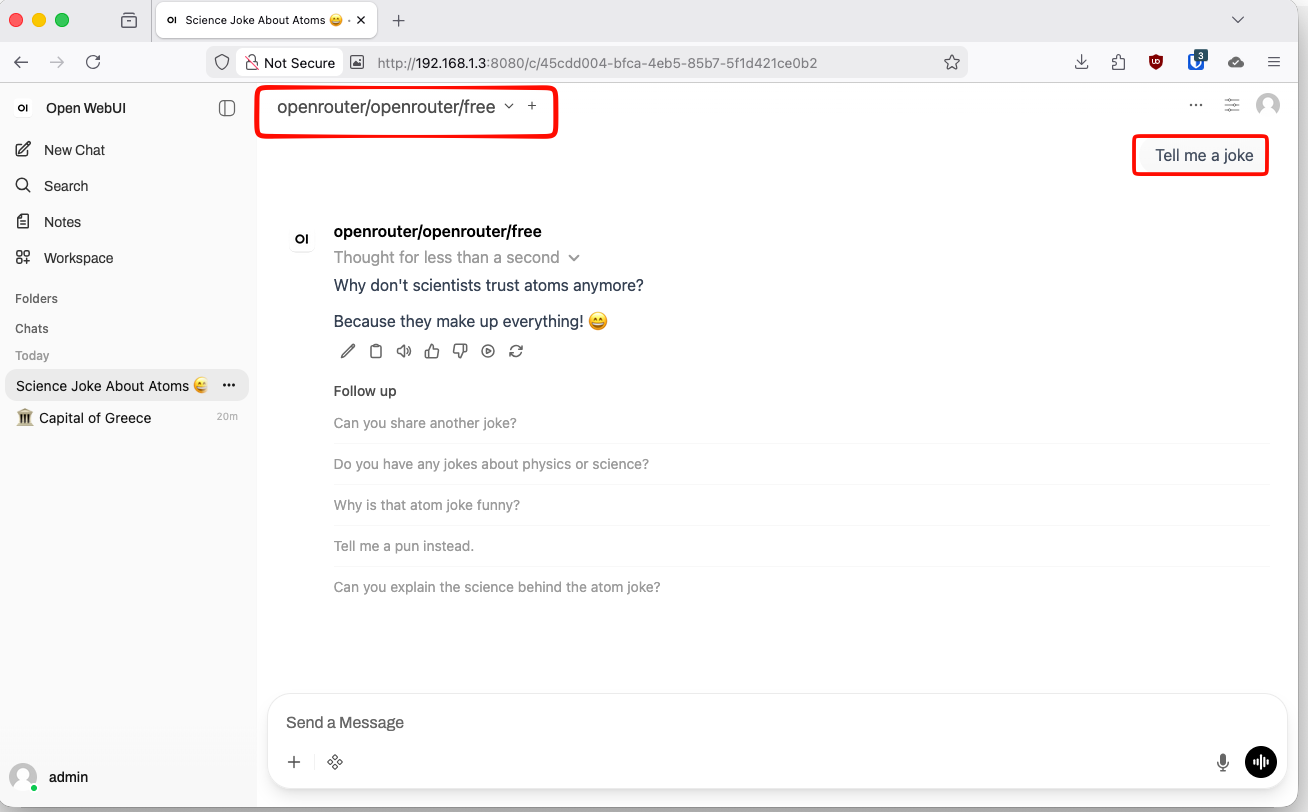
The OpenRouter model does not respond
Free OpenRouter models can have rate limits, queueing, or temporary availability issues.
Try another free model from OpenRouter and update:
OPENROUTER_MODEL=openrouter/openai/gpt-oss-120b:freeThen restart:
docker compose restart litellmand check LiteLLM logs with:
docker compose logs -f litellmThat’s it !
Evaggelos
I use multiple computers and multiple mobile devices. This is mostly because I like keeping my personal devices/accounts separated from my work-related things, also … company policy. The last 4 years I am using an apple macbook, it’s a managed and restricted device. With managed devices, a lot of features like virtualization, containers or even VPN, anything that has network access and many other functionality were restricted. Recently I got a replacement macbook, thanks to our IT, and now for the first time I can use my old device as an unmanaged macbook.
Oh, I missed a lot!

Tart
To start my journey, I want to quickly spawn virtual machines (mostly ubuntu server) to test/run self hosted applications. I found Tart Virtualization to be excellent for this.
Tart is a virtualization toolset to build, run and manage macOS and Linux virtual machines on Apple Silicon.
To install and use tart is extremely easy:
brew install cirruslabs/cli/tart

tart clone ghcr.io/cirruslabs/macos-tahoe-base:latest tahoe-base
tart run tahoe-base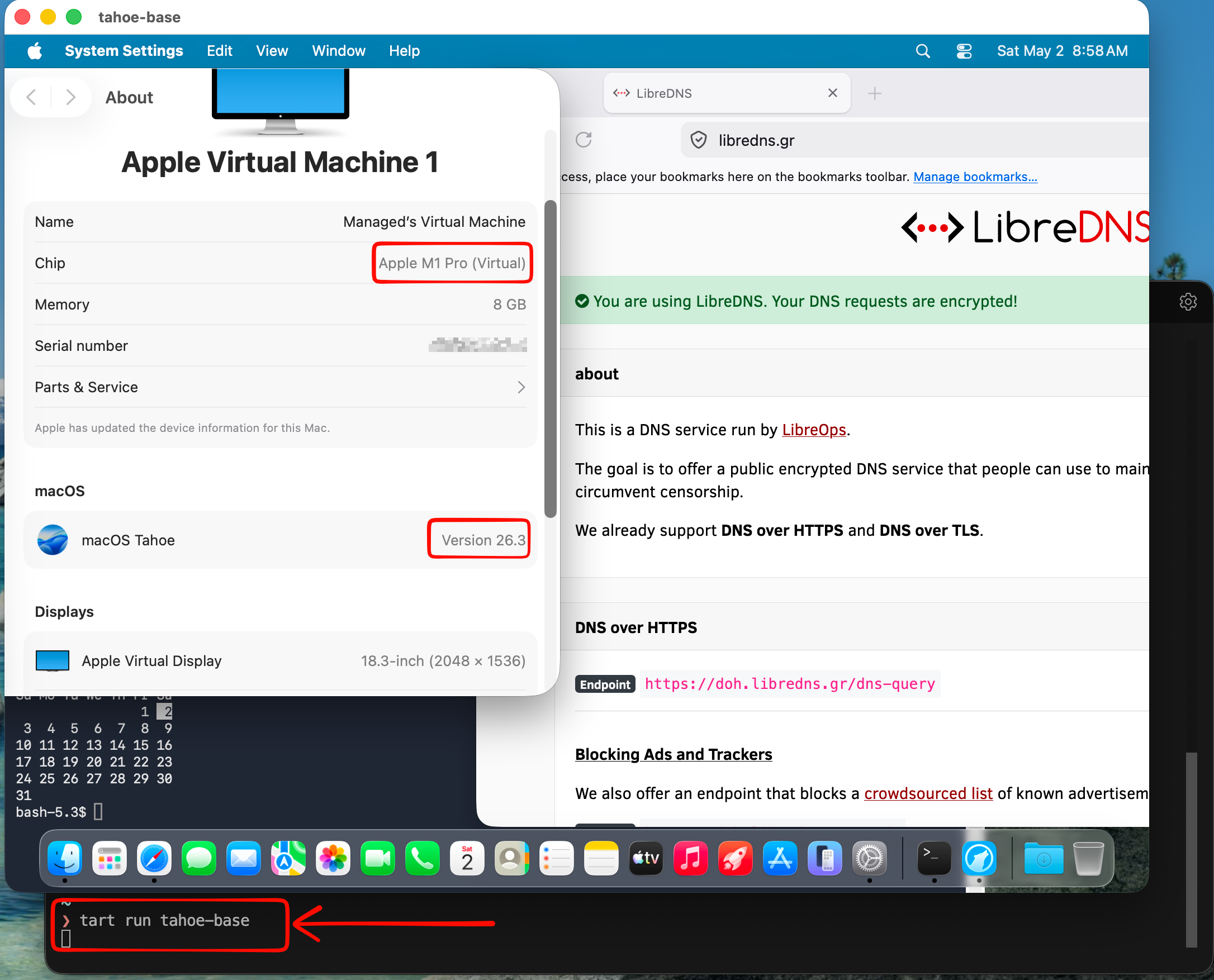
Ubuntu virtual machine
is very easy to setup an ubuntu virtual machine with tart, as an ubuntu image already exist
tart clone ghcr.io/cirruslabs/ubuntu:24.04 ubuntu
tart set ubuntu --disk-size 20
tart run ubuntu
and the default credentials are:
Username: admin
Password: admin
caveat: Change them if you are going to use them in production.
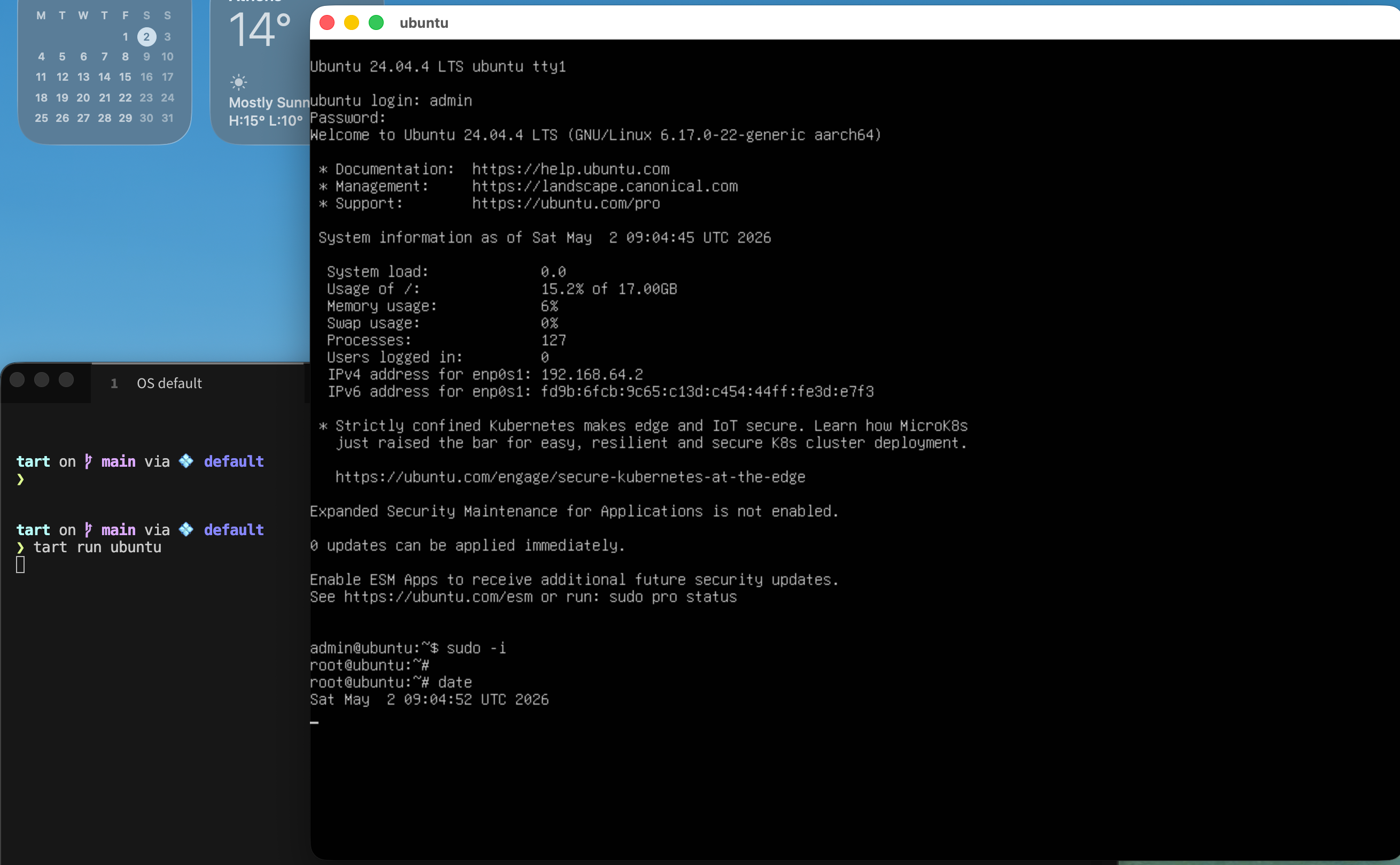
We can also change the default values
like cpu and/or memory settings, as disk size above
❯ tart set ubuntu --memory 8192
❯ tart set ubuntu --cpu 4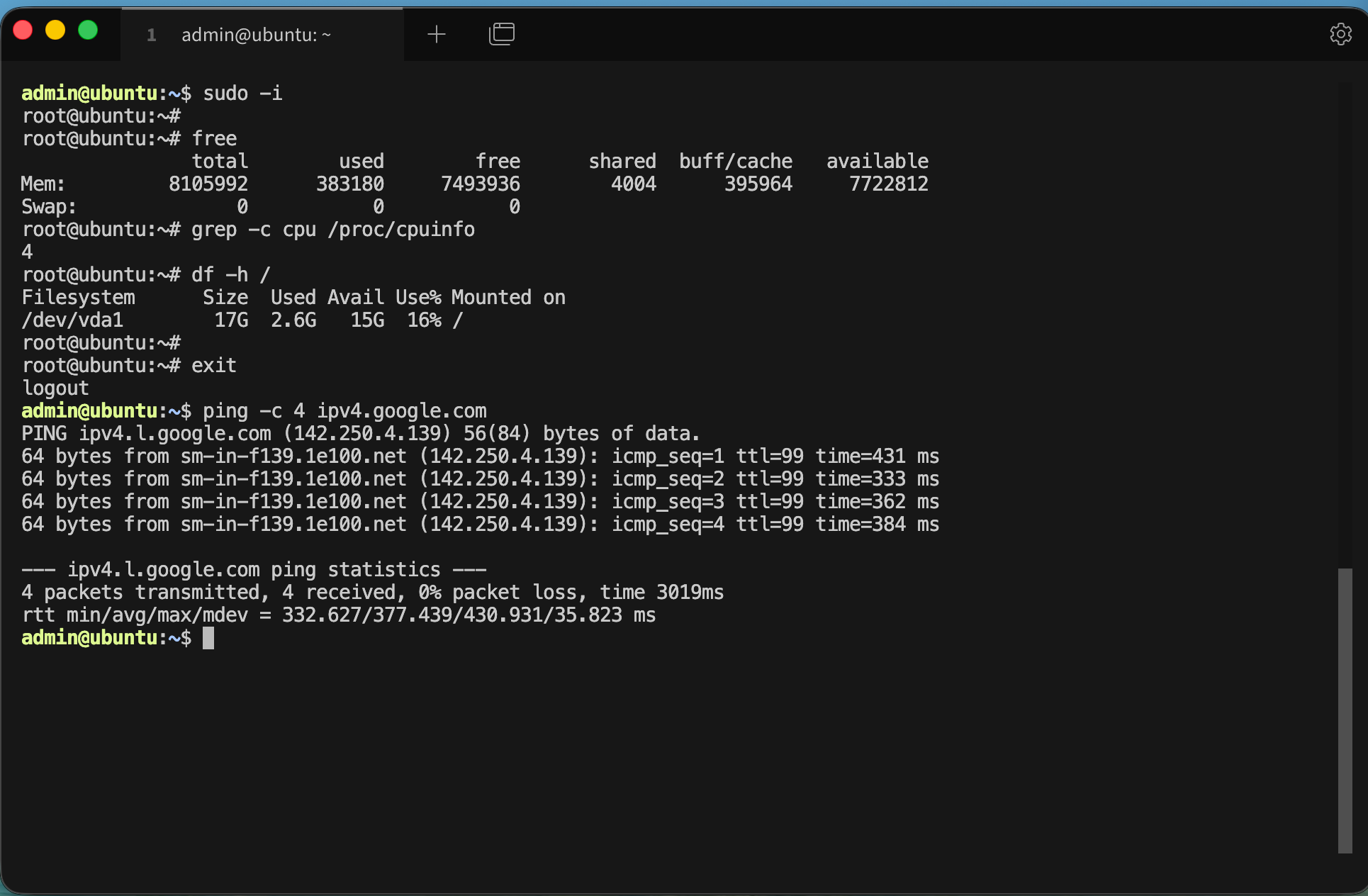
We can start the VM without graphics
❯ tart run ubuntu --no-graphics &Is this vm running ?
✦ ❯ tart list | grep -i ubuntu
local  ubuntu                                      20   3    6 seconds ago running

OCI    ghcr.io/cirruslabs/ubuntu:24.04             20   5    14 hours ago  stopped
OCI    ghcr.io/cirruslabs/ubuntu@sha256:9e71b46... 20   5    14 hours ago  stopped
We can find the IP of the virtual machine
✦ ❯ tart ip ubuntu
192.168.64.2
… and we can ssh into the VM
✦ ❯ ssh admin@$(tart ip ubuntu)
admin@192.168.64.2's password:
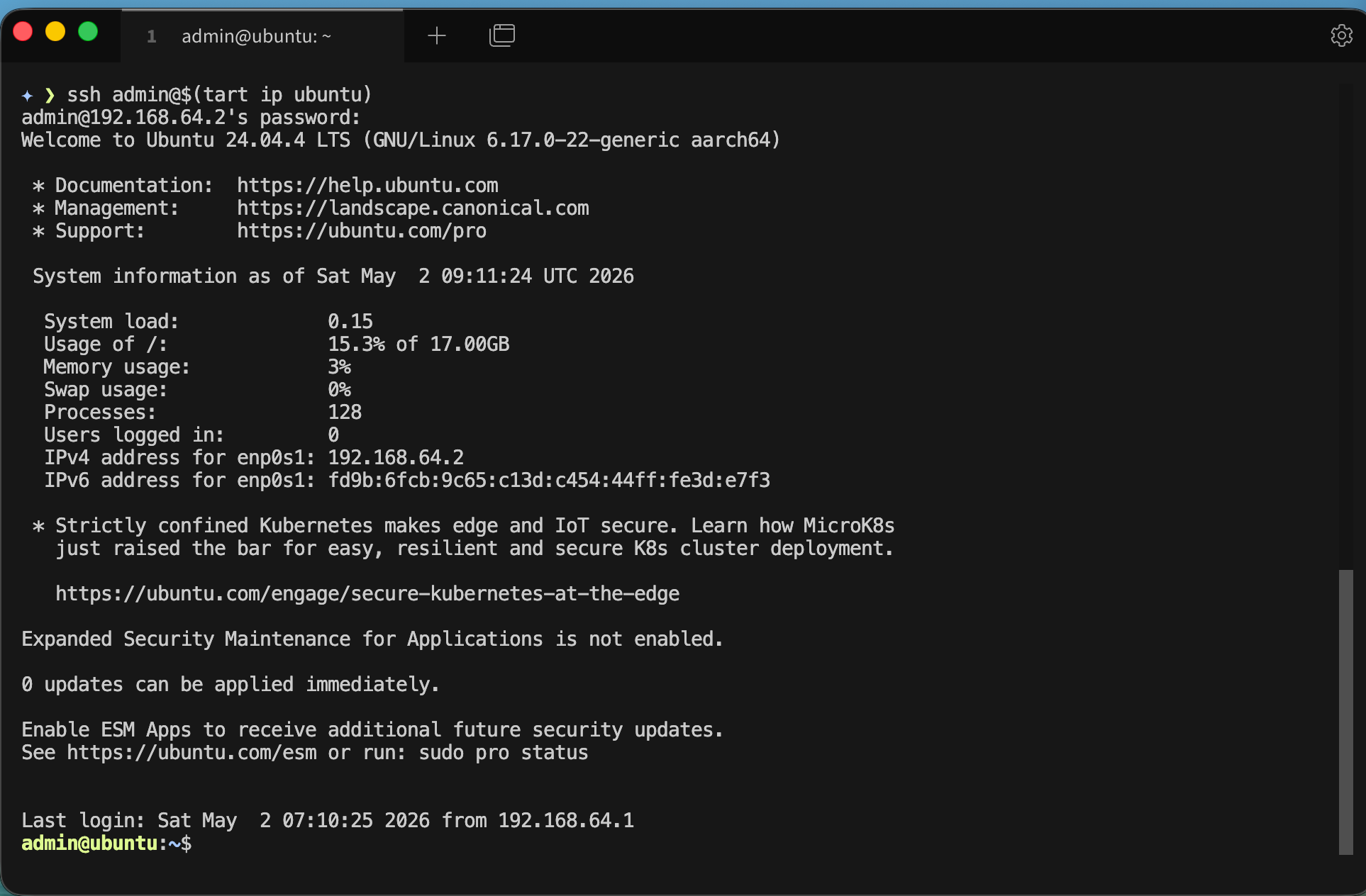
We can even add it to our tailscale network
I guess you already know how to add machines to your tailnet
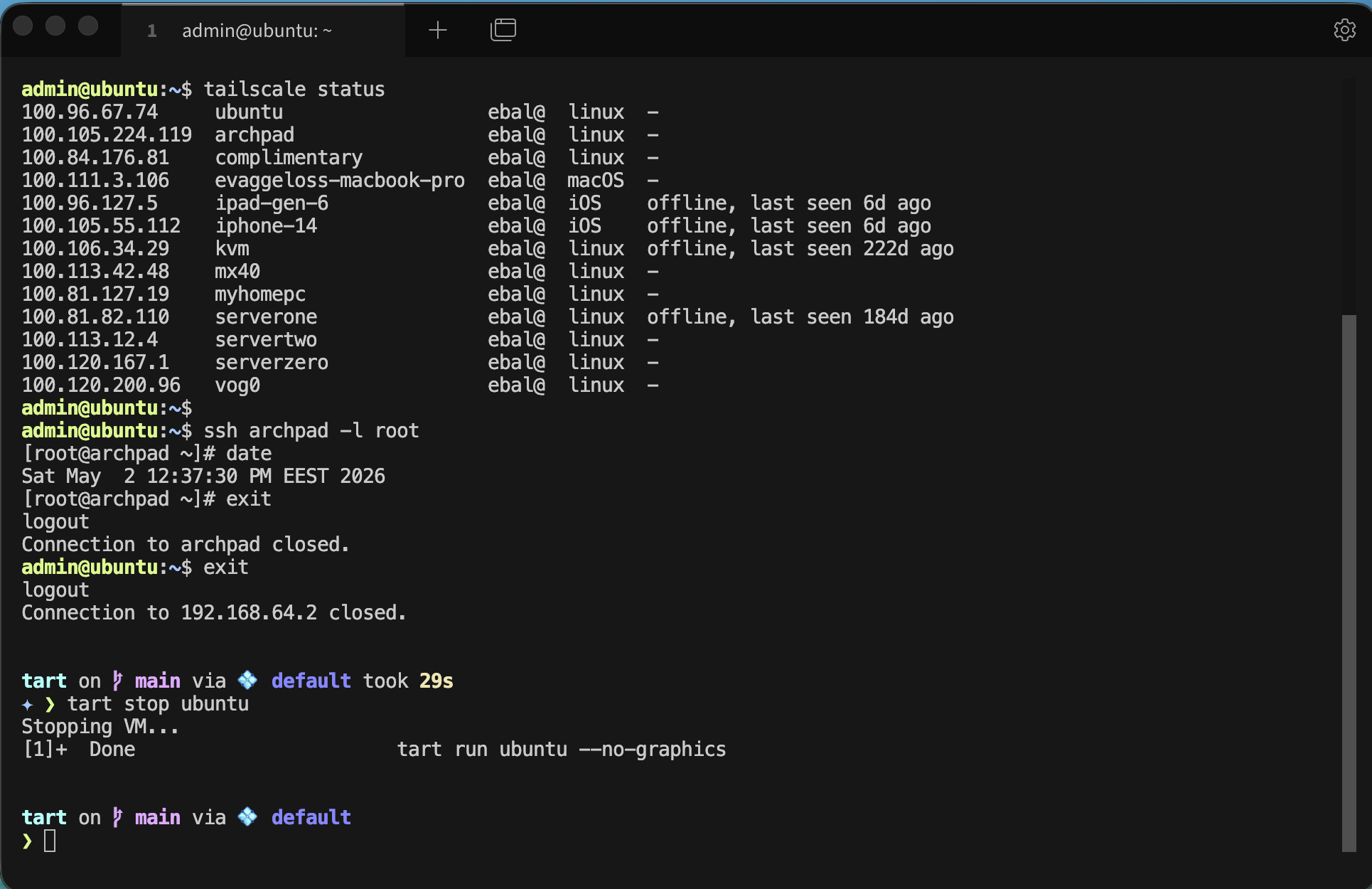
and don’t forget to stop or delete your VMs if you do not need them
tart stop ubuntu
tart delete ubuntu
That’s it !
Evaggelos
I was looking at my logs and analytics, and I saw something interesting. I had a few requests to these endpoints which they do not exist on my blog!
.git/config
.aws/credentials
.aws/config
config.php
So I started looking into this …
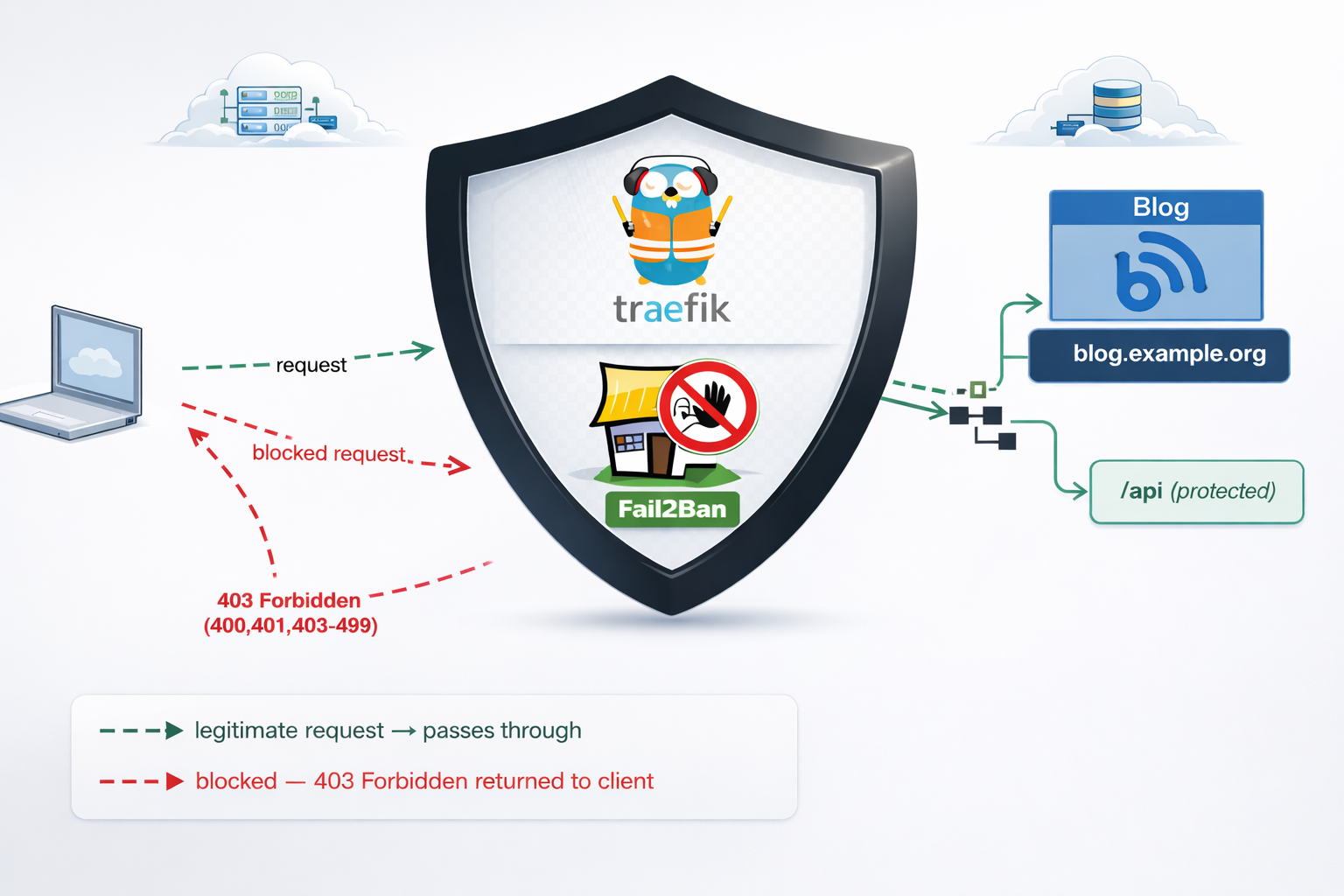
On my old web server, I had an extensive defensing mechanism with mod security, fail2ban and many more. At some point I had some OWASP prevention mechanism, so I had them connected to fail2ban and fail2ban blocked IPs via iptables.
On my new setup, I use traefik reverse proxy and I was thinking that for sure, there is a way to connect traefik with fail2ban. So after a quick research, I ended to fail2ban traefik plugin. Which does something similar to fail2ban, but it does not need fail2ban, iptables or nftables to block incoming traffic.
So, if you’re running services behind Traefik, you’ve got a powerful tool right at your fingertips: the fail2ban plugin. Unlike the traditional Linux fail2ban package that operates at the kernel level with iptables, Traefik’s fail2ban plugin works at the middleware level—meaning it can protect specific routes, integrate seamlessly with your containerized stack, and start banning malicious IPs within seconds.
Prerequisites & How the Plugin Works
What You Need
- Traefik 3.0 or later (the plugin requires traefik experimental plugin system)
- Basic familiarity with Traefik (routers, services, middleware concepts)
- Docker Compose or Kubernetes (we’ll focus on Docker in this guide)
- Administrative access to your Traefik configuration files
The Traefik Fail2ban Plugin
If you’re familiar with traditional fail2ban on Linux, Traefik’s version works differently—and that’s actually good news. Instead of relying on log file parsing and kernel-level packet filtering, the Traefik plugin watches HTTP responses in real-time at the middleware level. When it detects a pattern of failures (e.g., four 401 “Unauthorized” responses from the same IP within eg. 10 minutes), it blocks that IP for a configurable duration for x hours.
Here’s the flow:
Incoming Request
      ↓
Traefik Router (matches domain/path)
      ↓
Middleware Chain (security headers → rate-limit → fail2ban)
      ↓
Fail2ban Plugin checks: Is this IP banned?
      ├─→ YES: Return 403 Forbidden, block request
      └─→ NO: Continue to backend service
      ↓
Backend responds (200, 401, 403, etc.)
      ↓
Fail2ban updates counters: Track failures by IP
      ↓
Threshold exceeded? Ban this IP for 3 hours
Key Advantages
- Application-aware: Works at the HTTP level, not raw packets
- URL-specific: Protect only sensitive routes; allow legitimate traffic to other endpoints
- Dynamic: No service restarts needed; configuration reloads on-the-fly
- Container-friendly: Zero external dependencies; runs inside your Traefik container
- Flexible: Whitelist trusted IPs, customize ban duration, define custom rules per endpoint
Installation & Plugin Setup
Add the Plugin to Your Traefik Configuration
First, declare the fail2ban plugin in your traefik.yml. This tells Traefik where to find and how to load the plugin.
# traefik.yml
experimental:
  plugins:
    fail2ban:
      moduleName: github.com/tomMoulard/fail2ban
      version: v0.9.0  # or use the latest stable version
Restart Traefik
After updating traefik.yml, restart the Traefik container:
docker-compose down traefik && docker-compose up -d traefikVerify Plugin Initialization
Check the container logs for successful plugin loading:
docker-compose logs traefik | grep -i fail2banYou should see output something like:
traefik | 2024-04-05 14:32:15 INF Loaded plugin fail2ban from github.com/tomMoulard/fail2ban@v0.9.0If you see an error instead, verify:
- Traefik version is 3.0+
- Plugin module name is spelled correctly
- The version tag exists in the GitHub repository
Configuration: Building Your Protection Rules
Now comes the interesting part. Configuring what and how fail2ban protects your services. All middleware definitions live in dynamic/ directory and usually in middlewares.yml or a similar file that Traefik loads from the dynamic/ directory. For this blog post, we will use this file.
Understanding Each Configuration Parameter
Here’s a complete fail2ban middleware definition with detailed explanations:
# etc_traefik/dynamic/middlewares.yml
http:
  middlewares:
    my-fail2ban:
      plugin:
        fail2ban:
          # ============================================
          # ALLOWLIST: IPs that bypass the plugin
          # ============================================
          allowlist:
            ip:
              - "::1"                    # IPv6 localhost
              - "127.0.0.1"              # IPv4 localhost
              - "10.0.0.5"               # Your monitoring system
              - "203.0.113.0/24"         # Your corporate network

          # ============================================
          # DENYLIST: IPs to proactively ban (optional)
          # ============================================
          denylist:
            ip:
              - "192.0.2.50"             # Known attacker IP
              - "198.51.100.0/24"        # Suspicious range

          # ============================================
          # RULES: The banning logic
          # ============================================
          rules:
            enabled: "true"              # Enable/disable rule
            bantime: 3h                  # Ban duration (3 hours)
            findtime: 10m                # Time window for counting
            maxretry: "4"                # Trigger ban after N failures
            statuscode: "400,401,403-499"  # Which codes = failure

            # ============================================
            # URL-SPECIFIC RULES (optional)
            # ============================================
            urlregexps:
              - regexp: "^/admin"        # Protect /admin routes
                mode: "block"            # Immediate ban on match
              - regexp: "^/api/auth"     # Protect auth endpoints
                mode: "block"
Configuration Strategy: Tuning for Your Use Case
Choosing maxretry:
- For public API endpoints: Use
4–5retries. Few legitimate users fail 4 times. - For admin panels: Use
3retries. Admin accounts should rarely mistype passwords. - For sensitive operations (password reset): Use
2retries. Minimize brute-force exposure.
If maxretry is too low, legitimate users with forgotten passwords get blocked (false positives). Too high, and attackers get many free attempts.
Choosing bantime:
- 3 hours: Balanced default. Long enough to deter automated attacks; short enough that legitimate users aren’t locked out overnight.
- 1 hour: Faster recovery for false positives; less deterrent for attackers.
- 24 hours: Maximum security; risk of user frustration.
Choosing findtime:
- 5–10 minutes: Standard for authentication. Most humans retry a few times within 10 minutes, then try again the next day.
- 30 minutes: If you expect bots to spread attacks over time (less common).
Monitoring IPs for the Allowlist:
If you run monitoring software (Prometheus, Uptime Robot, etc.), add those IPs to your allowlist. Otherwise, repeated health checks triggering non-200 responses will get your monitoring blocked!
allowlist:
  ip:
    - "127.0.0.1"        # Localhost
    - "10.0.1.10"        # Your Prometheus instance
    - "203.0.113.100/32"  # UptimeRobot static IP
URL-Specific Blocking: Protecting Critical Routes
One of the plugin’s most powerful features is the ability to apply different rules—or no rules at all—to specific URLs. This prevents false positives on high-traffic public endpoints while aggressively protecting authentication gateways.
Real-World Scenarios
and part of my setup :)
http:
  middlewares:

    my-fail2ban:
        plugin:
            fail2ban:
                allowlist:
                    ip:
                      - "::1"
                      - "127.0.0.1"
                      - "203.0.113.100"
                denylist:
                    ip: 192.168.0.0/24
                rules:
                    bantime: 3h
                    enabled: "true"
                    findtime: 10m
                    maxretry: "4"
                    statuscode: 400,401,403-499
                    urlregexps:
                    - regexp: "/do-not-access"
                      mode: block
Applying Fail2ban Plugin to Multiple Services
Now that you understand the configuration, let’s apply it across your infrastructure. The key insight: define the middleware once, reference it everywhere.
Apply to Services
In each service’s routing configuration, reference the middleware by name. Here are three examples:
Example 1: Blog Admin Panel
# etc_traefik/dynamic/blog.yml
http:
  routers:
    blog-https:
      rule: "Host(`blog.example.com`)"
      service: "blog-backend"
      entryPoints:
        - websecure
      tls:
        certResolver: letsencrypt
      middlewares:
        - security-headers@file
        - rate-limit@file
        - my-fail2ban@file          # <--- Applied here

    blog-http:
      rule: "Host(`blog.example.com`)"
      entryPoints:
        - web
      middlewares:
        - redirect-to-https@file

  services:
    blog-backend:
      loadBalancer:
        servers:
          - url: "http://blog:8080"
Best Practices for Middleware Ordering
Order matters. Here’s the recommended chain:
middlewares:
  - security-headers@file    # First: Set HTTP headers (no performance impact)
  - rate-limit@file          # Second: Rate limit (broad protection against bots)
  - my-fail2ban@file         # Third: Fail2ban (targeted protection against auth attacks)
Why this order?
- Security headers are light and should run first.
- Rate-limiting stops bots before they generate many auth failures.
- Fail2ban picks up remaining aggressive auth attackers.
Verifying Your Setup
Configuration is only half the battle.
Test Banning Behavior
Simulate authentication failures and watch fail2ban trigger:
curl -I https://blog.example.org
HTTP/2 200

cache-control: no-store, no-cache, must-revalidate, post-check=0, pre-check=0
content-security-policy: default-src https:; script-src 'self' 'unsafe-inline' 'unsafe-eval'; style-src 'self' 'unsafe-inline'; font-src 'self' data:; connect-src 'self'; frame-ancestors 'none';
content-type: text/html; charset=utf-8
date: Fri, 10 Apr 2026 14:59:05 GMT
expires: Thu, 19 Nov 1981 08:52:00 GMT
permissions-policy: geolocation=(), microphone=(), camera=()
pragma: no-cache
server: Apache/2.4.25 (Debian)
set-cookie: fpsess_fp-8654f976=06c0e118e99442af9a7ebd89d04a2657; path=/
strict-transport-security: max-age=15768000; includeSubDomains; preload
x-content-type-options: nosniff
x-frame-options: DENY
x-powered-by: PHP/5.6.40
x-xss-protection: 1; mode=block
Do Not Access
curl -I https://blog.example.org/do-not-access
HTTP/2 429

content-security-policy: default-src https:; script-src 'self' 'unsafe-inline' 'unsafe-eval'; style-src 'self' 'unsafe-inline'; font-src 'self' data:; connect-src 'self'; frame-ancestors 'none';
permissions-policy: geolocation=(), microphone=(), camera=()
strict-transport-security: max-age=15768000; includeSubDomains; preload
x-content-type-options: nosniff
x-frame-options: DENY
x-xss-protection: 1; mode=block
date: Fri, 10 Apr 2026 15:02:47 GMT
So you will see the 429 status which is defined from fail2ban plugin
now if you check again, nothing will be shown :
~> curl https://blog.example.org
~>
~>
That’s it my friends ! 🛡️
Disclaimer: coding agent helped with the blog post but all technical notes and examples are mine.
Run OpenCode, an AI coding agent on your own machine — no cloud, no API, no data ever leaving your computer privacy first and no costs!
Introduction
If you’ve been curious about running AI coding agents entirely on your own machine then this blog post is for you. We will walk through setting up OpenCode, a terminal-based AI coding agent, and connecting it to LM Studio so it uses our local language models (LLMs) that you control.
What You’ll Need
Before we begin, make sure you have the following:
- A reasonably modern computer (macbook M series Pro with Apple Silicon work great, for this blog post I am using Macbook M4 Pro)
- LM Studio installed — download it from lmstudio.ai
- Additional you can install/use Visual Studio Code!
What is a AI coding Agent ?
so OpenCode is an open source AI coding agent that
- Turn Ideas into Real Tools
- Automate Boring Repetitive Tasks
- Fix Broken Things
- Connect Different Apps Together
- Explain Technical Jargon
eg.
I need a simple website for my dog-walking business where people can book a time and see my prices.
and opencode starts working on that
and the result is something like that, without writing a single line of code !
and yes, this example was made entirely on my macbook with opencode and lmstudio.
Install opencode
Open your terminal and run the official install script:
curl -fsSL https://opencode.ai/install | bashor via brew (my preferable way)
brew install anomalyco/tap/opencodeThis downloads and installs the opencode CLI tool. Once it’s done, close and reopen your terminal (or run source ~/.bashrc / source ~/.zshrc) so the command is available.
Verify it worked:
opencode --versioneg.
❯ opencode --version
1.2.27
Download a Model in LM Studio
Open LM Studio and use the built-in model browser to download a model. For this guide, we’ll use two good options that run well on consumer hardware:
- Ministral 3B — fast and lightweight, great for quick tasks
- Qwen 3.5 9B — more capable, needs more RAM/VRAM

Search for either model in LM Studio’s Discover tab and download it. Once downloaded, you’ll see it listed in your local models.
you can also use the CLI to get the models
eg. lms get mistralai/ministral-3-3b
❯ lms get mistralai/ministral-3-3b
   ✓ Satisfied mistralai/ministral-3-3b
   └─ ✓ Satisfied Ministral 3 3B Instruct 2512 Q4_K_M [GGUF]

⠋ Resolving download plan...
and list them lms ls
You have 3 models, taking up 9.62 GB of disk space.

LLM                                     PARAMS    ARCH        SIZE       DEVICE
mistralai/ministral-3-3b (1 variant)    3B        mistral3    2.99 GB    Local
qwen/qwen3.5-9b (1 variant)             9B        qwen35      6.55 GB    Local

EMBEDDING                               PARAMS    ARCH          SIZE        DEVICE
text-embedding-nomic-embed-text-v1.5              Nomic BERT    84.11 MB    Local
I am not going to analyse the models but in short, Qwen3.5-9B is best for a local, open, multimodal assistant that can handle:
- coding
- tool calling / agents
- long documents
- multilingual tasks
- document and image understanding
and fits in a a MacBook M4 Pro with 48GB RAM.
Important: Context Length
In simple words, context length is the AI’s short-term memory limit. Depending on the model and use, you need to adjust it on LM Studio. It is measured by tokens. Tokens are a chunk of a words. When using cloud AI models via API, the cost is measured on how many tokens you are using in a specific amount of time.
-
Use Small Context Lenght (4096 - 8192) when you have a quick question, review/reply to a short email or debug a small snippet of code. It will produce a quick reply.
-
Use Medium Context Length (32k) when you want to analyze a report, write a short story or working with a few coding files. It may take a couple minutes.
-
Use Large Context Length (128+) when you want to upload a big document, or you want to analyze a project at once. It will be slow, slower on local machines.
See below details about LM Studio and LLM.
Start the LM Studio Local Server
LM Studio includes a built-in local API server that speaks the OpenAI API format — which means tools like opencode can talk to it directly.
In LM Studio, go to the Local Server tab (the <-> icon on the left sidebar) and click Start Server. By default it runs at http://localhost:1234.
Tweak Settings
to get the best from LM Studio
You can leave the server running in the background while you use opencode.
or you can use CLI to start LM Studio server:
❯ lms server start -p 1234 --bind 127.0.0.1
Waking up LM Studio service...
Success! Server is now running on port 1234
verify which models are available
by running in CLI a simple curl command curl -s http://localhost:1234/v1/models | jq .
{
  "data": [
    {
      "id": "qwen/qwen3.5-9b",
      "object": "model",
      "owned_by": "organization_owner"
    },
    {
      "id": "mistralai/ministral-3-3b",
      "object": "model",
      "owned_by": "organization_owner"
    },
    {
      "id": "text-embedding-nomic-embed-text-v1.5",
      "object": "model",
      "owned_by": "organization_owner"
    }
  ],
  "object": "list"
}
Configure opencode
opencode uses a config file called opencode.json stored in ~/.config/opencode/. You’ll need to create or edit this file to tell opencode about your LM Studio models.
Create the directory if it doesn’t exist:
mkdir -p ~/.config/opencodeThen create (or edit) the config file:
vim ~/.config/opencode/opencode.jsonPaste in the following configuration:
{
  "$schema": "https://opencode.ai/config.json",
  "provider": {
    "lmstudio": {
      "npm": "@ai-sdk/openai-compatible",
      "name": "lmstudio",
      "options": {
        "baseURL": "http://127.0.0.1:1234/v1",
        "apiKey": "lmstudio"
      },
      "models": {
        "qwen/qwen3.5-9b": {
          "name": "qwen3.5"
        },
        "mistralai/ministral-3-3b": {
          "name": "ministral3"
        }
      }
    }
  }
}
A few things to note:
- The
baseURLpoints to LM Studio’s local server — keep this as-is unless you’ve changed LM Studio’s port. - The
apiKeyvalue"lmstudio"is a placeholder — LM Studio doesn’t actually require a real API key, but the field needs to be present. - The model IDs (e.g.
mistralai/ministral-3-3b) must match exactly what LM Studio uses. You can check the model identifier in LM Studio’s model list.
Save and close the file.
Load a Model via the CLI (Optional but Useful)
LM Studio comes with a CLI tool called lms that lets you load and unload models from the terminal without opening the GUI. This is handy for scripting or keeping things lightweight.
First, unload any currently loaded model (to free memory):
lms unload "mistralai/ministral-3-3b"Then load it fresh with a specific context window size:
lms load "mistralai/ministral-3-3b" --context-length 16384The --context-length flag controls how much text the model can hold in memory at once. 16384 (16K tokens) is a good balance of capability and memory use. If you have more RAM to spare, try 32768.
full example with ministral
❯ lms unload "mistralai/ministral-3-3b"
Model "mistralai/ministral-3-3b" unloaded.

~
❯ lms load "mistralai/ministral-3-3b" --context-length 16384

Model loaded successfully in 2.67s.
(2.78 GiB)
To use the model in the API/SDK, use the identifier "mistralai/ministral-3-3b".
Test opencode with Your Local Model
opencode run --model lmstudio/mistralai/ministral-3-3b "capital of greece?"The --model flag follows the format lmstudio/<model-id>, where the model ID matches what you put in the config file.
You should see the model respond directly in your terminal. If everything is connected correctly, the response comes from your local machine — no internet required.
output:
> build · mistralai/ministral-3-3b

Athens.
Run opencode with Your Local Model
Now you’re ready to use opencode on your project.
Change to the code directory cd project
and to start an interactive session in your current project directory, just run:
opencodeopencode will open its TUI (terminal user interface) where you can have a longer back-and-forth conversation, ask it to read files, write code, and more.
Verify opencode is using the correct model and type
/initTo initial your project. It will create an AGENTS.md file for your project.
or you can use VS code with the opencode extension and use it from there !
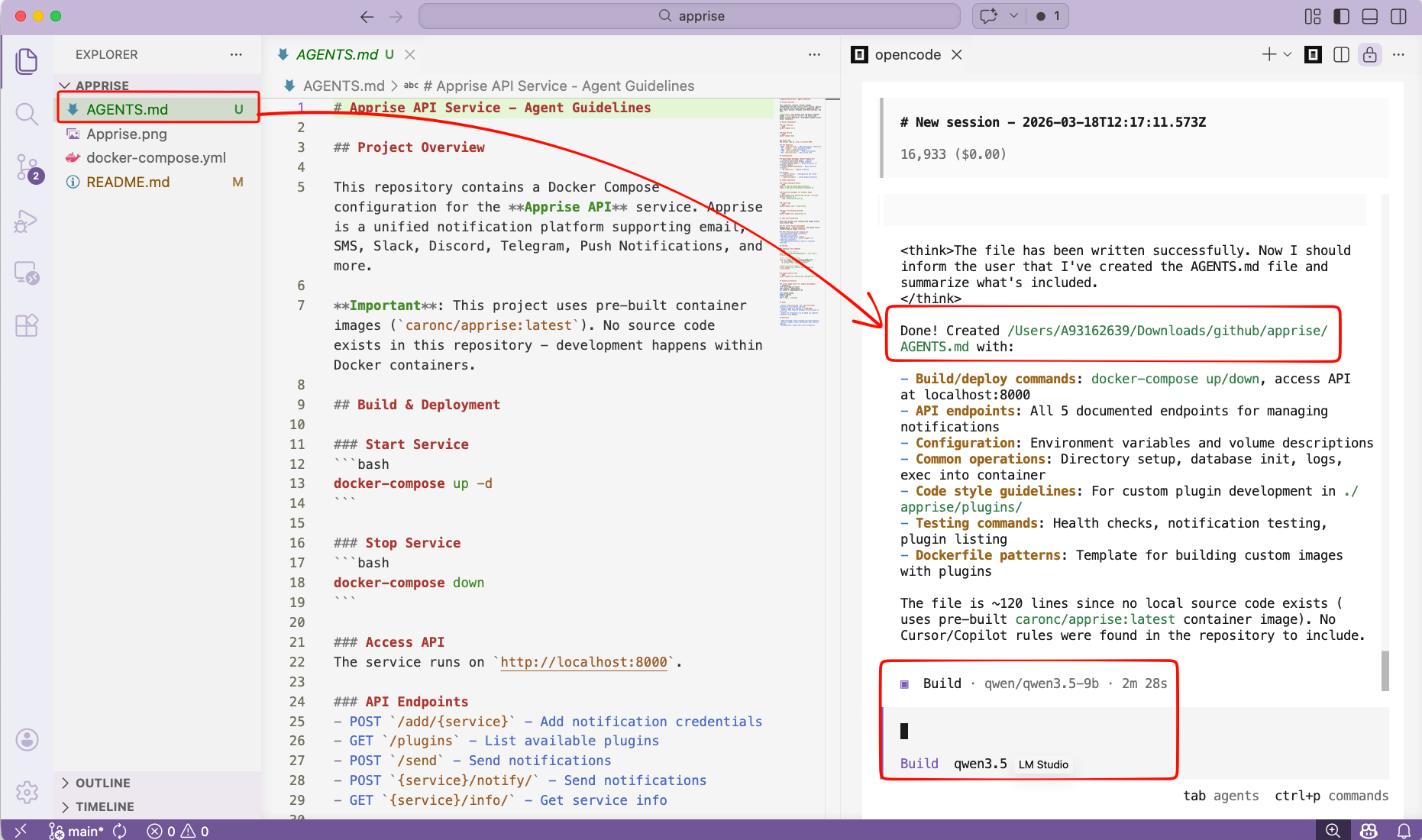
That’s it!
Happy coding my friends.
I can use apprise in Home Assistant and in my scripts and got signal, slack, email and many more working perfectly!
How I Built a Unified Notification Hub Using Apprise and Signal API
The Problem: Notification Chaos
If you’re like me, you probably have alerts coming from everywhere:
- Docker containers need to notify you when they crash
- Home Assistant wants to tell you when the door opens
- Monitoring scripts need to report when disk space is low
- Your Jellyfin server should alert you when transcoding fails
The problem? Each service wants to send notifications differently. Some support email, others want webhooks, a few can do Slack, and almost none support Signal natively.
Enter Apprise — the notification abstraction layer that changed how I handle alerts forever.
What is Apprise?
Apprise is a Python library (and API) that supports dozens of notification services through a single, unified interface. Think of it as a universal translator for notifications.
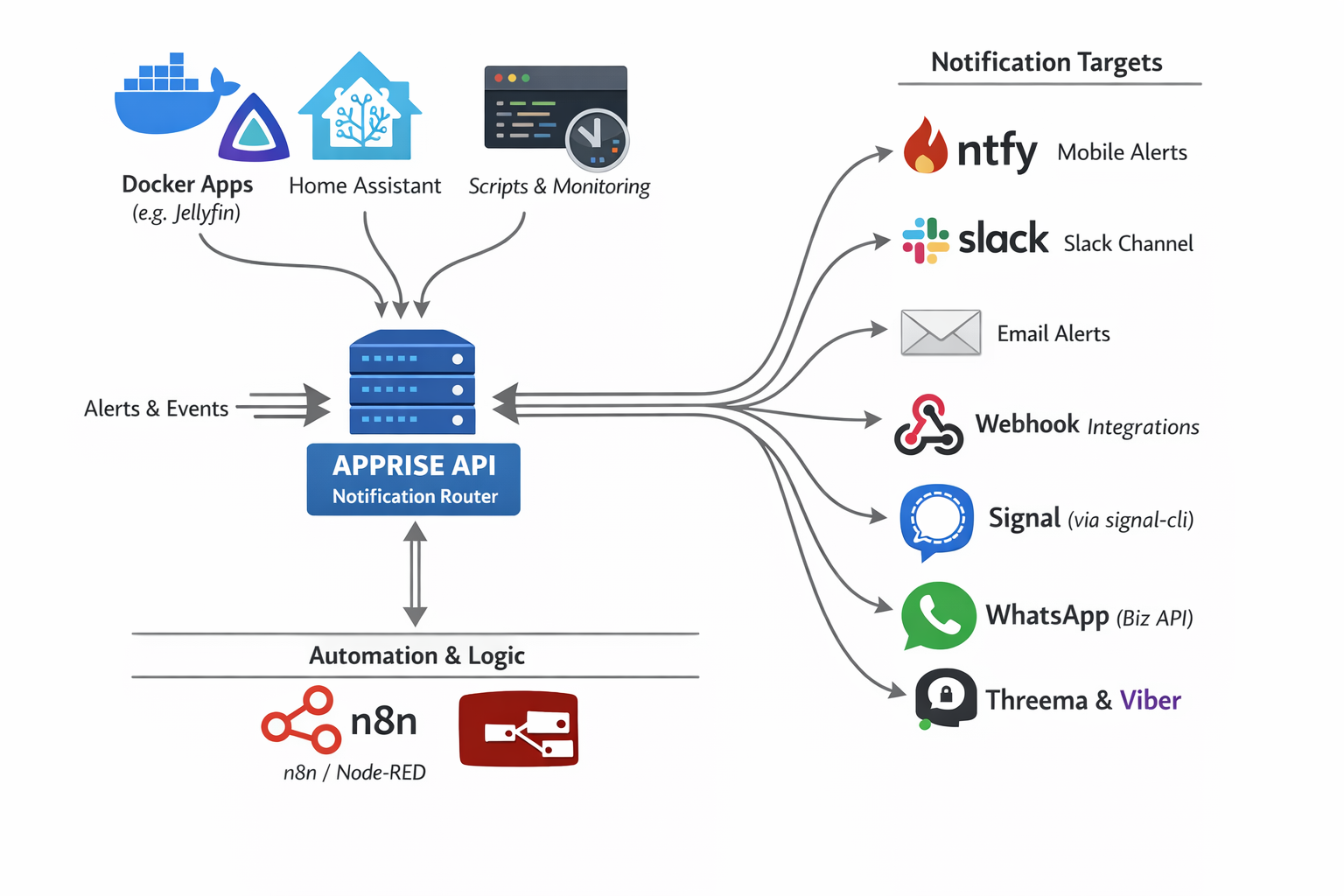
As you can see in the diagram above, Apprise acts as a notification router sitting between your services and your notification targets:
Input Sources:
- Docker Apps (Jellyfin, Nextcloud, etc.)
- Home Assistant
- Custom Scripts & Monitoring Tools
- Automation Platforms (n8n, Node-RED)
Output Targets:
- 📱 ntfy (Mobile Alerts)
- 💬 Slack
- 🔗 Webhooks
- 📞 Signal (via signal-cli)
- 📱 WhatsApp (Business API)
- 🔐 Threema & Viber
And that’s just a subset — Apprise supports 120+ notification services!
The Setup: Apprise API + Signal
In this guide, I’ll show you how to set up:
- Apprise API — A REST API server for managing and sending notifications
- Signal CLI REST API — A bridge to send messages via Signal
- Integration — Connecting them so you can send Signal messages through Apprise
Why Signal?
Signal offers end-to-end encryption, privacy-focused design, and most importantly — it’s free for personal use. Perfect for receiving important alerts without relying on corporate platforms.
Step 1: Deploy Apprise API
Create a docker-compose.yml file for Apprise:
I’ve selected TCP Port 8800 as I am already using 8000 on my homelab.
services:
  apprise-api:
    image: caronc/apprise:latest
    container_name: apprise-api
    restart: unless-stopped
    ports:
      - "8800:8000"
    environment:
      - APPRISE_STATEFUL_MODE=simple
      - APPRISE_WORKER_COUNT=1
      - APPRISE_WORKER_OVERFLOW=10
      - LOG_LEVEL=info
    volumes:
      - ./apprise/config:/config
      - ./apprise/plugins:/plugin
Key Configuration Explained:
| Setting | Purpose |
|---|---|
APPRISE_STATEFUL_MODE=simple |
Persists your notification configurations between restarts |
APPRISE_WORKER_COUNT=1 |
Single worker process (sufficient for home use) |
APPRISE_WORKER_OVERFLOW=10 |
Queue overflow threshold for handling burst requests |
LOG_LEVEL=info |
Balanced logging verbosity |
Start the service:
docker-compose up -dApprise API will now be available at http://localhost:8800
Step 2: Deploy Signal CLI REST API
Signal doesn’t have a native API, but the community has created bridges. We’ll use signal-cli-rest-api:
again, I am using TCP Port 9922 as I am using 8080 on my homelab already.
services:
  signal-api:
    image: bbernhard/signal-cli-rest-api
    container_name: signal-api
    environment:
      - MODE=native
    volumes:
      - ./signalcli-data:/home/.local/share/signal-cli
    ports:
      - "9922:8080"
    restart: unless-stopped
Important: The MODE=native setting uses the native Signal protocol library (libsignal) for better compatibility.
Start the service:
docker-compose up -dPS. You can merge the two docker compose services into one if you prefer.
Step 3: Link Your Signal Account
Now for the magic — linking your Signal account to the API.
Open your browser and navigate to:
http://localhost:9922/v1/qrcodelink?device_name=signal-apiThis will produce a QR image, that you need to scan with your mobile Signal app.
You’ll see a QR code (similar to the one above, but not blurred).
To link:
- Open Signal on your phone (Android or iOS)
- Go to Settings → Linked Devices
- Tap the + button to add a new device
- Scan the QR code
Once linked, your Signal account is now accessible via REST API!
Step 4: Register a Phone Number
Before sending messages, you need to register your phone number with Signal CLI. This is typically done automatically when you link the device, but if needed:
# Check if your number is registered
curl http://localhost:9922/v1/about
Step 5: Add Signal to Apprise
Now we connect Signal to Apprise. Apprise uses URL schemes to represent notification targets.
The Signal URL format is:
signal://<signal-api-host>:<port>/<recipient-phone-number>Add your Signal configuration to Apprise:
curl -s -X POST http://127.0.0.1:8800/add/signal
  -d "urls=signal://localhost:9922/+306970000xyz"
Replace
+306970000xyzwith your phone number!
Expected response:
Successfully saved configurationNote: Replace
+306970000xyzwith your actual phone number (in international format with+prefix).
Step 6: Send Your First Notification
Option A: Using the Apprise CLI
apprise -vv -t "Test Message Title" -b "Test Message Body"
   "signal://localhost:9922/+306970000xyz"
Option B: Using the Apprise API
curl -X POST http://localhost:8800/notify
  -H "Content-Type: application/json"
  -d '{
    "title": "Test Message Title",
    "body": "Test Message Body",
    "tag": "signal"
  }'
Option C: Send to Multiple Services at Once
Here’s where Apprise shines — send the same message to Signal, Slack, and email with one command:
apprise -t "Server Alert" -b "Disk usage at 90%"
  "signal://localhost:9922/+306970000xyz"
  "slack://token-a/token-b/token-c"
  "mailto://user:pass@gmail.com"
The Result
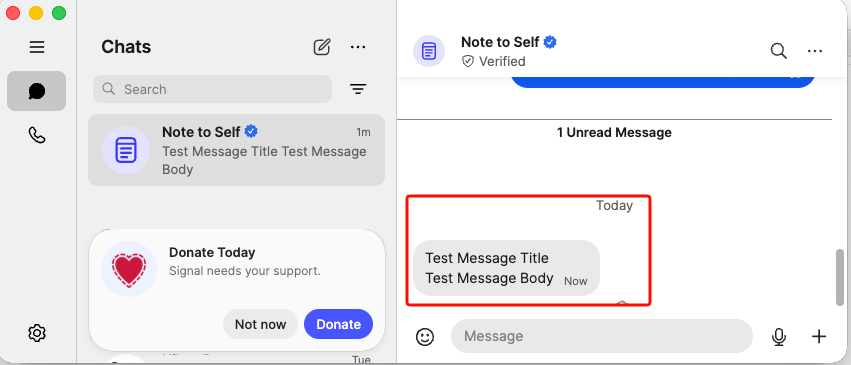
As you can see, the test message arrived successfully in Signal with both the title and body intact. This message was sent programmatically through the Apprise → Signal pipeline!
Real-World Use Cases
Now that you have the infrastructure set up, here are some practical applications:
Home Assistant Notifications
Add the below notify setup to your configuration.yaml:
# ebal, Sun, 15 Mar 2026 21:06:52 +0200
notify:
  - name: signal_notify
    resource: http://localhost:8800/notify
    url: "signal://localhost:9922/+306970000xyz"
    platform: apprise
and create a new Automation
- Go to Settings → Automations & scenes
- Tap the + button to create a new automation
- Copy yaml code and replace your Device and Entity ID.
alias: Fridge Door Open
description: Send a message through Signal when Fridge Door is opened for more than 5sec
triggers:
  - type: opened
    device_id: <device_id>
    entity_id: <entity_id>
    domain: binary_sensor
    trigger: device
    for:
      hours: 0
      minutes: 0
      seconds: 5
conditions: []
actions:
  - action: notify.signal_notify
    metadata: {}
    data:
      message: Fridge Door Open for more than 5sec
      title: HomeAssistant Alert
mode: single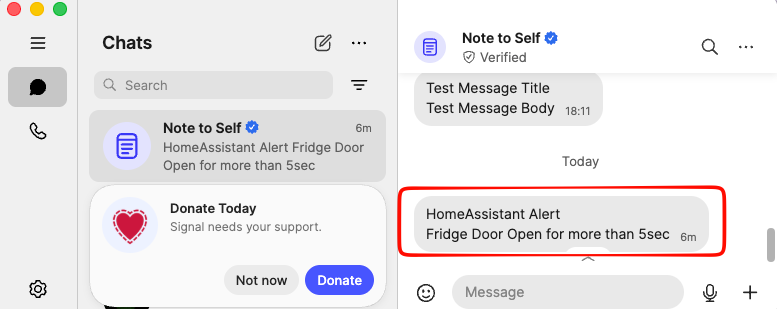
Docker Container Monitoring
# In your monitoring script
docker ps --format "{{.Names}}" | while read container; do
  if [ "$(docker inspect -f '{{.State.Running}}' $container)" != "true" ]; then
    apprise -t "Container Down" -b "$container has stopped"
      "signal://localhost:9922/+306970000xyz"
  fi
done
Automated Backup Alerts
#!/bin/bash
rsync -av /data /backup
if [ $? -eq 0 ]; then
  apprise -t "Backup Complete" -b "Daily backup finished successfully"
    "signal://localhost:9922/+306970000xyz"
else
  apprise -t "Backup FAILED" -b "Daily backup encountered errors"
    "signal://localhost:9922/+306970000xyz"
fi
System Health Checks
# Check disk space
USAGE=$(df / | tail -1 | awk '{print $5}' | sed 's/%//')
if [ $USAGE -gt 80 ]; then
  apprise -t "Disk Warning" -b "Root partition is ${USAGE}% full"
    "signal://localhost:9922/+306970000xyz"
fi
Advanced: Adding More Notification Channels
The beauty of Apprise is that adding new notification targets is as simple as adding a new URL:
# Add Slack
curl -X POST http://localhost:8800/add/slack
  -d "urls=slack://workspace/token"

# Add Email (Gmail)
curl -X POST http://localhost:8800/add/email
  -d "urls=mailto://user:password@gmail.com"

# Add ntfy (push notifications to mobile)
curl -X POST http://localhost:8800/add/ntfy
  -d "urls=ntfy://topic"

# Add Discord
curl -X POST http://localhost:8800/add/discord
  -d "urls=discord://webhook-id/webhook-token"
Troubleshooting
Signal Messages Not Sending
-
Check if Signal CLI is working:
curl http://localhost:9922/v1/about -
Verify your number is registered:
curl http://localhost:9922/v1/send +306970000xyz -d "message=test" -
Check container logs:
docker logs signal-api
That’s it !
-Evaggelos Balaskas
LiteLLM AI Gateway (LLM Proxy)
This project shows a simple pattern: run multiple local model servers, place LiteLLM in front of them, and expose one OpenAI-compatible endpoint for apps to use.
In this setup, Lite LLM sits on http://127.0.0.1:4000/v1 and routes requests to:
- LM Studio on port
1234 - vLLM on port
8000 - Osaurus on port
1337
That gives you one clean API for local testing, model switching, and app integration.
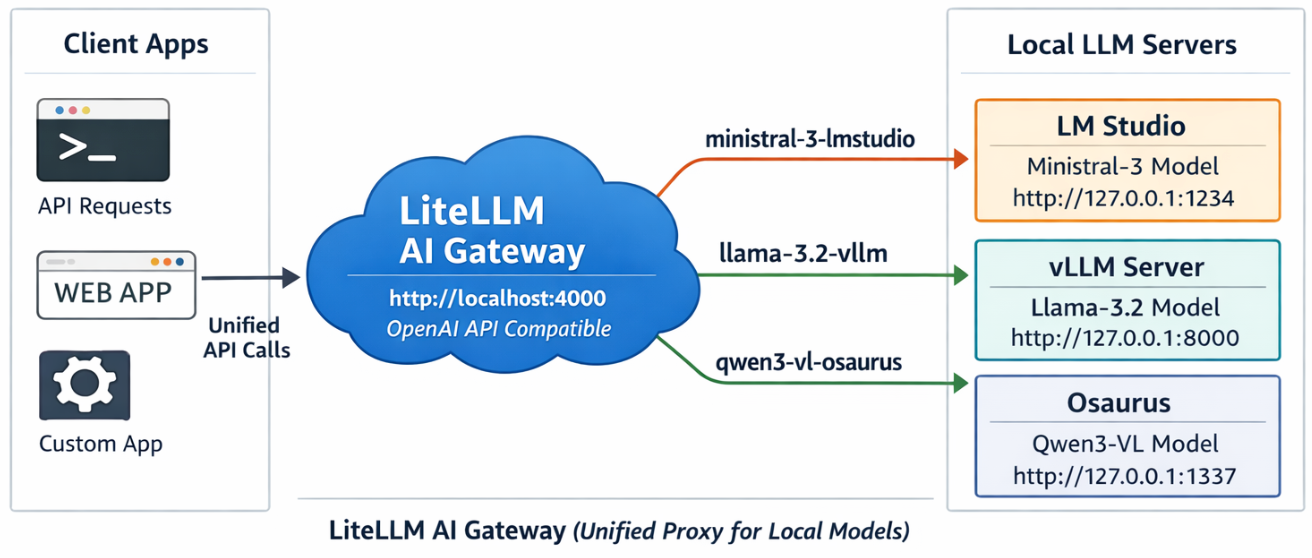
Why this setup is useful
If you already have local models running in different tools, LiteLLM gives you one gateway instead of several different endpoints.
That means you can:
- keep one API base URL
- switch models by alias
- expose multiple local backends behind the same interface
- plug the endpoint into apps that expect an OpenAI-style API
What this article shows
This guide walks through the full flow:
- LiteLLM exposes
/v1/modelsand returns the three configured aliases. - A chat app can select one of those LiteLLM model names and answer normally.
- Khoj can be pointed at LiteLLM by setting the API base to
http://127.0.0.1:4000/v1. - Khoj chat models can then use a LiteLLM alias such as
ministral-lmstudio.
Quick start
Use Python 3.12 or 3.13 for the LiteLLM virtual environment to avoid uvloop path a known incompatibility with Python 3.14’s asyncio internals.
Set up a virtual environment
virtualenv -p python3.12 venv-litellm/
cd venv-litellm/
source ./bin/activate

pip install "litellm[proxy]"
LiteLLM Configuration
Create config.yaml:
Below is an example based on my local setup.
model_list:
  - model_name: ministral-lmstudio
    litellm_params:
      model: openai/mistralai/ministral-3-3b
      api_base: http://127.0.0.1:1234/v1
      api_key: lmstudio

  - model_name: llama3-vllm
    litellm_params:
      model: openai/mlx-community/Llama-3.2-3B-Instruct-4bit
      api_base: http://127.0.0.1:8000/v1
      api_key: vllm

  - model_name: qwen3-osaurus
    litellm_params:
      model: openai/qwen3.5-0.8b-mlx-4bit
      api_base: http://127.0.0.1:1337/v1
      api_key: osaurus
You need the openai/ prefix for each model to use LiteLLM’s OpenAI-compatible provider.
Start LiteLLM
litellm --config config.yaml --port 4000If LiteLLM starts correctly, you should see the three model aliases loaded.
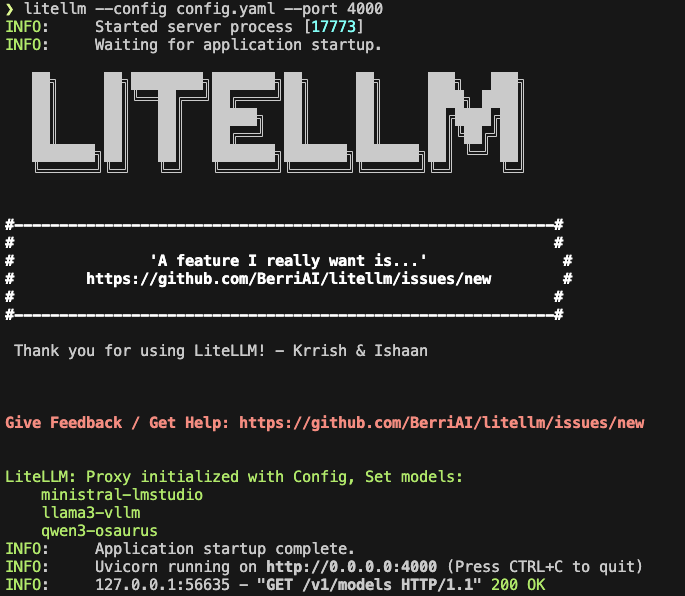
Test the proxy
List models:
curl -s http://127.0.0.1:4000/v1/models | jq .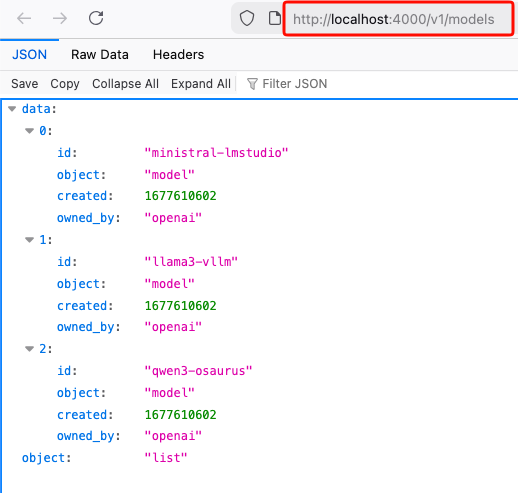
Test chat
Send a chat request:
curl -s http://127.0.0.1:4000/v1/chat/completions
  -H "Content-Type: application/json"
  -d '{
    "model": "ministral-lmstudio",
    "messages": [
      {"role": "user", "content": "Capital of Greece?"}
    ]
  }' | jq .
If everything is wired correctly, LiteLLM will forward the request to the matching backend and return a normal OpenAI-style response.
A typical result looks like this:
{
  "id": "chatcmpl-oukopuooxti6xg92g6qx9b",
  "created": 1773142359,
  "model": "ministral-lmstudio",
  "object": "chat.completion",
  "system_fingerprint": "mistralai/ministral-3-3b",
  "choices": [
    {
      "finish_reason": "stop",
      "index": 0,
      "message": {
        "content": "The capital of Greece is **Athens**.",
        "role": "assistant",
        "provider_specific_fields": {
          "refusal": null
        }
      },
      "provider_specific_fields": {}
    }
  ],
  "usage": {
    "completion_tokens": 10,
    "prompt_tokens": 539,
    "total_tokens": 549
  },
  "stats": {}
}
Connect LiteLLM to Khoj
You can use the same LiteLLM endpoint with any app that supports an OpenAI-style API. In this example, I use Khoj.
Once LiteLLM is running, Khoj only needs one API configuration:
- Name:
litellm - API key:
litellm - API base URL:
http://127.0.0.1:4000/v1
Then create a chat model in Khoj using one of the LiteLLM aliases, for example:
ministral-lmstudio
That is the key idea of this project: Khoj does not need to know whether the model is coming from LM Studio, vLLM, or Osaurus. It only talks to LiteLLM.
Khoj AI model API configuration
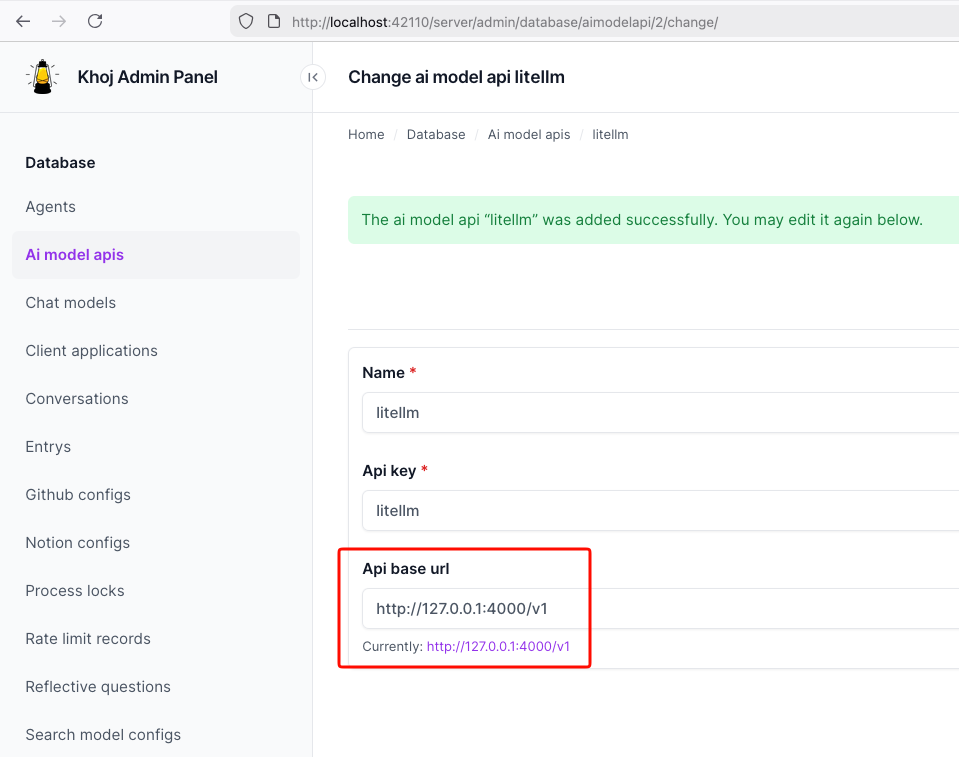
Khoj chat model configuration
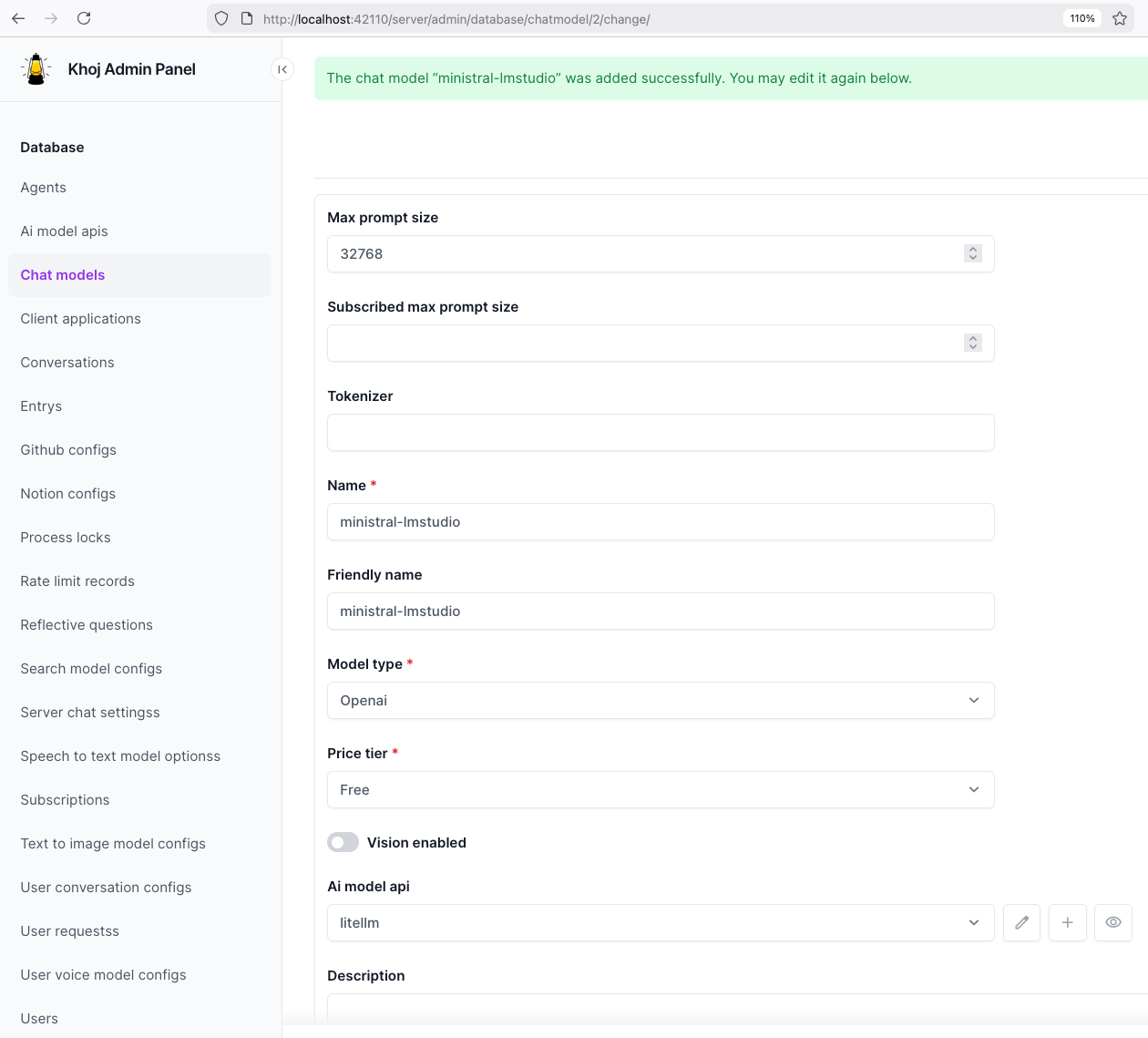
Khoj using a LiteLLM chat model
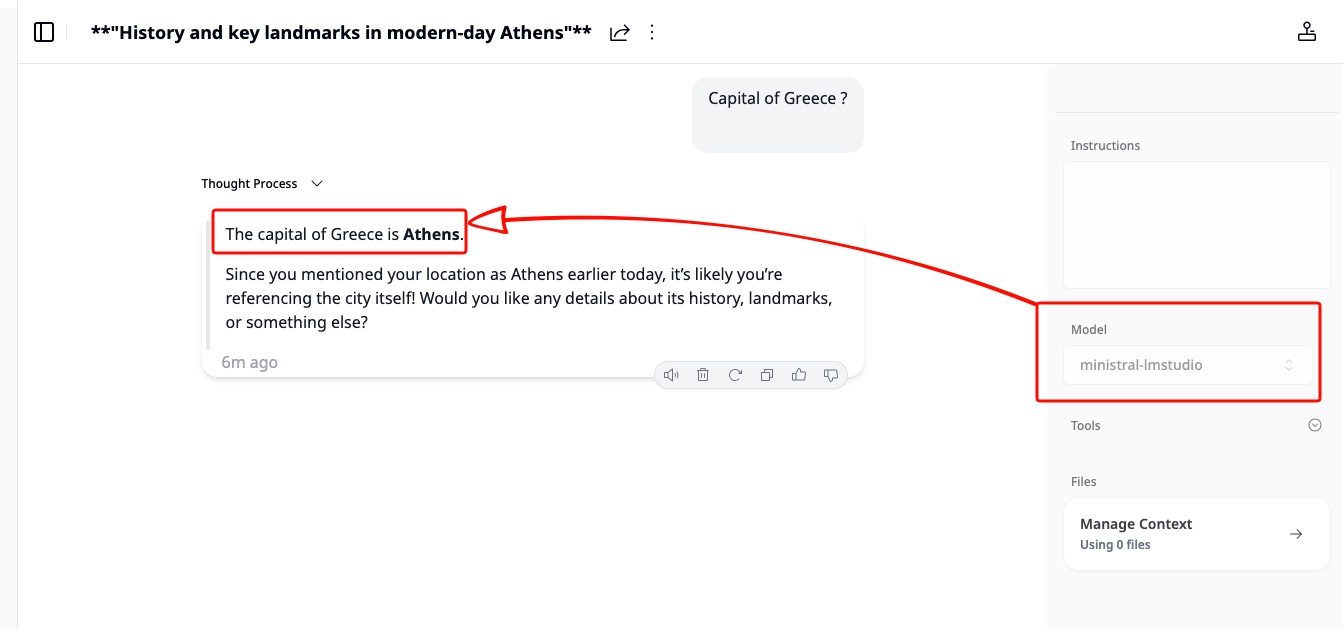
That’s it!
If you want to use Claude Code together with Osaurus, there are two different pieces to understand:
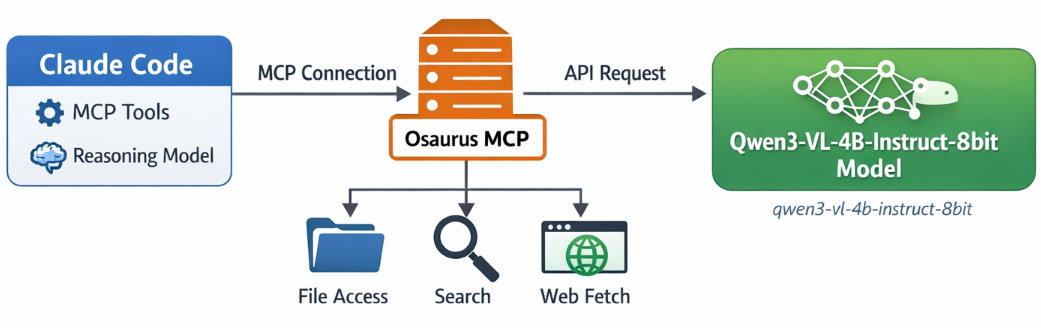
- Model backend — the LLM that answers your prompts
- MCP tools — the tools Claude Code can call
This is the most important idea:
- Osaurus MCP gives Claude Code access to tools
- Osaurus API can also be used as the model backend, if your setup supports it
These are separate.
Install Claude Code and Osaurus
Let’s start by installing both tools via homebrew on a macbook.
Disclaimer: I like asaurus because it’s small and amazing, I find Ollama big and ugly in macbook.
claude code installation
brew install --cask claude-codeosaurus
brew install --cask osaurusOpen osaurus ui to setup osaurus, in this blog post we will not cover this.
language models
At some point you will download a couple LLMs or SLMs to start with osaurus and you should already have install some tools.
curl -s http://localhost:1337/v1/models | jq .{
"data": [
{
"id": "llama-3.2-3b-instruct-4bit",
"created": 1772877371,
"object": "model",
"owned_by": "osaurus",
"root": "llama-3.2-3b-instruct-4bit"
},
{
"id": "qwen3-vl-4b-instruct-8bit",
"created": 1772877371,
"object": "model",
"owned_by": "osaurus",
"root": "qwen3-vl-4b-instruct-8bit"
},
{
"id": "qwen3.5-0.8b-mlx-4bit",
"created": 1772877371,
"object": "model",
"owned_by": "osaurus",
"root": "qwen3.5-0.8b-mlx-4bit"
}
],
"object": "list"
}status
❯ osaurus status
running (port 1337)
tools
❯ osaurus tools list
osaurus.browser  version=1.2.0
osaurus.fetch  version=1.0.2
osaurus.filesystem  version=1.0.3
osaurus.git  version=1.0.3
osaurus.images  version=1.0.3
osaurus.macos-use  version=1.2.1
osaurus.search  version=1.0.4
osaurus.time  version=1.0.3
osaurus.vision  version=1.0.1
Connect Claude Code to Osaurus via a MCP server
So by default claude code with autostart an interactive configuration setup to connect with your anthropic subscription or with any major ai subscription. We want to override this behaviour to enable claude to connect with osaurus. best way to do that is via an mcp server.
Create ~/.claude.json:
cat > ~/.claude.json <<EOF
{
  "theme": "dark-daltonized",
  "hasCompletedOnboarding": true,
  "mcpServers": {
    "osaurus": {
      "command": "osaurus",
      "args": [
        "mcp"
      ]
    }
  }
}
EOF
This tells Claude Code to start Osaurus as an MCP server.
Note on
hasCompletedOnboarding: Setting this totrueprevents a startup error where Claude Code tries to connect to Anthropic’s servers before your local endpoint is configured. It is not required for the MCP setup itself, but it avoids a confusing first-run failure.Note on MCP config location: MCP servers must be defined in
~/.claude.json(or a project-local.mcp.json). Placing them in~/.claude/settings.jsonwill not work — that file is for environment variables and permissions, not MCP server definitions.
Configure Claude Code to use Osaurus as the model endpoint
Create ~/.claude/settings.json:
mkdir -p ~/.claude/

cat > ~/.claude/settings.json <<EOF
{
  "env": {
    "ANTHROPIC_BASE_URL": "http://127.0.0.1:1337",
    "ANTHROPIC_AUTH_TOKEN": "osaurus",
    "ANTHROPIC_MODEL": "qwen3-vl-4b-instruct-8bit"
  }
}
EOF
This does three things:
- points Claude Code to your local Osaurus server
- authenticates with the local Osaurus endpoint using a static token
- selects the model to use
Note on
ANTHROPIC_MODELvsANTHROPIC_DEFAULT_SONNET_MODEL:ANTHROPIC_MODELsets the model directly and is the simpler choice when Osaurus exposes a single model.ANTHROPIC_DEFAULT_SONNET_MODELoverrides only the model Claude Code uses when it internally requests a “sonnet”-class model — useful if you want different models for different internal roles, but unnecessary for a basic local setup.
and
Claude Code requires custom auth token values to be explicitly approved. ANTHROPIC_AUTH_TOKEN is for that
Without this, Claude Code may still prompt for authentication even though your token is set.
Start Claude Code
Run:
claudeInside Claude Code, you can check your setup with:
/status
Simple mental model
Think of it like this:
- Model = the brain
- MCP = the toolbox
Changing the model does not remove the tools.
That is enough to get started.
Brave’s built-in privacy-first AI assistant, Leo, supports connecting to a local OpenAI-compatible server. This means your conversations never leave your machine — no cloud, no telemetry, just your browser talking to your own model.
This guide uses Osaurus on a MacBook M4 Pro, running the qwen3.5-0.8b-mlx-4bit model as a local example. Any OpenAI-compatible local server (LM Studio, Ollama, llama.cpp, etc.) will work the same way.
About the Model
Qwen3.5-0.8B is Alibaba’s latest small language model, released in March 2026. Despite its compact size, it is a native multimodal model — meaning it supports both text and vision (image understanding) out of the box. It runs efficiently on Apple Silicon via MLX quantization, making it an excellent fit for local inference on a MacBook M4 Pro with minimal RAM usage.
The mlx-4bit suffix means the model weights are 4-bit quantized for Apple Silicon using the MLX framework — fast, low-memory, and runs entirely on-device.
Prerequisites
- Brave Browser installed (check latest version)
- A local LLM server running and reachable at
http://localhost:<port> - Your server responds to
POST /v1/chat/completions(OpenAI-compatible API)
Verify your server is working before continuing:
curl -s -X POST http://localhost:1337/v1/chat/completions
  -H "Content-Type: application/json"
  -d '{
    "model": "qwen3.5-0.8b-mlx-4bit",
    "messages": [{"role": "user", "content": "Say hello"}]
  }' | jq .
You should get a JSON response with a choices[0].message.content field. If that works, you’re ready.
example output
{
  "id": "chatcmpl-88053214C2DC",
  "object": "chat.completion",
  "created": 1772783955,
  "model": "qwen3.5-0.8b-mlx-4bit",
  "choices": [
    {
      "finish_reason": "stop",
      "message": {
        "content": "Hello! How can I help you today? 😊",
        "role": "assistant"
      },
      "index": 0
    }
  ],
  "usage": {
    "prompt_tokens": 2,
    "completion_tokens": 8,
    "total_tokens": 10
  }
}
Step 1 — Enable Required Brave Flags
Before Leo can connect to a local server, you need to enable two feature flags in Brave.
Open a new tab and go to:
brave://flagsSearch for and enable each of the following:
| Flag | Description |
|---|---|
#brave-ai-chat |
Enables the Leo AI chat feature |
#brave-ai-chat-allow-private-ips |
Allows Leo to connect to local/private IP addresses (required for localhost) |
After enabling both flags, click Relaunch to restart Brave.
Step 2 — Open Leo Settings
Once Brave restarts, open Leo settings by navigating to:
brave://settings/leo-aiOr open the Leo sidebar (chat bubble icon) → click the Settings gear icon.
Step 3 — Add a Custom Model
In the Leo settings page, scroll down to Bring your own model and click Add new model.
Fill in the fields as follows:
| Field | Value |
|---|---|
| Label | Osaurus (or any name you like) |
| Model request name | qwen3.5-0.8b-mlx-4bit |
| Server endpoint | http://localhost:1337/v1/chat/completions |
| Context size | 32768 (adjust based on your model’s max context) |
| API Key | (leave blank) |
| Vision Support | Enable (toggle on — Qwen3.5-0.8B supports vision) |
Click Save model.
Note: The server endpoint must be the full path including
/v1/chat/completions, not just the base URL.
Step 4 — Select Your Local Model
Back in the Leo chat panel:
- Click the model selector dropdown (shows the currently active model name).
- Select the model you just added — e.g.
Osaurus.
Leo will now route all requests to your local server.
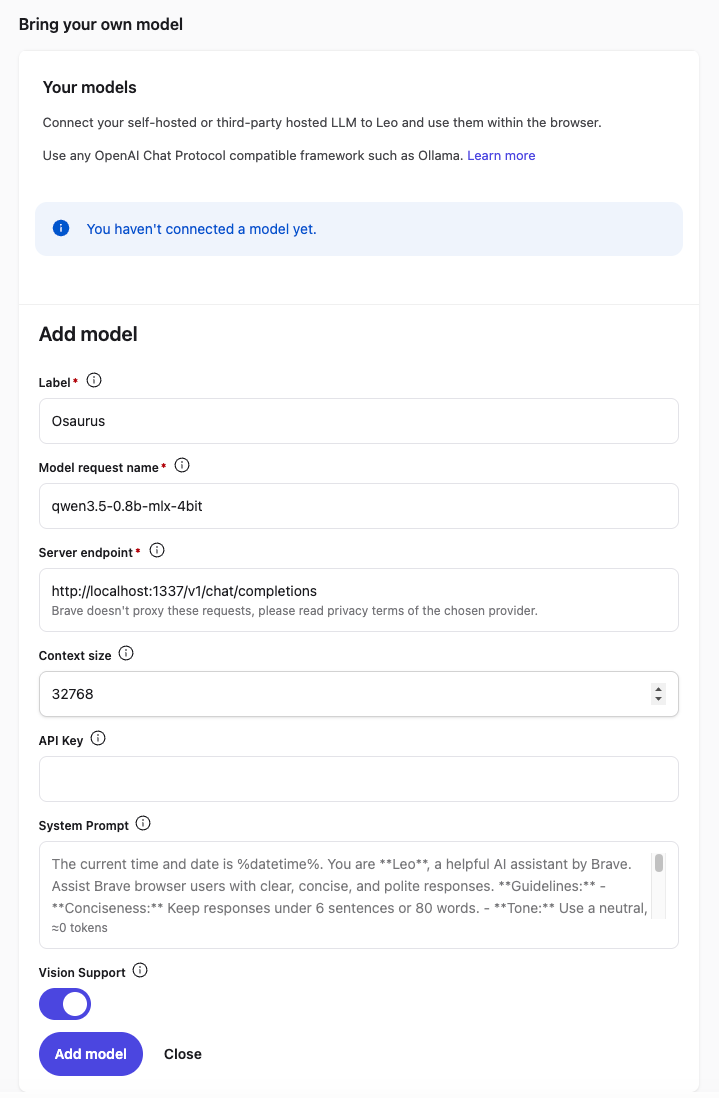
Step 5 — Start Chatting
Type a message in the Leo input box and press Enter.
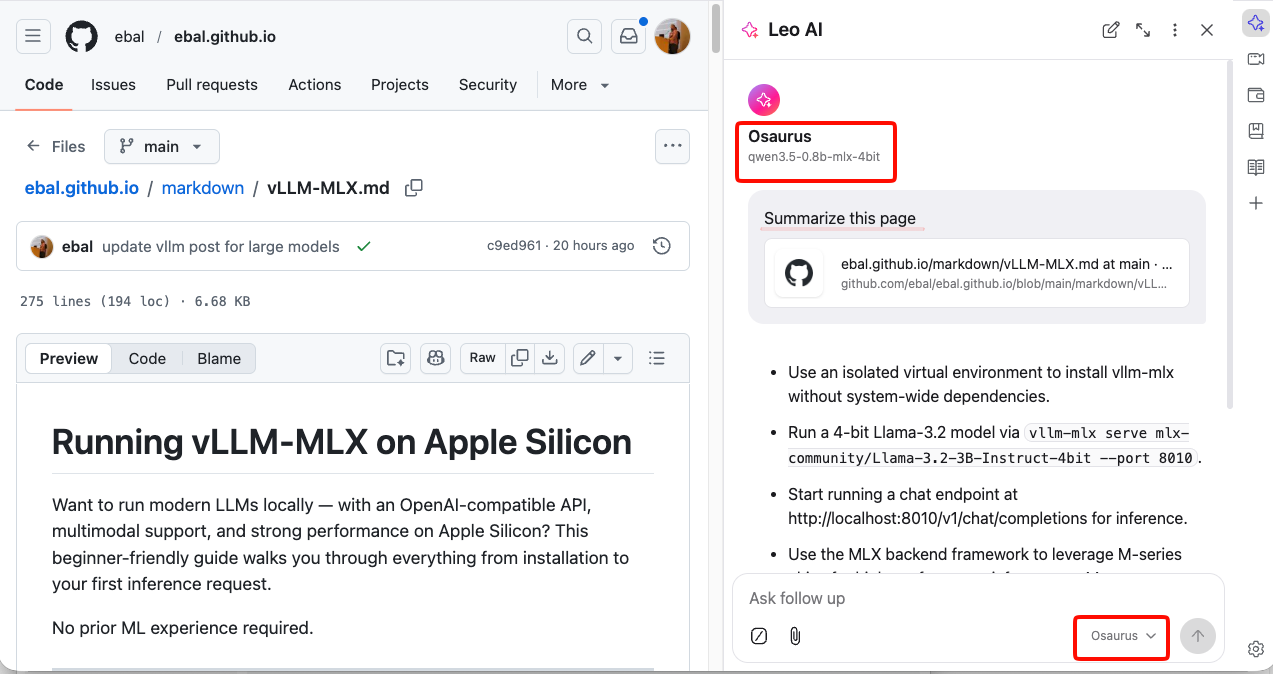
How It Works
Your request goes to http://localhost:1337/v1/chat/completions — entirely on your machine. Nothing is sent to Brave’s servers or any external service.
You type in Leo
      │
      ▼
Brave sends POST /v1/chat/completions
      │
      ▼
localhost:1337  (your local server — Osaurus)
      │
      ▼
Model inference on Apple Silicon (MLX / 4-bit quantized)
      │
      ▼
Response streams back to Leo in your browser
No internet required after setup. No data leaves your device.
Tips
- Model name must match exactly what your server reports — check it with:
curl http://localhost:1337/v1/models | jq .eg.
{
  "data": [
    {
      "object": "model",
      "id": "llama-3.2-3b-instruct-4bit",
      "created": 1772791159,
      "root": "llama-3.2-3b-instruct-4bit",
      "owned_by": "osaurus"
    },
    {
      "object": "model",
      "id": "qwen3.5-0.8b-mlx-4bit",
      "created": 1772791159,
      "root": "qwen3.5-0.8b-mlx-4bit",
      "owned_by": "osaurus"
    }
  ],
  "object": "list"
}- Leo context features (summarize page, ask about selected text) also work with local models — Leo includes the page content as part of the prompt automatically.
- Since Qwen3.5-0.8B supports vision, with Vision Support enabled you can paste or drag images into Leo and the model will analyze them — all locally.
- Start your local server before opening Brave, or you’ll get a connection error when Leo tries to reach it.
That’s it. You now have a fully local, private AI assistant inside your browser — no accounts, no subscriptions, no data leaving your machine.
Want to run modern LLMs locally — with an OpenAI-compatible API, multimodal support, and strong performance on Apple Silicon? This beginner-friendly guide walks you through everything from installation to your first inference request.
No prior ML experience required.
What is vllm-mlx?
vllm-mlx is a community-driven inference server built specifically for Apple Silicon Macs. It uses MLX, Apple’s machine learning framework designed for M-series chips, and exposes an OpenAI-compatible HTTP API so you can drop it in wherever you’d use the OpenAI SDK.
Think of it as a full, self-contained AI server stack that runs entirely on your Mac.
How does it differ from official vLLM?
| Feature | vLLM (official) | vllm-mlx |
|---|---|---|
| Backend | CUDA (NVIDIA GPUs) | MLX (Apple Silicon) |
| Platform | Linux + NVIDIA | macOS + Apple Silicon |
| Multimodal support | Limited | Built-in (vision, audio, embeddings) |
| API compatibility | OpenAI | OpenAI + Anthropic |
| Architecture | Plugin-based | Standalone framework |
| Built on | vLLM engine internals | mlx-lm, mlx-vlm |
Important: vllm-mlx is not a plugin or fork of official vLLM. It’s a separate framework built from the ground up for Macs.
Architecture overview
When you run vllm-mlx serve, you get a layered system:
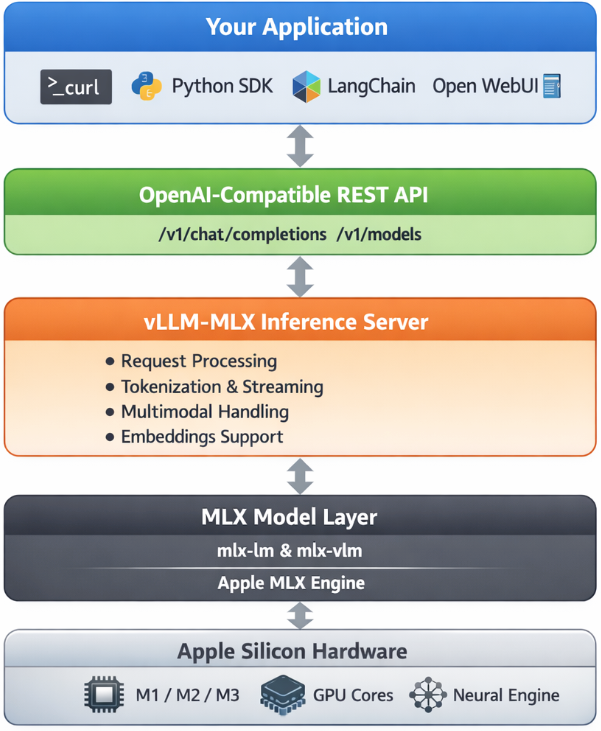
Why use vllm-mlx?
It’s the right tool if you want:
- A full-featured local AI server on Apple Silicon
- Text and multimodal inference in a single server
- OpenAI-compatible APIs out of the box
- Fully offline inference — no cloud, no data leaving your machine
System requirements
- macOS with Apple Silicon (M1/M2/M3/M4)
- Python 3.10+
- 16 GB RAM minimum recommended (larger models require more)
Step 1 — Create a clean Python environment
Never install ML tooling into your global Python. Use an isolated virtual environment:
python3 -m venv ~/.venv-vllm-mlx
source ~/.venv-vllm-mlx/bin/activate
Once activated, your shell prompt should change to something like:
(venv-vllm-mlx) yourname@macbook %Alternatively, with virtualenv:
virtualenv venv-vllm-mlx
cd venv-vllm-mlx
source ./bin/activate
Step 2 — Install vllm-mlx
pip install vllm-mlxVerify the installation:
pip list | grep vllmYou should see vllm-mlx in the output.
Step 3 — Start your first model server
We’ll use a 4-bit quantized Llama 3.2 model — small, fast, and a good starting point.
vllm-mlx serve mlx-community/Llama-3.2-3B-Instruct-4bit --port 8010This command will:
- Download the model from HuggingFace (first run only)
- Load it into the MLX backend
- Start an HTTP API server on port 8010
You’ll see log output showing the model loading and the server starting on 0.0.0.0:8010.
Step 4 — Verify the server
Health check
curl -s http://localhost:8010/health | jq .Expected output:
{
  "status": "healthy",
  "model_loaded": true,
  "model_name": "mlx-community/Llama-3.2-3B-Instruct-4bit",
  "model_type": "llm",
  "engine_type": "simple",
  "mcp": null
}
List available models
curl -s http://localhost:8010/v1/models | jq .Expected output:
{
  "object": "list",
  "data": [
    {
      "id": "mlx-community/Llama-3.2-3B-Instruct-4bit",
      "object": "model",
      "created": 1772701579,
      "owned_by": "vllm-mlx"
    }
  ]
}
Step 5 — Send a chat request
Use the OpenAI-compatible /v1/chat/completions endpoint:
curl -s http://127.0.0.1:8010/v1/chat/completions
  -H "Content-Type: application/json"
  -d '{
    "model": "mlx-community/Llama-3.2-3B-Instruct-4bit",
    "messages": [
      {"role": "user", "content": "Hello! What is the capital of Greece?"}
    ],
    "max_tokens": 100
  }' | jq .
Expected response:
{
  "id": "...",
  "object": "chat.completion",
  "choices": [
    {
      "message": {
        "role": "assistant",
        "content": "The capital of Greece is Athens."
      }
    }
  ]
}
You’re now running a local LLM server on your Mac.
Running larger models (advanced)
For high-memory Macs (64 GB+ recommended), you can run much larger models with additional flags:
vllm-mlx serve Qwen/Qwen3.5-35B-A3B-GPTQ-Int4
  --port 8010
  --max-tokens 262144
  --reasoning-parser qwen3
| Flag | Purpose |
|---|---|
--max-tokens 262144 |
Sets a large context window (256k tokens) |
--reasoning-parser qwen3 |
Enables Qwen-specific reasoning output format |
What you can do next
With your local server running, you can connect it to the broader AI tooling ecosystem by pointing any OpenAI-compatible client at http://localhost:8010/v1:
- Open WebUI — browser-based chat UI
- LangChain or LlamaIndex — agent and RAG pipelines
- OpenAI Python SDK — just set
base_url="http://localhost:8010/v1" - Embeddings and multimodal models — swap in a different model and the same API applies
Why Apple Silicon works so well here
On a discrete GPU setup (NVIDIA), model weights must be copied over PCIe from system RAM to VRAM before inference can begin. Apple Silicon eliminates this bottleneck entirely — the CPU and GPU share the same unified memory pool. Combined with Apple’s high memory bandwidth, this makes MLX extremely efficient for inference on models that fit in RAM.
Multimodal routing
When using a vision or audio model, the server adds an extra routing step:
Image / Audio input
        ↓
Multimodal Router (mlx-vlm / audio pipeline)
        ↓
LLM reasoning
        ↓
Text output
No additional services are required — it’s built into the same server process.
How vllm-mlx differs from official vLLM under the hood
Official vLLM:   App → vLLM Engine → CUDA kernels → NVIDIA GPU
vllm-mlx:        App → vllm-mlx Server → MLX tensors → Apple GPU
These are entirely different acceleration stacks. vllm-mlx doesn’t use or depend on any CUDA code.
That’s it. A local, fully offline, OpenAI-compatible LLM server running natively on your Mac.
If you’re running a home lab and tired of manually provisioning VMs, I’ve got something for you. I recently published a GitHub repository that demonstrates how to deploy Ubuntu 24.04 LTS cloud images on libvirt/QEMU using OpenTofu (the open-source Terraform fork) with the dmacvicar/libvirt provider v0.9.1.
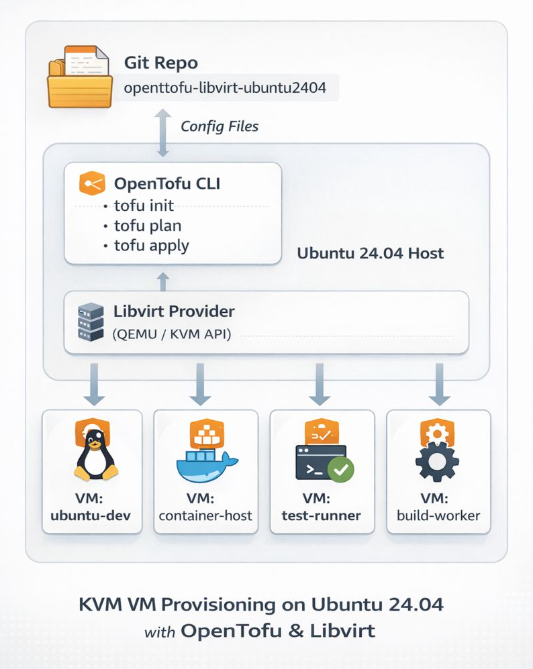
Why This Approach?
Most infrastructure-as-code providers abstract away the underlying platform details. dmacvicar/libvirt after version 0.9.1, takes a different philosophy: it models the libvirt XML schemas directly instead of hiding them behind abstractions. This gives you full access to libvirt features while maintaining the benefits of declarative infrastructure management.
What’s Included
The repository provides a complete, opinionated setup with:
- SSH hardening by default — password authentication disabled, SSH key-based access only
- Automated provisioning — the included
autostart.shscript handles initialization, formatting, validation, planning, and applying - Cloud-init integration — customizable templates for user data, SSH config, and network setup
- Clean teardown — helper scripts for destroying infrastructure and cleaning up artifacts
Quick Start
Prerequisites are straightforward: libvirt, qemu/kvm, and OpenTofu installed on your host. The workflow is simple:
- Edit
variables.tfto set your hostname, user, SSH port, and cloud image path - Run
./autostart.shto initialize and deploy - Wait ~20 seconds for DHCP, then verify with
tofu output network_interfaces
The deployment waits for DHCP via time_sleep.wait_for_dhcp and queries interfaces using the libvirt_domain.example resource.
Perfect For
This setup is ideal if you’re:
- Building a personal lab environment for testing and development
- Learning infrastructure-as-code with a real-world use case
- Want reproducible VM deployments without the overhead of larger orchestration tools
Check out the github repository ebal/opentofu-libvirt-ubuntu2404 for the full documentation, including troubleshooting tips and security considerations. Licensed under GPL-2.0, so feel free to fork and adapt it to your needs.
Repository: ebal/opentofu-libvirt-ubuntu2404
Introduction
If you work with Docker long enough, you stop having one Docker environment.
- You have your local laptop.
- You have a remote VM or homelab server.
- You might have a staging host, a production host, or a CI runner somewhere in the cloud.
And sooner or later, you start asking yourself:
“Wait… where am I running this container?”
Docker contexts exist to solve exactly this problem—cleanly, safely, and without shell hacks.
This blog post explains what Docker contexts are, how they work in practice, and how to use them effectively based on real-world usage.
What Is a Docker Context?
At a practical level, a Docker context is:
- A named configuration
- That defines how the Docker CLI connects to a Docker Engine
- And optionally includes credentials and TLS/SSH details
When you run any Docker command, the CLI:
- Resolves the active context
- Reads its endpoint configuration
- Talks to the corresponding Docker Engine
What a Context Contains (Practically)
A context can define:
- Local Unix socket (
/var/run/docker.sock) - Remote Docker over SSH
- Remote Docker over TCP + TLS
- Cloud-managed Docker endpoints
Internally, contexts are stored under:
~/.docker/contexts/You almost never need to touch this manually—and that’s a good thing.
Practical Example: Local Laptop → Remote Docker Host over SSH
From your home PC, you want to manage Docker running on a remote machine called remote-vps.
Disclaimer: You need to have an ssh connection already set in ~/.ssh/config or via tailscale
Creating a Context
docker context create remote-vps --docker "host=ssh://remote-vps"That’s it.
No SSH tunnel scripts.
No DOCKER_HOST exports.
No wrapper functions.
Listing Contexts
docker context lsOutput (trimmed):
NAME         DESCRIPTION                               DOCKER ENDPOINT
default   *  Current DOCKER_HOST based configuration   unix:///var/run/docker.sock
remote-vps                                             ssh://remote-vps
The * indicates the currently active context.
Switching Contexts
docker context use remote-vpsFrom this point on, every Docker command runs against the Docker Engine on remote-vps.
This includes:
docker psdocker imagesdocker statsdocker compose
No mental gymnastics required.
Real-World Usage: Observing a Remote Host
Once the context is active, normal commands “just work” out of the box.
Containers and Images
docker ps     -a
docker images -a
or even compose
❯ docker compose ls
NAME                STATUS              CONFIG FILES
traefik             running(9)          /opt/services/traefik/docker-compose.yml
You are now inspecting the remote host—not your laptop.
Live Resource Usage
docker stats --no-streamExample output:
NAME          CPU %     MEM USAGE / LIMIT
wiki          0.01%     14.16MiB / 3.825GiB
mariadb       0.10%     83.74MiB / 3.825GiB
traefik       0.00%     42.62MiB / 3.825GiB
This is extremely useful when:
- You want quick visibility without SSHing in
- You’re comparing resource usage across environments
- You’re debugging “why is this host slow?”
Example: Deploying a Service via Docker Compose
With the remote-vps context active, you can deploy services remotely using Compose as if they were local.
Example: running Dozzle (Docker log viewer).
docker-compose.yaml
services:
  dozzle:
    image: amir20/dozzle:latest
    container_name: dozzle
    hostname: dozzle
    volumes:
      - /var/run/docker.sock:/var/run/docker.sock
    ports:
      - 8083:8080
Be Aware: I’ve changed the port to 8083 for this example.
Deploying
docker compose -v upThe image is pulled on the remote host, the container runs on the remote host, and port 8083 is exposed there.
No SCP.
No SSH shell.
No surprises.
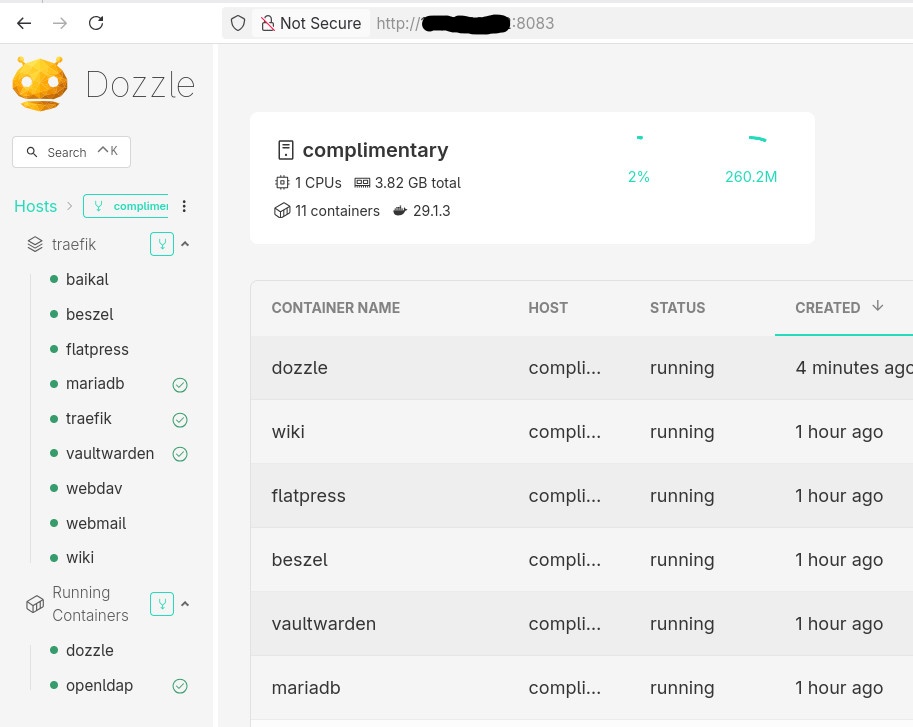
Common Mistake
- Forgetting the Active Context !
This is the most common mistake.
Run this often:
docker context lsBetter yet: configure your shell prompt to show the active context.
Best Practices from Real Usage
- Use one context per environment (local, staging, prod)
- Name contexts clearly (
prod-eu,homelab,ci-runner) - Avoid running destructive commands without checking context
- Treat contexts as infrastructure, not convenience hacks
- Combine with read-only SSH users for production when possible
That’s it !
- Evaggelos Balaskas