





Brave’s built-in privacy-first AI assistant, Leo, supports connecting to a local OpenAI-compatible server. This means your conversations never leave your machine — no cloud, no telemetry, just your browser talking to your own model.
This guide uses Osaurus on a MacBook M4 Pro, running the qwen3.5-0.8b-mlx-4bit model as a local example. Any OpenAI-compatible local server (LM Studio, Ollama, llama.cpp, etc.) will work the same way.
About the Model
Qwen3.5-0.8B is Alibaba’s latest small language model, released in March 2026. Despite its compact size, it is a native multimodal model — meaning it supports both text and vision (image understanding) out of the box. It runs efficiently on Apple Silicon via MLX quantization, making it an excellent fit for local inference on a MacBook M4 Pro with minimal RAM usage.
The mlx-4bit suffix means the model weights are 4-bit quantized for Apple Silicon using the MLX framework — fast, low-memory, and runs entirely on-device.
Prerequisites
- Brave Browser installed (check latest version)
- A local LLM server running and reachable at
http://localhost:<port> - Your server responds to
POST /v1/chat/completions(OpenAI-compatible API)
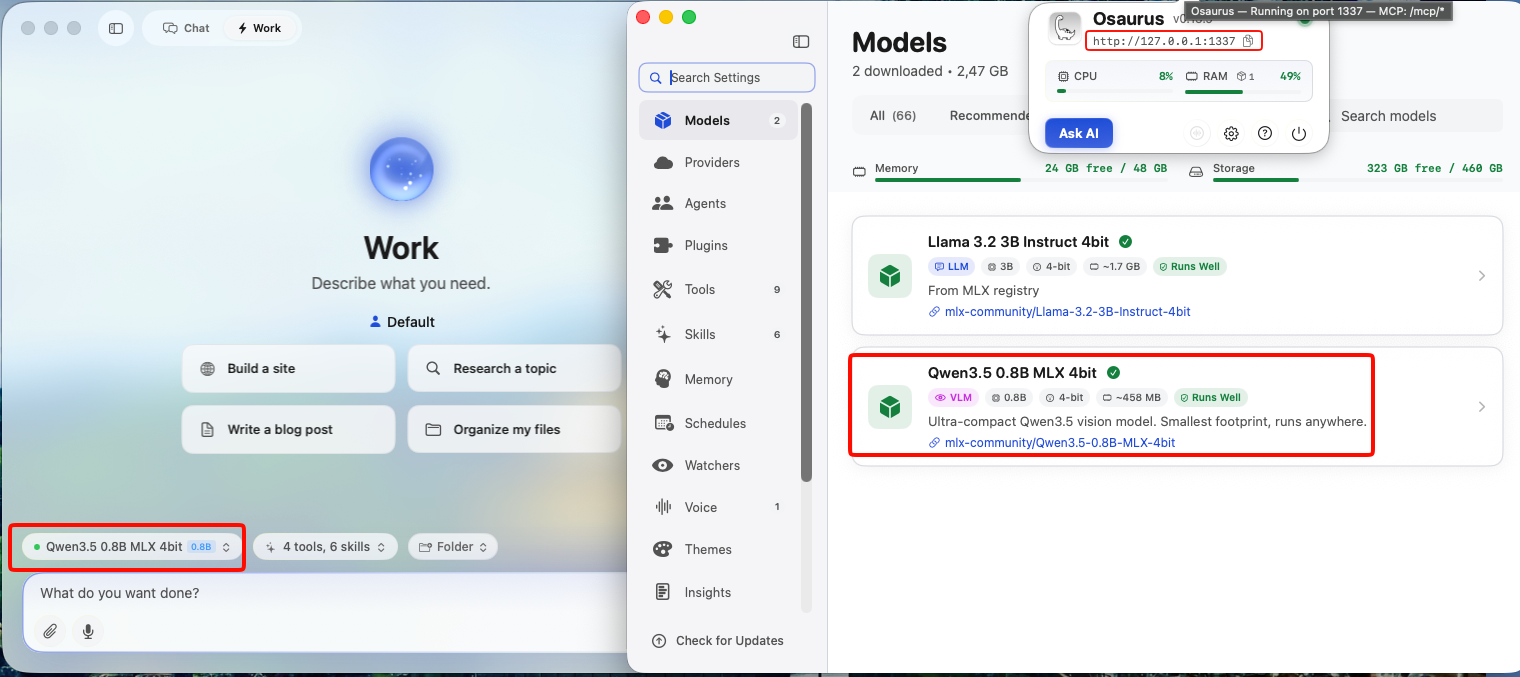
Verify your server is working before continuing:
curl -s -X POST http://localhost:1337/v1/chat/completions
  -H "Content-Type: application/json"
  -d '{
    "model": "qwen3.5-0.8b-mlx-4bit",
    "messages": [{"role": "user", "content": "Say hello"}]
  }' | jq .
You should get a JSON response with a choices[0].message.content field. If that works, you’re ready.
example output
{
  "id": "chatcmpl-88053214C2DC",
  "object": "chat.completion",
  "created": 1772783955,
  "model": "qwen3.5-0.8b-mlx-4bit",
  "choices": [
    {
      "finish_reason": "stop",
      "message": {
        "content": "Hello! How can I help you today? 😊",
        "role": "assistant"
      },
      "index": 0
    }
  ],
  "usage": {
    "prompt_tokens": 2,
    "completion_tokens": 8,
    "total_tokens": 10
  }
}
Step 1 — Enable Required Brave Flags
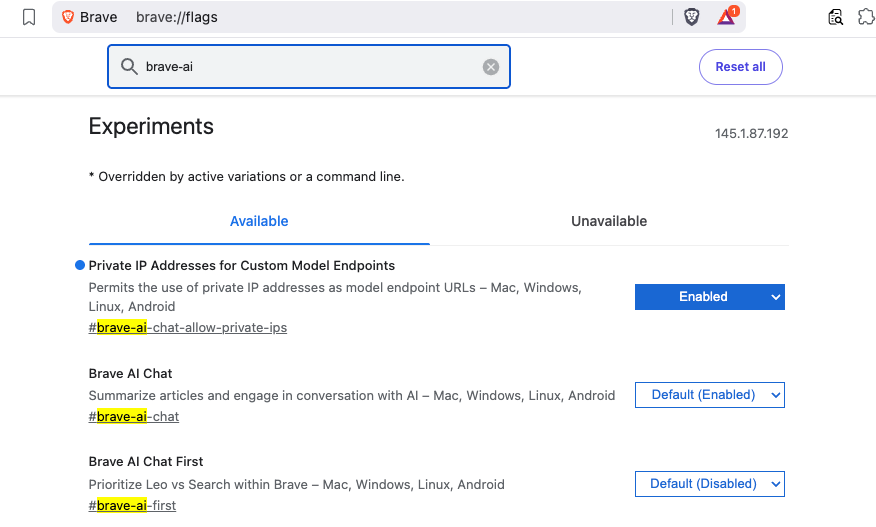
Before Leo can connect to a local server, you need to enable two feature flags in Brave.
Open a new tab and go to:
brave://flagsSearch for and enable each of the following:
| Flag | Description |
|---|---|
#brave-ai-chat |
Enables the Leo AI chat feature |
#brave-ai-chat-allow-private-ips |
Allows Leo to connect to local/private IP addresses (required for localhost) |
After enabling both flags, click Relaunch to restart Brave.
Step 2 — Open Leo Settings
Once Brave restarts, open Leo settings by navigating to:
brave://settings/leo-aiOr open the Leo sidebar (chat bubble icon) → click the Settings gear icon.
Step 3 — Add a Custom Model
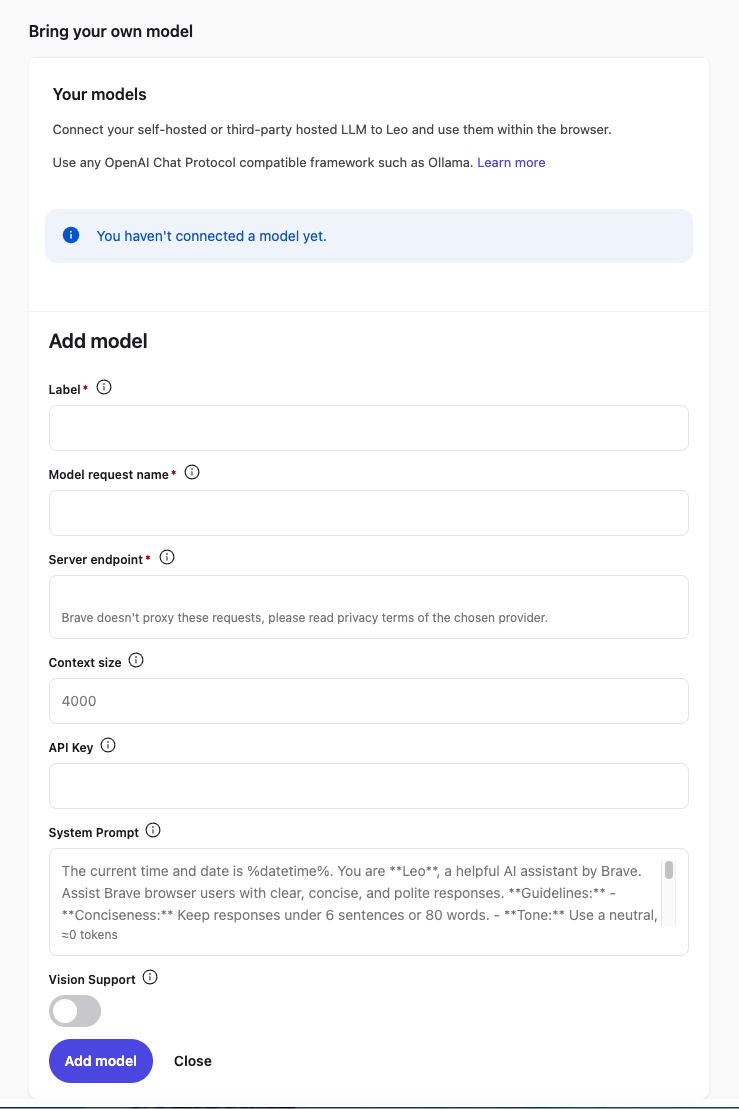
In the Leo settings page, scroll down to Bring your own model and click Add new model.
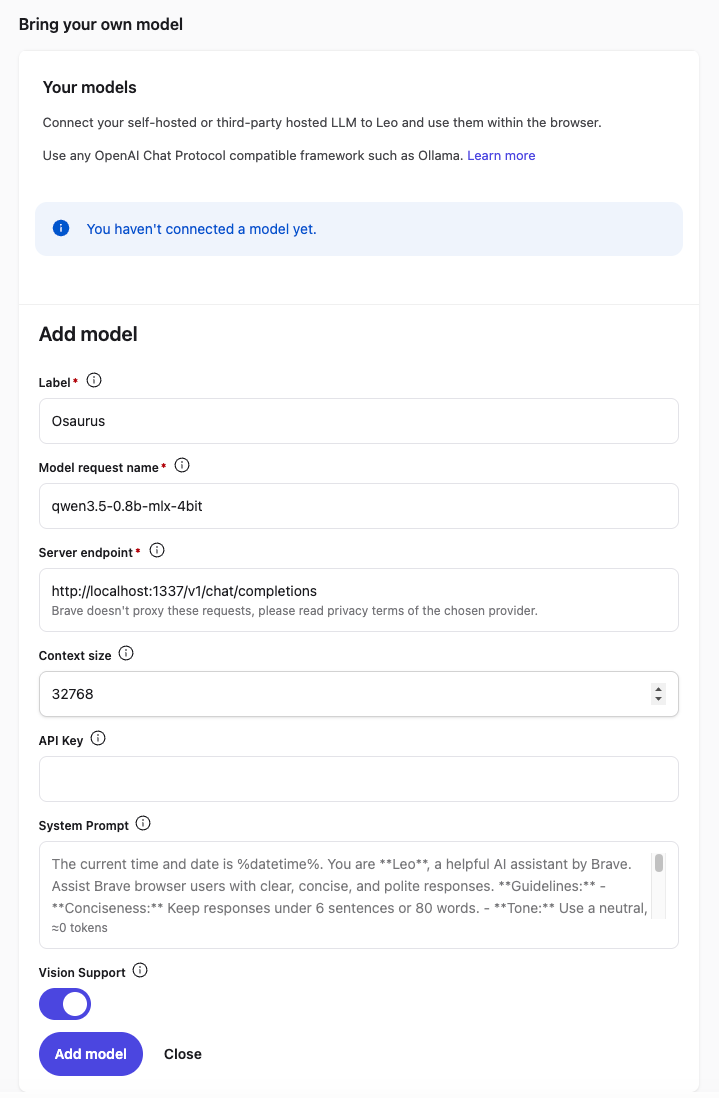
Fill in the fields as follows:
| Field | Value |
|---|---|
| Label | Osaurus (or any name you like) |
| Model request name | qwen3.5-0.8b-mlx-4bit |
| Server endpoint | http://localhost:1337/v1/chat/completions |
| Context size | 32768 (adjust based on your model’s max context) |
| API Key | (leave blank) |
| Vision Support | Enable (toggle on — Qwen3.5-0.8B supports vision) |
Click Save model.
Note: The server endpoint must be the full path including
/v1/chat/completions, not just the base URL.
Step 4 — Select Your Local Model
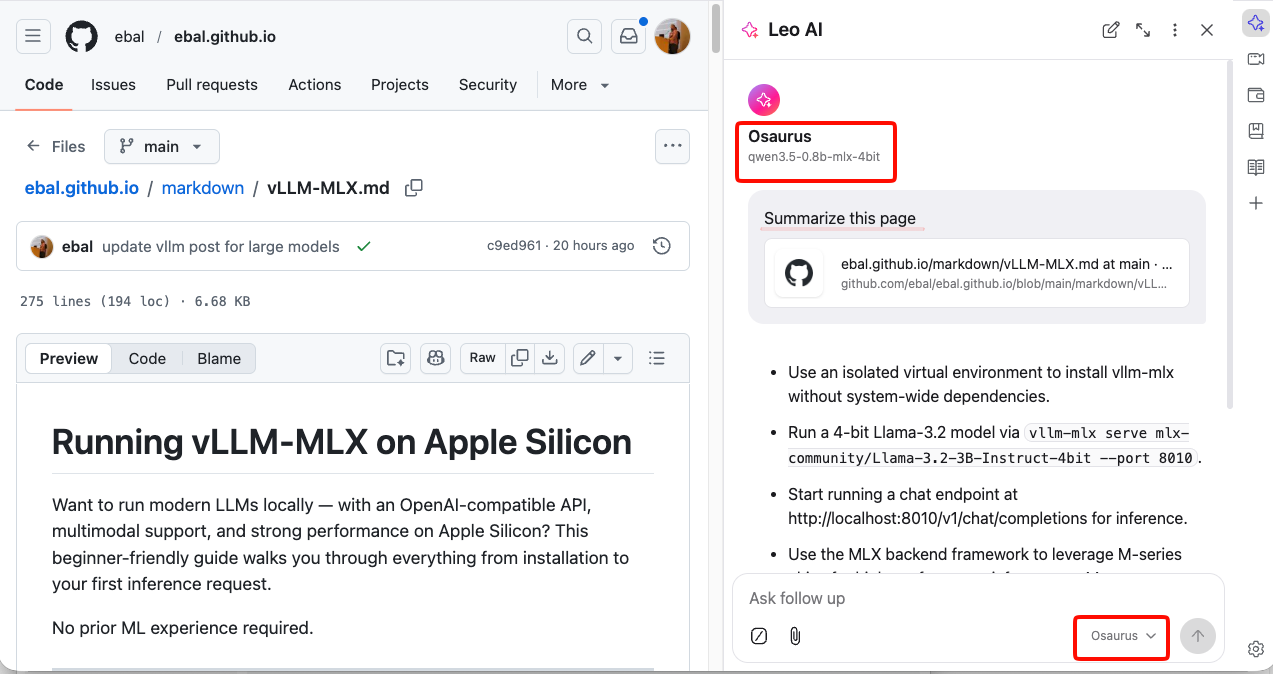
Back in the Leo chat panel:
- Click the model selector dropdown (shows the currently active model name).
- Select the model you just added — e.g.
Osaurus.
Leo will now route all requests to your local server.
Step 5 — Start Chatting
Type a message in the Leo input box and press Enter.
How It Works
Your request goes to http://localhost:1337/v1/chat/completions — entirely on your machine. Nothing is sent to Brave’s servers or any external service.
You type in Leo
      │
      ▼
Brave sends POST /v1/chat/completions
      │
      ▼
localhost:1337  (your local server — Osaurus)
      │
      ▼
Model inference on Apple Silicon (MLX / 4-bit quantized)
      │
      ▼
Response streams back to Leo in your browser
No internet required after setup. No data leaves your device.
Tips
- Model name must match exactly what your server reports — check it with:
curl http://localhost:1337/v1/models | jq .eg.
{
  "data": [
    {
      "object": "model",
      "id": "llama-3.2-3b-instruct-4bit",
      "created": 1772791159,
      "root": "llama-3.2-3b-instruct-4bit",
      "owned_by": "osaurus"
    },
    {
      "object": "model",
      "id": "qwen3.5-0.8b-mlx-4bit",
      "created": 1772791159,
      "root": "qwen3.5-0.8b-mlx-4bit",
      "owned_by": "osaurus"
    }
  ],
  "object": "list"
}- Leo context features (summarize page, ask about selected text) also work with local models — Leo includes the page content as part of the prompt automatically.
- Since Qwen3.5-0.8B supports vision, with Vision Support enabled you can paste or drag images into Leo and the model will analyze them — all locally.
- Start your local server before opening Brave, or you’ll get a connection error when Leo tries to reach it.
That’s it. You now have a fully local, private AI assistant inside your browser — no accounts, no subscriptions, no data leaving your machine.