





I like running a few services either on my private homelab or on various cloud VPS. I prefer self-hosted applications and my security/privacy setup is to have a different username/email with a different password for each one of them. With password managers like vaultwarden/Bitwarden this is easier. What I would like to do next is to restrict access and protect my cloud applications behind a single login page and add 2FA to them. That’s what Authelia does.
In this article I will walk you through on how to setup authelia, and to make it concrete, we will protect Beszel, which is a lightweight server-monitoring dashboard that tracks CPU, RAM, disk, and network usage of your machines. It’s a great first useful, simple, and easy to tell at a glance whether the login wall is working.
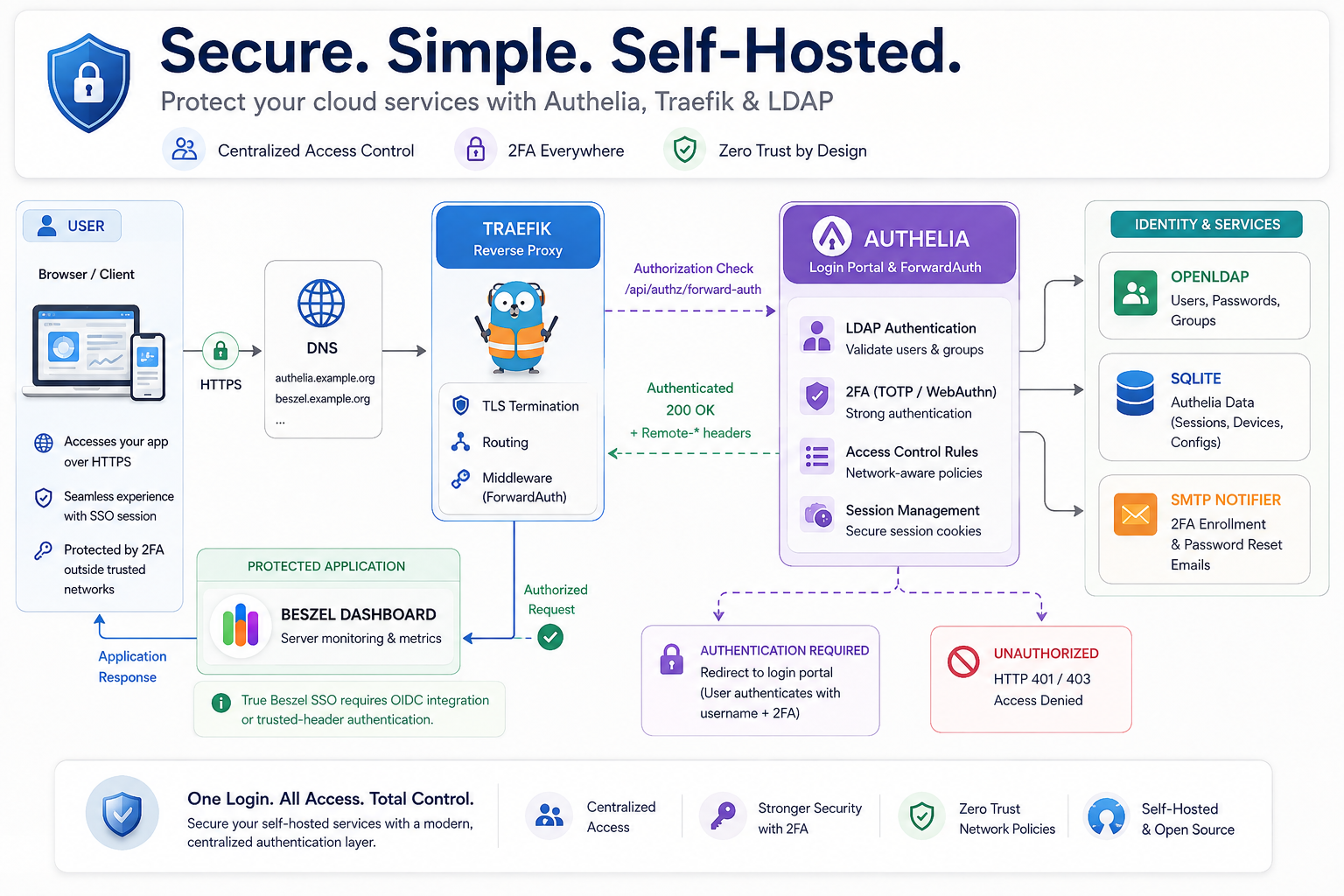
Prerequisites
- Authelia — the login page that decides who gets in
- Authelia MUST be served via the https scheme. This is not optional even for testing!
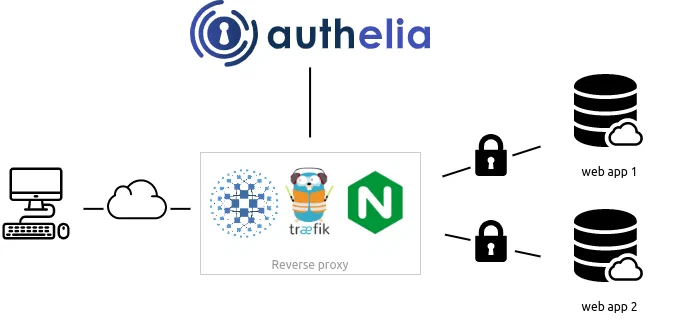
- Authelia is a companion of reverse proxies like Traefik (good news)
- Traefik — your existing reverse proxy, which it will tell to ask Authelia’s permission before letting anyone through your application
- Your existing LDAP server — the directory of usernames and passwords Authelia will check against
- I user openldap already, so it’s useful to use an existing database.
- Beszel — the example app we’ll put behind the login page
- a new DNS name for authelia, like
authelia.example.org
Authelia Architecture
Directory layout
Here is the folder layout (under traefik directory):
./authelia/
├── authelia.env
├── docker-compose.yaml
├── config/
│   └── configuration.yml
└── secrets/
    ├── JWT_SECRET
    ├── LDAP_PASSWORD
    ├── SESSION_SECRET
    └── STORAGE_ENCRYPTION_KEY
Step 1 — Create the folders
Authelia needs two folders: one for its configuration file, and one for its secret keys. Actually the secret directory is a choice for storing the authelia secrets that we will create at the next step.
mkdir -p ./authelia/config
mkdir -p ./authelia/secrets
Step 2 — Generate the secret keys
Authelia relies on a few long, random strings to keep things secure: one to sign password-reset links, one to encrypt your login session, and one to encrypt its small local database. Rather than pasting these into a config file in plain sight, we’ll save each one into its own private file.
copy/paste the below commands in your terminal to generate all secrets:
openssl rand -hex 32 | tr -d 'n' > ./authelia/secrets/JWT_SECRET
openssl rand -hex 32 | tr -d 'n' > ./authelia/secrets/SESSION_SECRET
openssl rand -hex 32 | tr -d 'n' > ./authelia/secrets/STORAGE_ENCRYPTION_KEY
Now add your LDAP bind password:
echo -n "YOUR_LDAP_BIND_PASSWORD" > ./authelia/secrets/LDAP_PASSWORDFinally, update permissions to these files so only your user can read them:
chmod 600 ./authelia/secrets/*What each file is for:
| File | Purpose |
|---|---|
JWT_SECRET |
Signs password-reset links so they can’t be forged |
SESSION_SECRET |
Encrypts your login session cookie |
STORAGE_ENCRYPTION_KEY |
Encrypts Authelia’s local database (registered devices, sessions) |
LDAP_PASSWORD |
The password Authelia uses to log into your LDAP server and search it |
Do not commit this
secretsfolder to git, and never share these files, to avoid anyone to impersonate your authelia.
Step 3 — Authelia configuration file
Create a new configuration file at ./authelia/config/configuration.yml.
Replacing the <...> placeholders with your own details and domain.
I use example.com for the ldap server and example.org for application domain. Which means I have multiple domains on the LDAP.
---
identity_validation:
  reset_password:

definitions:
  network:
    internal:
      - '10.10.0.0/16'
      - '172.16.0.0/12'
      - '192.168.2.0/24'
      - '100.64.0.0/10'  # tailscale network
    my_static:
      - '<my_static_ip>/32'

authentication_backend:
  ldap:
    address: 'ldaps://<ldap_ip>:636'
    implementation: 'custom'
    tls:
      server_name: 'openldap.example.com'
    base_dn: 'dc=example,dc=com'
    additional_users_dn: 'ou=People'
    # login with either username or email address
    users_filter: '(&(|({username_attribute}={input})({mail_attribute}={input}))(objectClass=person))'
    additional_groups_dn: 'ou=Groups'
    groups_filter: '(&(member={dn})(objectClass=groupOfNames))'
    user: 'cn=admin,dc=example,dc=com'
    attributes:
      username: 'uid'
      display_name: 'cn'
      mail: 'mail'

access_control:
  default_policy: 'deny'

  rules:
    - domain: 'blog.example.org' # allow blog to everybody
      policy: 'bypass'

    - domain: 'beszel.example.org' # bypass beszel for my networks
      policy: 'bypass'
      networks:
        - 'internal'
        - 'my_static'

    - domain: 'beszel.example.org' # username/password to access beszel for all other networks.
      #policy: 'one_factor'
      policy: 'two_factor'

# session cookies to authorize user access to various protected websites
session:
  name: 'authelia_session'
  cookies:
    - domain: 'example.org'
      authelia_url: 'https://authelia.example.org'
      default_redirection_url: 'https://beszel.example.org'

# storage options: sqlite, mysql & postgres
storage:
  local:
    path: '/config/db.sqlite3'

# switch to SMTP in production
notifier:
  filesystem:
    filename: '/config/notification.txt'
...
Validate authelia configuration
if you need to verify authelia configuration at any point, use:
docker compose run --rm authelia authelia config validate --config /config/configuration.yml
a typical resul should be:
# docker compose run --rm authelia
  authelia config validate --config /config/configuration.yml

Container traefik-authelia-run-ef4ec807d5b6 Creating
Container traefik-authelia-run-ef4ec807d5b6 Created
Configuration parsed and loaded successfully without errors.
Step 4 — Create the Beszel user in LDAP
the LDAP directory is the source of truth for who gets in, so we need at least one user to log in with. On your LDAP server, generate a hashed password for that user. The main idea is that the the ldap user and the beszel user have the same credentials to autologin. Eitherwise you just need to login twice :)
slappasswd -h {SSHA} -s "YOUR_BESZEL_PASSWORD"Copy the output — it should look like {SSHA}abc123... — and create a file called beszel.ldif with this content (adjust uid, cn, mail to fit your setup):
dn: uid=beszel,ou=People,dc=example,dc=com
objectClass: inetOrgPerson
objectClass: organizationalPerson
objectClass: person
objectClass: posixAccount
objectClass: top
cn: Beszel User
givenName: Beszel
homeDirectory: /home/beszel
mail: beszel@example.org
sn: User
uid: beszel
uidNumber: 1001
gidNumber: 1001
userPassword: {SSHA}<hashed_password>
Now add it to your directory. Run this on your LDAP server (or from any machine that can reach it and has the ldap-utils tools installed):
ldapadd -x -D "cn=admin,dc=example,dc=com" -W -f beszel.ldifYou’ll be prompted for the LDAP admin password, then the user is created. That’s the account you’ll type into Authelia’s login page in Step 8.
the above ldap diff is an example, adapt it accordinly to your needs and setup.
Step 5 — Add Authelia to your docker-compose.yml
Create ./authelia/docker-compose.yaml with this content:
---
services:
  authelia:
    image: authelia/authelia:4.39.20
    container_name: authelia
    restart: unless-stopped
    volumes:
      - ./config:/config
    healthcheck:
      disable: false
    secrets:
      - AUTHELIA_JWT_SECRET
      - AUTHELIA_LDAP_PASSWORD
      - AUTHELIA_SESSION_SECRET
      - AUTHELIA_STORAGE_ENCRYPTION_KEY
    env_file:
      - ./authelia.env

secrets:
  AUTHELIA_JWT_SECRET:
    file: ./secrets/JWT_SECRET
  AUTHELIA_LDAP_PASSWORD:
    file: ./secrets/LDAP_PASSWORD
  AUTHELIA_SESSION_SECRET:
    file: ./secrets/SESSION_SECRET
  AUTHELIA_STORAGE_ENCRYPTION_KEY:
    file: ./secrets/STORAGE_ENCRYPTION_KEY
Then create ./authelia/authelia.env (change the timezone to yours). Change the log level to debug if also needed:
AUTHELIA_LOG_LEVEL=info

TZ=Europe/Athens

AUTHELIA_AUTHENTICATION_BACKEND_LDAP_PASSWORD_FILE=/run/secrets/AUTHELIA_LDAP_PASSWORD
AUTHELIA_SESSION_SECRET_FILE=/run/secrets/AUTHELIA_SESSION_SECRET
AUTHELIA_STORAGE_ENCRYPTION_KEY_FILE=/run/secrets/AUTHELIA_STORAGE_ENCRYPTION_KEY
AUTHELIA_IDENTITY_VALIDATION_RESET_PASSWORD_JWT_SECRET_FILE=/run/secrets/AUTHELIA_JWT_SECRET
A few things worth knowing about this block:
- No
ports:line. There is no need to expose Authelia directly to the internet — Traefik will talk to it privately, container-to-container, over the shared network. - No custom healthcheck needed. The Authelia image already includes one built in — Docker will automatically mark the container “healthy” or “unhealthy” without you configuring anything.
- The
secrets:block mounts each secret file into the container at/run/secrets/..., read-only. Theenv_filelines then just tell Authelia where to find each one. This keeps the actual secret values out ofdocker inspectoutput, unlike writing them straight as environment variables.
hey! do not forgot to update traefik docker-compose.yaml to include authelia docker compose yaml
include:
  # authelia.example.org: authentication and authorization server and portal
  - path: ./authelia/docker-compose.yaml
Step 6 — Tell Traefik about Authelia
I am using YAML dynamic configuration with Traefik and not labels, for me it’s more clear that way. I keep everyting under etc_traefik/dynamic/
First, we add the middleware aka the reusable “ask Authelia before letting this request through” rule. Create middlewares.yml if you have not yet a middleware yaml file.
http:
  middlewares:

    authelia:
      forwardAuth:
        # address: "http://authelia:9091/api/verify?rd=https://authelia.example.org/"
        address: "http://authelia:9091/api/authz/forward-auth"
        trustForwardHeader: true
        maxResponseBodySize: 8192
        authResponseHeaders:
          - Remote-User
          - Remote-Groups
          - Remote-Name
          - Remote-Email
Then, we create the router — so the login page itself is reachable at https://authelia.example.org and also auto create the TLS certifcate with letsencrypt.
authelia.yml:
http:
  routers:
    authelia:
      rule: 'Host(`authelia.example.org`)'
      entryPoints: ["websecure"]
      service: "authelia"
      tls:
        certResolver: letsencrypt

    authelia-http:
      rule: 'Host(`authelia.example.org`)'
      entryPoints:
        - web
      service: "authelia"
      middlewares:
        - redirect-to-https

  services:
    authelia:
      loadBalancer:
        servers:
          - url: "http://authelia:9091"
Notes:
certResolver: letsencrypt— use whatever you named your certificate resolver in Traefik’s main config (the one that gets you your Let’s Encrypt certificates). If yours has a different name, change it here.authelia-httpjust catches plainhttp://requests and redirects them tohttps://— this assumes you already have aredirect-to-httpsmiddleware defined in your Traefik dynamic config, which is a standard pattern.- Make sure both
authelia.example.organdbeszel.example.orgalready have DNS records (anArecord) pointing at your server, same as your other subdomains.
Step 7 — Put Beszel behind the login page
Now for the authelia part to beszel. Update beszel.yml in the same Traefik dynamic config folder. If Beszel already has a router file, it should look this:
http:
  routers:
    beszel:
      rule: 'Host(`beszel.example.org`)'
      entryPoints: ["websecure"]
      service: "beszel"
      tls:
        certResolver: letsencrypt
      middlewares:
        - authelia@file     # <-- this line is the only change

    beszel-http:
      rule: 'Host(`beszel.example.org`)'
      entryPoints:
        - web
      service: "beszel"
      middlewares:
        - redirect-to-https

  services:
    beszel:
      loadBalancer:
        servers:
          - url: "http://beszel:8090"
The whole magic is: - authelia@file in the middleware list. (The @file suffix just tells Traefik the middleware is defined in a dynamic file.
Any router you add that line to is now protected: visitors get redirected to the Authelia login page first.
TRUSTED_AUTH_HEADER
Do not forget to add TRUSTED_AUTH_HEADER to your beszel docker compose yaml file, to allow autologin!
beszel-docker-compose.yml
environment:
  USER_CREATION: false
  TRUSTED_AUTH_HEADER: "Remote-Email"
With this, it will
Step 8 — Start authelia.
From the ./authelia folder:
docker compose up -d authelia
docker compose logs -f authelia
Traefik is already watching its dynamic config folder, so it will pick up the new files automatically — no restart needed.
Monitor docker compose logs in the console.
Open https://authelia.example.org in your browser. You should see Authelia’s login page.
Then open https://beszel.example.org on a new tab.
- From home (on your local network, or from your fixed home IP): you should land straight on Beszel — no authelia login, thanks to the
bypassrule for trusted networks. - From anywhere else (try your phone on mobile data or brave via tor): you’ll be redirected to the authelia login page. Log in with the
beszeluser or email and the password you set in ldap, and you should autologin on Beszel, now authenticated. Magic ! - The public blog (
blog.example.org) stays open to everyone — check it still loads without a login.
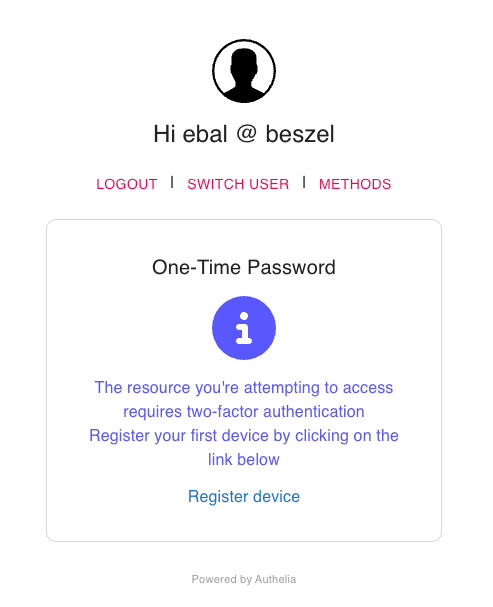
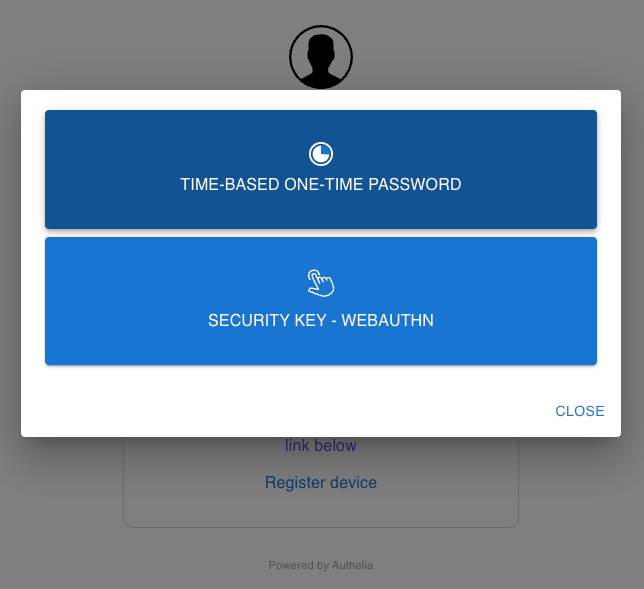
That’s it !
Evaggelos
I was looking at my logs and analytics, and I saw something interesting. I had a few requests to these endpoints which they do not exist on my blog!
.git/config
.aws/credentials
.aws/config
config.php
So I started looking into this …
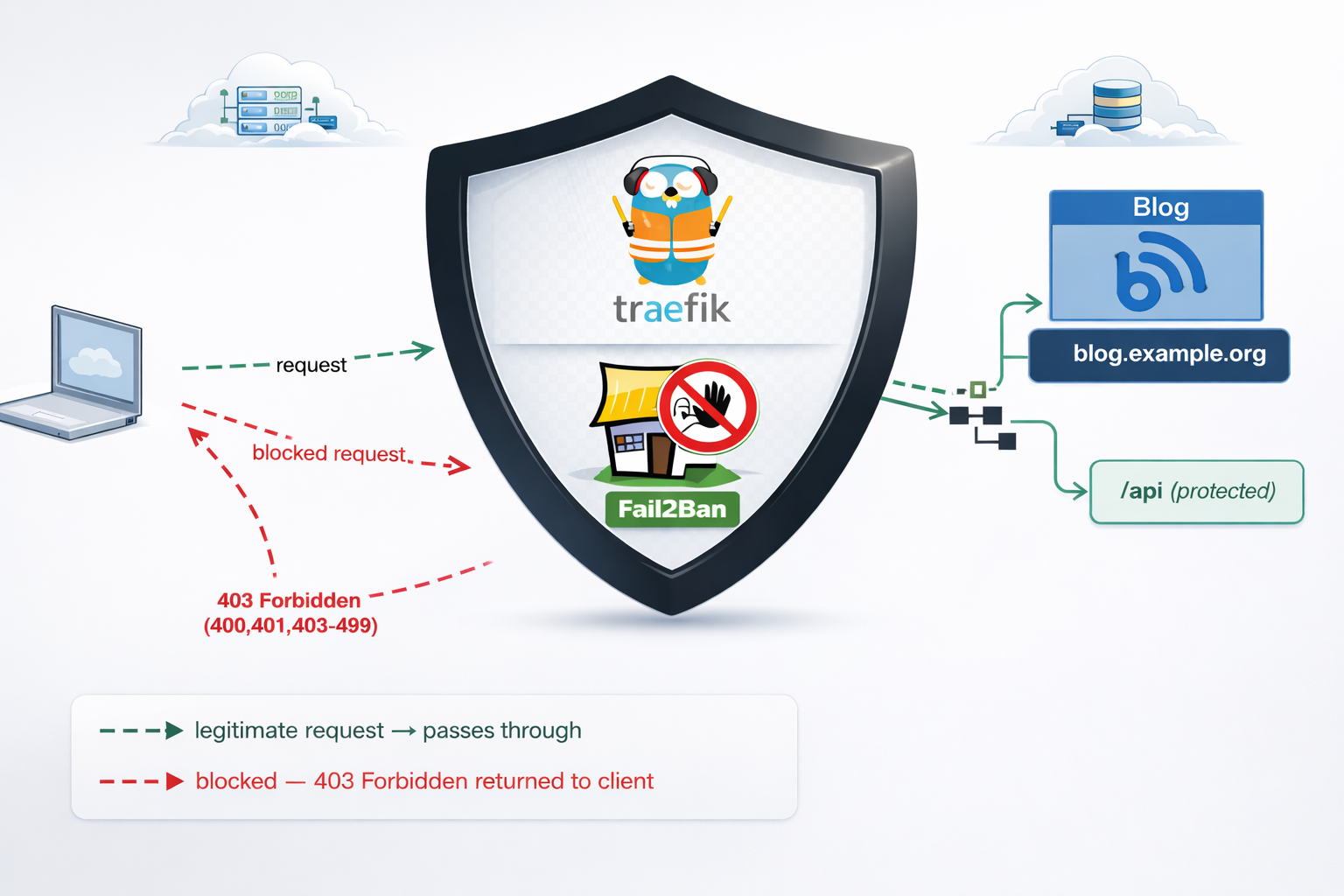
On my old web server, I had an extensive defensing mechanism with mod security, fail2ban and many more. At some point I had some OWASP prevention mechanism, so I had them connected to fail2ban and fail2ban blocked IPs via iptables.
On my new setup, I use traefik reverse proxy and I was thinking that for sure, there is a way to connect traefik with fail2ban. So after a quick research, I ended to fail2ban traefik plugin. Which does something similar to fail2ban, but it does not need fail2ban, iptables or nftables to block incoming traffic.
So, if you’re running services behind Traefik, you’ve got a powerful tool right at your fingertips: the fail2ban plugin. Unlike the traditional Linux fail2ban package that operates at the kernel level with iptables, Traefik’s fail2ban plugin works at the middleware level—meaning it can protect specific routes, integrate seamlessly with your containerized stack, and start banning malicious IPs within seconds.
Prerequisites & How the Plugin Works
What You Need
- Traefik 3.0 or later (the plugin requires traefik experimental plugin system)
- Basic familiarity with Traefik (routers, services, middleware concepts)
- Docker Compose or Kubernetes (we’ll focus on Docker in this guide)
- Administrative access to your Traefik configuration files
The Traefik Fail2ban Plugin
If you’re familiar with traditional fail2ban on Linux, Traefik’s version works differently—and that’s actually good news. Instead of relying on log file parsing and kernel-level packet filtering, the Traefik plugin watches HTTP responses in real-time at the middleware level. When it detects a pattern of failures (e.g., four 401 “Unauthorized” responses from the same IP within eg. 10 minutes), it blocks that IP for a configurable duration for x hours.
Here’s the flow:
Incoming Request
      ↓
Traefik Router (matches domain/path)
      ↓
Middleware Chain (security headers → rate-limit → fail2ban)
      ↓
Fail2ban Plugin checks: Is this IP banned?
      ├─→ YES: Return 403 Forbidden, block request
      └─→ NO: Continue to backend service
      ↓
Backend responds (200, 401, 403, etc.)
      ↓
Fail2ban updates counters: Track failures by IP
      ↓
Threshold exceeded? Ban this IP for 3 hours
Key Advantages
- Application-aware: Works at the HTTP level, not raw packets
- URL-specific: Protect only sensitive routes; allow legitimate traffic to other endpoints
- Dynamic: No service restarts needed; configuration reloads on-the-fly
- Container-friendly: Zero external dependencies; runs inside your Traefik container
- Flexible: Whitelist trusted IPs, customize ban duration, define custom rules per endpoint
Installation & Plugin Setup
Add the Plugin to Your Traefik Configuration
First, declare the fail2ban plugin in your traefik.yml. This tells Traefik where to find and how to load the plugin.
# traefik.yml
experimental:
  plugins:
    fail2ban:
      moduleName: github.com/tomMoulard/fail2ban
      version: v0.9.0  # or use the latest stable version
Restart Traefik
After updating traefik.yml, restart the Traefik container:
docker-compose down traefik && docker-compose up -d traefikVerify Plugin Initialization
Check the container logs for successful plugin loading:
docker-compose logs traefik | grep -i fail2banYou should see output something like:
traefik | 2024-04-05 14:32:15 INF Loaded plugin fail2ban from github.com/tomMoulard/fail2ban@v0.9.0If you see an error instead, verify:
- Traefik version is 3.0+
- Plugin module name is spelled correctly
- The version tag exists in the GitHub repository
Configuration: Building Your Protection Rules
Now comes the interesting part. Configuring what and how fail2ban protects your services. All middleware definitions live in dynamic/ directory and usually in middlewares.yml or a similar file that Traefik loads from the dynamic/ directory. For this blog post, we will use this file.
Understanding Each Configuration Parameter
Here’s a complete fail2ban middleware definition with detailed explanations:
# etc_traefik/dynamic/middlewares.yml
http:
  middlewares:
    my-fail2ban:
      plugin:
        fail2ban:
          # ============================================
          # ALLOWLIST: IPs that bypass the plugin
          # ============================================
          allowlist:
            ip:
              - "::1"                    # IPv6 localhost
              - "127.0.0.1"              # IPv4 localhost
              - "10.0.0.5"               # Your monitoring system
              - "203.0.113.0/24"         # Your corporate network

          # ============================================
          # DENYLIST: IPs to proactively ban (optional)
          # ============================================
          denylist:
            ip:
              - "192.0.2.50"             # Known attacker IP
              - "198.51.100.0/24"        # Suspicious range

          # ============================================
          # RULES: The banning logic
          # ============================================
          rules:
            enabled: "true"              # Enable/disable rule
            bantime: 3h                  # Ban duration (3 hours)
            findtime: 10m                # Time window for counting
            maxretry: "4"                # Trigger ban after N failures
            statuscode: "400,401,403-499"  # Which codes = failure

            # ============================================
            # URL-SPECIFIC RULES (optional)
            # ============================================
            urlregexps:
              - regexp: "^/admin"        # Protect /admin routes
                mode: "block"            # Immediate ban on match
              - regexp: "^/api/auth"     # Protect auth endpoints
                mode: "block"
Configuration Strategy: Tuning for Your Use Case
Choosing maxretry:
- For public API endpoints: Use
4–5retries. Few legitimate users fail 4 times. - For admin panels: Use
3retries. Admin accounts should rarely mistype passwords. - For sensitive operations (password reset): Use
2retries. Minimize brute-force exposure.
If maxretry is too low, legitimate users with forgotten passwords get blocked (false positives). Too high, and attackers get many free attempts.
Choosing bantime:
- 3 hours: Balanced default. Long enough to deter automated attacks; short enough that legitimate users aren’t locked out overnight.
- 1 hour: Faster recovery for false positives; less deterrent for attackers.
- 24 hours: Maximum security; risk of user frustration.
Choosing findtime:
- 5–10 minutes: Standard for authentication. Most humans retry a few times within 10 minutes, then try again the next day.
- 30 minutes: If you expect bots to spread attacks over time (less common).
Monitoring IPs for the Allowlist:
If you run monitoring software (Prometheus, Uptime Robot, etc.), add those IPs to your allowlist. Otherwise, repeated health checks triggering non-200 responses will get your monitoring blocked!
allowlist:
  ip:
    - "127.0.0.1"        # Localhost
    - "10.0.1.10"        # Your Prometheus instance
    - "203.0.113.100/32"  # UptimeRobot static IP
URL-Specific Blocking: Protecting Critical Routes
One of the plugin’s most powerful features is the ability to apply different rules—or no rules at all—to specific URLs. This prevents false positives on high-traffic public endpoints while aggressively protecting authentication gateways.
Real-World Scenarios
and part of my setup :)
http:
  middlewares:

    my-fail2ban:
        plugin:
            fail2ban:
                allowlist:
                    ip:
                      - "::1"
                      - "127.0.0.1"
                      - "203.0.113.100"
                denylist:
                    ip: 192.168.0.0/24
                rules:
                    bantime: 3h
                    enabled: "true"
                    findtime: 10m
                    maxretry: "4"
                    statuscode: 400,401,403-499
                    urlregexps:
                    - regexp: "/do-not-access"
                      mode: block
Applying Fail2ban Plugin to Multiple Services
Now that you understand the configuration, let’s apply it across your infrastructure. The key insight: define the middleware once, reference it everywhere.
Apply to Services
In each service’s routing configuration, reference the middleware by name. Here are three examples:
Example 1: Blog Admin Panel
# etc_traefik/dynamic/blog.yml
http:
  routers:
    blog-https:
      rule: "Host(`blog.example.com`)"
      service: "blog-backend"
      entryPoints:
        - websecure
      tls:
        certResolver: letsencrypt
      middlewares:
        - security-headers@file
        - rate-limit@file
        - my-fail2ban@file          # <--- Applied here

    blog-http:
      rule: "Host(`blog.example.com`)"
      entryPoints:
        - web
      middlewares:
        - redirect-to-https@file

  services:
    blog-backend:
      loadBalancer:
        servers:
          - url: "http://blog:8080"
Best Practices for Middleware Ordering
Order matters. Here’s the recommended chain:
middlewares:
  - security-headers@file    # First: Set HTTP headers (no performance impact)
  - rate-limit@file          # Second: Rate limit (broad protection against bots)
  - my-fail2ban@file         # Third: Fail2ban (targeted protection against auth attacks)
Why this order?
- Security headers are light and should run first.
- Rate-limiting stops bots before they generate many auth failures.
- Fail2ban picks up remaining aggressive auth attackers.
Verifying Your Setup
Configuration is only half the battle.
Test Banning Behavior
Simulate authentication failures and watch fail2ban trigger:
curl -I https://blog.example.org
HTTP/2 200

cache-control: no-store, no-cache, must-revalidate, post-check=0, pre-check=0
content-security-policy: default-src https:; script-src 'self' 'unsafe-inline' 'unsafe-eval'; style-src 'self' 'unsafe-inline'; font-src 'self' data:; connect-src 'self'; frame-ancestors 'none';
content-type: text/html; charset=utf-8
date: Fri, 10 Apr 2026 14:59:05 GMT
expires: Thu, 19 Nov 1981 08:52:00 GMT
permissions-policy: geolocation=(), microphone=(), camera=()
pragma: no-cache
server: Apache/2.4.25 (Debian)
set-cookie: fpsess_fp-8654f976=06c0e118e99442af9a7ebd89d04a2657; path=/
strict-transport-security: max-age=15768000; includeSubDomains; preload
x-content-type-options: nosniff
x-frame-options: DENY
x-powered-by: PHP/5.6.40
x-xss-protection: 1; mode=block
Do Not Access
curl -I https://blog.example.org/do-not-access
HTTP/2 429

content-security-policy: default-src https:; script-src 'self' 'unsafe-inline' 'unsafe-eval'; style-src 'self' 'unsafe-inline'; font-src 'self' data:; connect-src 'self'; frame-ancestors 'none';
permissions-policy: geolocation=(), microphone=(), camera=()
strict-transport-security: max-age=15768000; includeSubDomains; preload
x-content-type-options: nosniff
x-frame-options: DENY
x-xss-protection: 1; mode=block
date: Fri, 10 Apr 2026 15:02:47 GMT
So you will see the 429 status which is defined from fail2ban plugin
now if you check again, nothing will be shown :
~> curl https://blog.example.org
~>
~>
That’s it my friends ! 🛡️
Disclaimer: coding agent helped with the blog post but all technical notes and examples are mine.
Prologue – Why do this at all?
Running services at home is fun. Running them securely and reliably is where things get interesting.
In my homelab, I run many applications, like Immich on a legacy PC, behind a residential ISP connection, dynamic IPs, and without opening ports on my router. This setup provides my test lab and a way to play and learn without the use of any cloud. At the same time, I want to use some of my internal services from the internet as securely as I can.
This post describes how to achieve exactly that using:
- Tailscale as a secure private network between hosts
- DNS-01 Let’s Encrypt challenges for automated TLS
- A remote homelab service (Immich) reachable only over Tailscale
Important: The DNS record must exist before Traefik requests certificates.
High-level architecture
Before diving into configs, let’s clarify the flow:
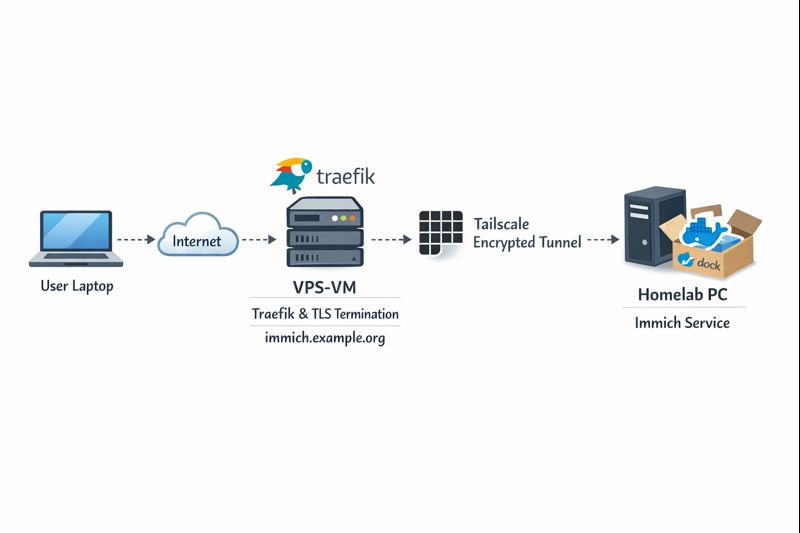
Key points:
- DNS entry (eg. immich.example.org) exists before Traefik starts, enabling ACME issuance
- Traefik as an internet-facing reverse proxy - Only Traefik is exposed to the internet
- Immich listens on a private Tailscale IP (100.x.x.x)
- Valid TLS certificates from Let’s Encrypt - TLS is terminated at Traefik
- No inbound firewall rules on my home network - No port forwarding on the home router
- Minimal attack surface
- Clean separation between edge and internal services
Why not expose Immich directly?
Opening ports on a home router comes with downsides:
- Public IP changes
- Consumer-grade firewalling
- Direct exposure of application vulnerabilities
- Harder TLS automation
This setup avoids all of that.
Why Tailscale?
Tailscale gives you:
- WireGuard-based encryption by default
- Stable private IPs
- Mutual authentication
- No inbound NAT rules
- Fine-grained ACLs (optional, but recommended)
Even if Traefik were compromised, the blast radius is limited to what it can access over Tailscale.
Why DNS-01 instead of HTTP-01?
DNS-01 lets Traefik:
- Obtain certificates without the backend being reachable
- Issue certs before the service is live
- Avoid exposing port 80 on internal services
This is especially useful when the backend is private or remote.
Prerequisites
Before starting, make sure you have:
- A domain name (e.g.
example.org) - A DNS provider supported by Traefik (LuaDNS in this case)
- A public server (VPS, cloud VM) for Traefik
-
Tailscale installed on:
- The Traefik host
- Your homelab / home PC
-
A DNS record:
immich.example.org → <Traefik public IP>
Important: The DNS record must exist before Traefik requests certificates.
Traefik setup (edge host)
Docker Compose
Traefik runs as a standalone service on the edge host:
---
services:
  traefik:
    image: traefik:v3.6
    container_name: traefik
    hostname: traefik
    env_file:
      - ./.env
    environment:
      - TRAEFIK_CERTIFICATESRESOLVERS_LETSENCRYPT_ACME_EMAIL=${LUADNS_API_USERNAME}
    restart: unless-stopped
    ports:
      - 8080:8080 # Dashboard (secured, no insecure mode)
      - 80:80     # HTTP
      - 443:443   # HTTPS
    volumes:
      - ./certs:/certs             # For static certificates
      - ./etc_traefik:/etc/traefik # Traefik configuration files
      - /var/run/docker.sock:/var/run/docker.sock:ro  # So that Traefik can listen to the Docker events
    healthcheck:
      test: ["CMD", "traefik", "healthcheck"]
      interval: 30s
      retries: 3
      timeout: 10s
      start_period: 10s
Static Traefik configuration (traefik.yml)
This file defines entrypoints, providers, logging, and ACME:
ping: {}

api:
  dashboard: true
  insecure: false

log:
  filePath: /etc/traefik/traefik.log
  level: INFO

entryPoints:
  web:
    address: ":80"
    reusePort: true
  websecure:
    address: ":443"
    reusePort: true

providers:
  docker:
    exposedByDefault: false
  file:
    directory: /etc/traefik/dynamic/
    watch: true
We explicitly disable auto-exposure of Docker containers and rely on file-based dynamic config to have more control on which docker services we want traefik to “see”.
Let’s Encrypt via DNS-01 (LuaDNS)
certificatesResolvers:
  letsencrypt:
    acme:
      email: ""
      storage: "/certs/acme.json"
      caServer: https://acme-v02.api.letsencrypt.org/directory
      dnsChallenge:
        provider: luadns
        delayBeforeCheck: 0
        resolvers:
          - "8.8.8.8:53"
          - "1.1.1.1:53"
Why this matters:
- Certificates can be issued even if Immich is offline
- No need for port 80 reachability
- Works cleanly with private backends
Dynamic routing to Immich over Tailscale
This is where the magic happens.
Dynamic config (dynamic/immich.yml)
http:
  routers:
    immich:
      rule: 'Host(`immich.example.org`)'
      entryPoints: ["websecure"]
      service: "immich"
      tls:
        certResolver: letsencrypt

  services:
    immich:
      loadBalancer:
        servers:
          - url: "http://100.80.90.101:2283"
        passHostHeader: true
Explanation:
Host()rule matches your public domain- TLS is terminated at Traefik
- Backend URL is a Tailscale IP
- No exposure of Immich to the public internet
Homelab: Immich setup
On the home PC, Immich runs normally, bound to a local port:
ports:
  - '2283:2283'
Make sure to use the docker-compose.yml of the current release:
This port does not need to be:
- Exposed to the internet
- Forwarded on your router
- Secured with TLS
It only needs to be reachable from the Traefik host via Tailscale.
Verifying the setup
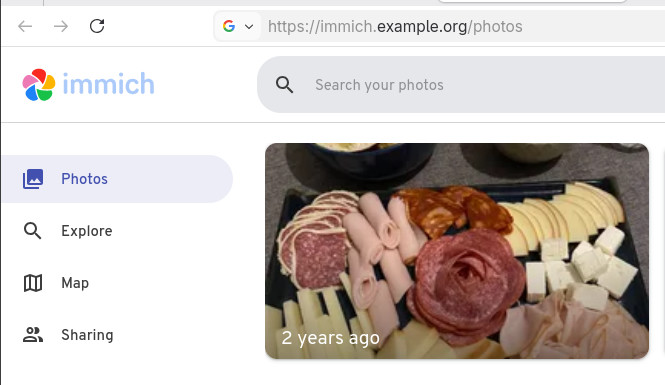
Visit: https://immich.example.org
You should get a valid Let’s Encrypt certificate and a working Immich UI.
Hardening ideas (recommended)
Once this works, consider:
- Tailscale ACLs limiting Traefik → Immich access
- Middleware for:
- Security headers
- Rate limiting
- IP allowlists
- Traefik dashboard behind auth
- Separate internal / external entrypoints
That's it !