





Containers is an package application with all the files, libraries, and runtime it needs. They are a common way to develop, test, and deploy server software, most known are docker containers at the moment and in macOS the two most common tools: Docker desktop and OrbStack.
Apple’s container tool takes a different approach: it creates and runs Linux containers using lightweight virtual machines on Apple silicon Macs. It works with OCI-compatible images, so you can pull images from standard registries and build images that can run in other OCI-compatible tools.
This guide walks through installing container, starting the system service, running an Ubuntu shell, and building a simple “Hello, world” web server.
What you need
- A Mac with Apple silicon: M1, M2, M3, M4, or newer
- macOS 26
- Administrator access to install the tool
Apple supports container on macOS 26 because it depends on newer virtualization and networking features. Older macOS versions may work for some workflows, but they are not officially supported. Command availability can also vary by macOS version.
Install container
Download the latest signed installer from the Apple container GitHub releases page:
https://github.com/apple/container/releases
Open the .pkg file and follow the installer prompts.
follow the below instracturions
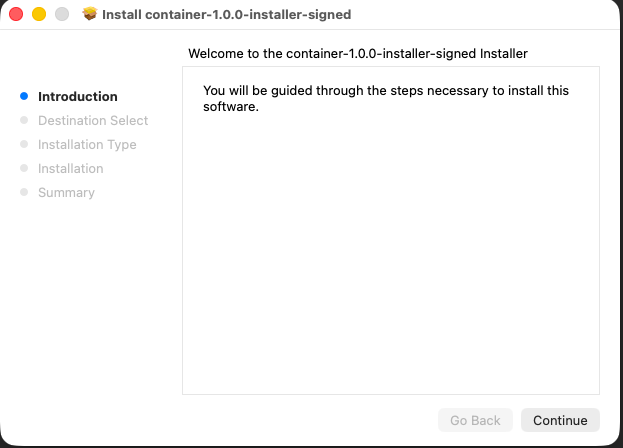
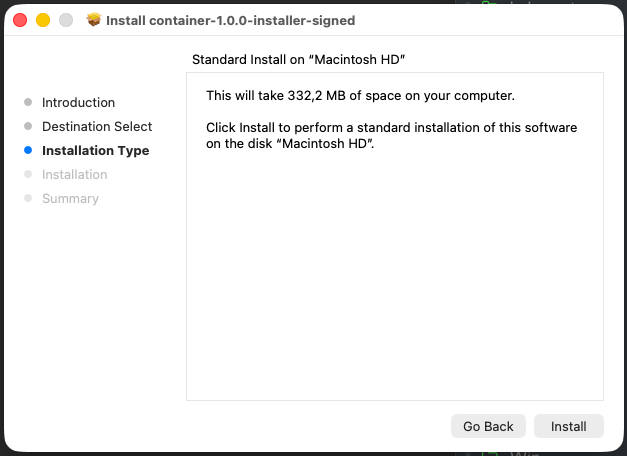
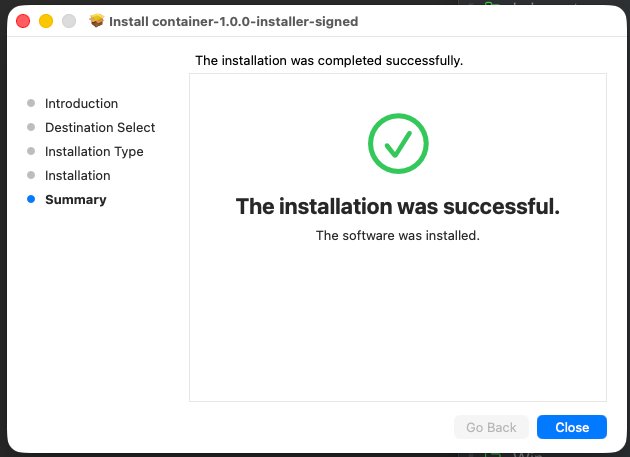
After installation, open Terminal and start the system service:
container system startThe first time you run this command, container may ask whether you want to install a recommended Linux kernel. Type y and press Enter.
Example output:
❯ container system start

Launching container-apiserver...
Testing access to container-apiserver...
Verifying machine API server is running...
No default kernel configured.
Install the recommended default kernel from [https://github.com/kata-containers/kata-containers/releases/download/3.28.0/kata-static-3.28.0-arm64.tar.zst]? [Y/n]: y
Installing kernel...
Check that the service is running:
container system statusoutput:
❯ container system status

FIELD              VALUE
status             running
appRoot            /Users/A93162639/Library/Application Support/com.apple.container/
installRoot        /usr/local/
logRoot
apiserver.version  container-apiserver version 1.0.0 (build: release, commit: ee848e3)
apiserver.commit   ee848e3ebfd7c73b04dd419683be54fb450b8779
apiserver.build    release
apiserver.appName  container-apiserver
Then list all containers:
container list --allAn empty table is fine. It means the service is running and you have not created any containers yet.
Test it with an Ubuntu shell
Now run your first Linux container and attach an interactive shell:
container run -it ubuntu:latest /bin/bashInside the container, try:
uname -a

cat /etc/os-release
You should see Linux system information and Ubuntu release details:
root@9bb5a5b9-40a6-4a55-8093-f76c7d70c8eb:/# uname -a
Linux 9bb5a5b9-40a6-4a55-8093-f76c7d70c8eb 6.18.15 #1 SMP Tue Mar 17 01:36:53 UTC 2026 aarch64 GNU/Linux

root@9bb5a5b9-40a6-4a55-8093-f76c7d70c8eb:/# cat /etc/os-release
PRETTY_NAME="Ubuntu 26.04 LTS"
NAME="Ubuntu"
VERSION_ID="26.04"
VERSION="26.04 LTS"
ID=ubuntu
ID_LIKE=debian
Your Ubuntu version and kernel version may differ depending on when you run the command. The important part is that you are inside a Linux environment running on your Mac.
Exit the container:
exit
Limit Resources: CPU - MEM
Another useful feature is when you want to limut resources, like CPU and Memory inside the apple container. You can simple do that by:
container run -it --cpus 2 --memory 2G ubuntu:latest /bin/bash
result:
root@e3beed8c-42f0-4aaa-8fc6-e1d8d969641f:/# top -bn1 -1
top - 21:03:33 up 0 min,  0 users,  load average: 0.06, 0.02, 0.00
Tasks:   2 total,   1 running,   1 sleeping,   0 stopped,   0 zombie
%Cpu0  :  0.0 us,  0.0 sy,  0.0 ni,100.0 id,  0.0 wa,  0.0 hi,  0.0 si,  0.0 st
%Cpu1  :  0.0 us,  0.0 sy,  0.0 ni,100.0 id,  0.0 wa,  0.0 hi,  0.0 si,  0.0 s
%Cpu2  :  0.0 us,  0.0 sy,  0.0 ni,100.0 id,  0.0 wa,  0.0 hi,  0.0 si,  0.0 st
MiB Mem :   2113.3 total,   1909.6 free,     71.0 used,    154.2 buff/cache       MiB Swap:      0.0 total,      0.0 free,      0.0 used.   2042.3 avail Mem

    PID USER      PR  NI    VIRT    RES    SHR S  %CPU  %MEM     TIME+ COMMAND
      1 root      20   0    5128   3808   3280 S   0.0   0.2   0:00.01 bash
      9 root      20   0    7060   4452   2548 R   0.0   0.2   0:00.00 top

root@e3beed8c-42f0-4aaa-8fc6-e1d8d969641f:/# grep -c ^processor /proc/cpuinfo
3

root@291ed90e-621e-460e-ae70-73f4befcb0a4:/# free
               total        used        free      shared  buff/cache   available
Mem:         2163972       68876     1959220           4      157972     2095096
Swap:              0           0           0
root@291ed90e-621e-460e-ae70-73f4befcb0a4:/#
root@291ed90e-621e-460e-ae70-73f4befcb0a4:/#
Now list running containers:
container listYou may see an empty table because the Ubuntu shell exited. To include stopped containers, run:
container list --allExample:
ID                                    IMAGE                            OS     ARCH   STATE    IP  CPUS  MEMORY   STARTED
9bb5a5b9-40a6-4a55-8093-f76c7d70c8eb  docker.io/library/ubuntu:latest  linux  arm64  stopped      4     1024 MB  2026-06-24T20:15:59Z
Build a “Hello, world” web server
Next, build a tiny Python web server image.
Create a new project directory:
mkdir hello-container
cd hello-container
Create a file called Dockerfile:
touch DockerfileOpen it in your editor and paste:
FROM docker.io/python:alpine

WORKDIR /app

RUN echo '<h1>Hello from Apple container!</h1>' > index.html

CMD ["python3", "-m", "http.server", "80"]
This image starts from a lightweight Python base image, creates a simple HTML page, and runs Python’s built-in web server on port 80.
Build the image
From the same directory as your Dockerfile, run:
container build --tag hello-web --file Dockerfile .The . at the end tells the builder to use the current directory as the build context. The command pulls the base image, runs the Dockerfile instructions, and tags the result as hello-web.
After your first build, you may see a builder container when you list containers. That is expected; container uses it to build images.
Run the web server
Start the container in the background:
container run --name my-site --detach --rm hello-webHere’s what the flags mean:
--name my-sitegives the container a friendly name.--detachruns it in the background.--rmautomatically removes the container when it stops.
List running containers:
container listLook for the IP address in the IP column. It may look something like this:
ID        IMAGE                                                OS     ARCH   STATE    IP               CPUS  MEMORY   STARTED
my-site   hello-web:latest                                     linux  arm64  running  192.168.64.4/24  4     1024 MB  2026-06-24T20:28:15Z
buildkit  ghcr.io/apple/container-builder-shim/builder:0.12.0  linux  arm64  running  192.168.64.3/24  2     2048 MB  2026-06-24T20:27:48Z
Open the site in your browser:
open http://192.168.64.4Replace 192.168.64.4 with the IP address shown on your machine.
You should see:
Hello from Apple container!
Optional: use localhost instead
If you prefer opening the site through localhost, publish the container port to your Mac. The container run command supports --publish / -p for mapping a container port to a host port.
Stop the current container first:
container stop my-siteThen run it again with port publishing:
container run --name my-site --detach --rm --publish 8080:80 hello-webOpen:
open http://localhost:8080This maps port 8080 on your Mac to port 80 inside the container.

View logs
To see what the web server is logging, run:
container logs my-siteYou should see HTTP request logs from Python’s web server.
result:
❯ container logs my-site
192.168.64.1 - - [24/Jun/2026 20:36:03] "GET / HTTP/1.1" 200 -
192.168.64.1 - - [24/Jun/2026 20:36:03] code 404, message File not found
192.168.64.1 - - [24/Jun/2026 20:36:03] "GET /favicon.ico HTTP/1.1" 404 -
Clean up
Stop the container:
container stop my-siteBecause you started it with --rm, container removes it automatically after it stops.
Check again:
container list --allThe my-site container should no longer appear.
That’s it,
Evaggelos!
I use multiple computers and multiple mobile devices. This is mostly because I like keeping my personal devices/accounts separated from my work-related things, also … company policy. The last 4 years I am using an apple macbook, it’s a managed and restricted device. With managed devices, a lot of features like virtualization, containers or even VPN, anything that has network access and many other functionality were restricted. Recently I got a replacement macbook, thanks to our IT, and now for the first time I can use my old device as an unmanaged macbook.
Oh, I missed a lot!

Tart
To start my journey, I want to quickly spawn virtual machines (mostly ubuntu server) to test/run self hosted applications. I found Tart Virtualization to be excellent for this.
Tart is a virtualization toolset to build, run and manage macOS and Linux virtual machines on Apple Silicon.
To install and use tart is extremely easy:
brew install cirruslabs/cli/tart

tart clone ghcr.io/cirruslabs/macos-tahoe-base:latest tahoe-base
tart run tahoe-base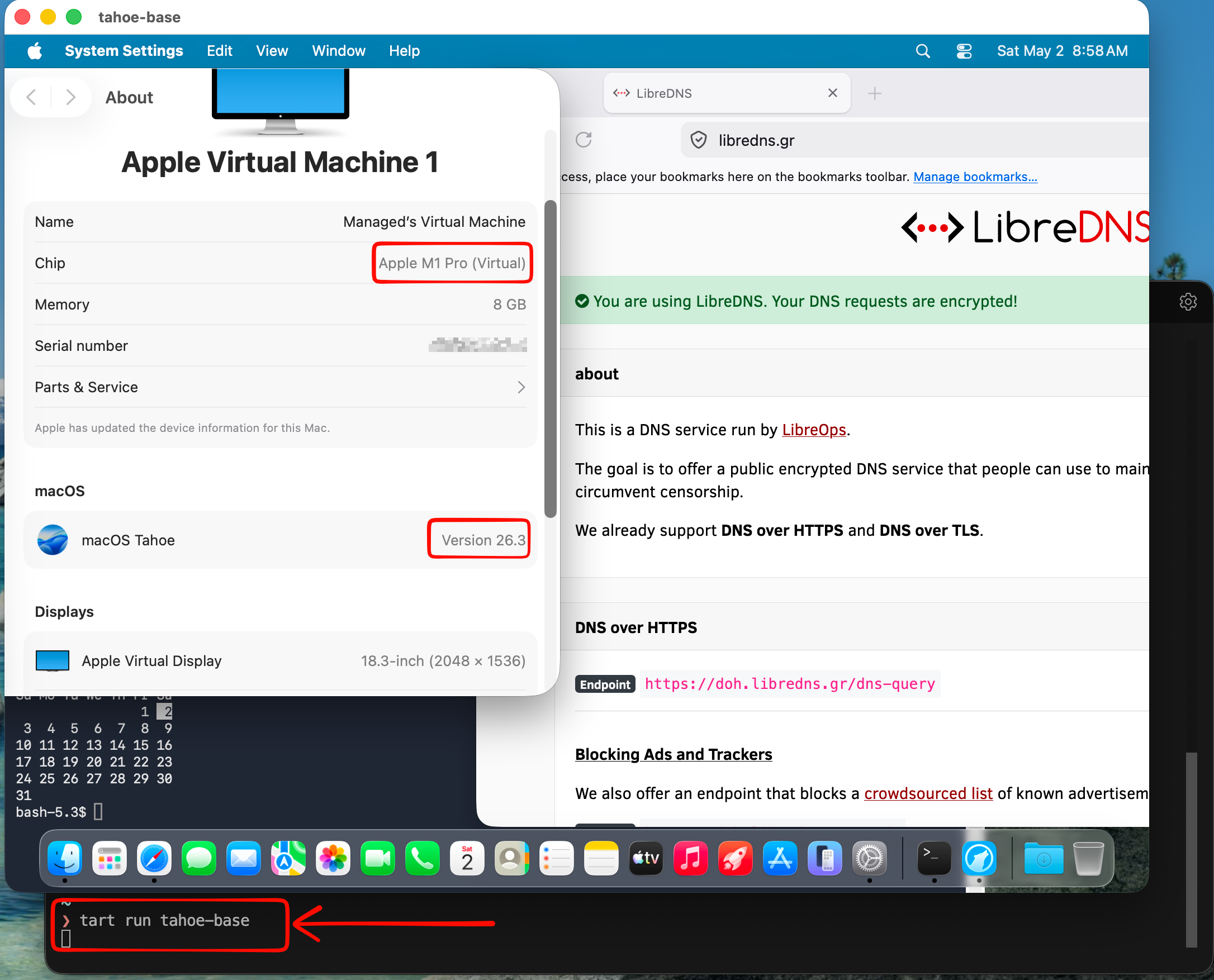
Ubuntu virtual machine
is very easy to setup an ubuntu virtual machine with tart, as an ubuntu image already exist
tart clone ghcr.io/cirruslabs/ubuntu:24.04 ubuntu
tart set ubuntu --disk-size 20
tart run ubuntu
and the default credentials are:
Username: admin
Password: admin
caveat: Change them if you are going to use them in production.
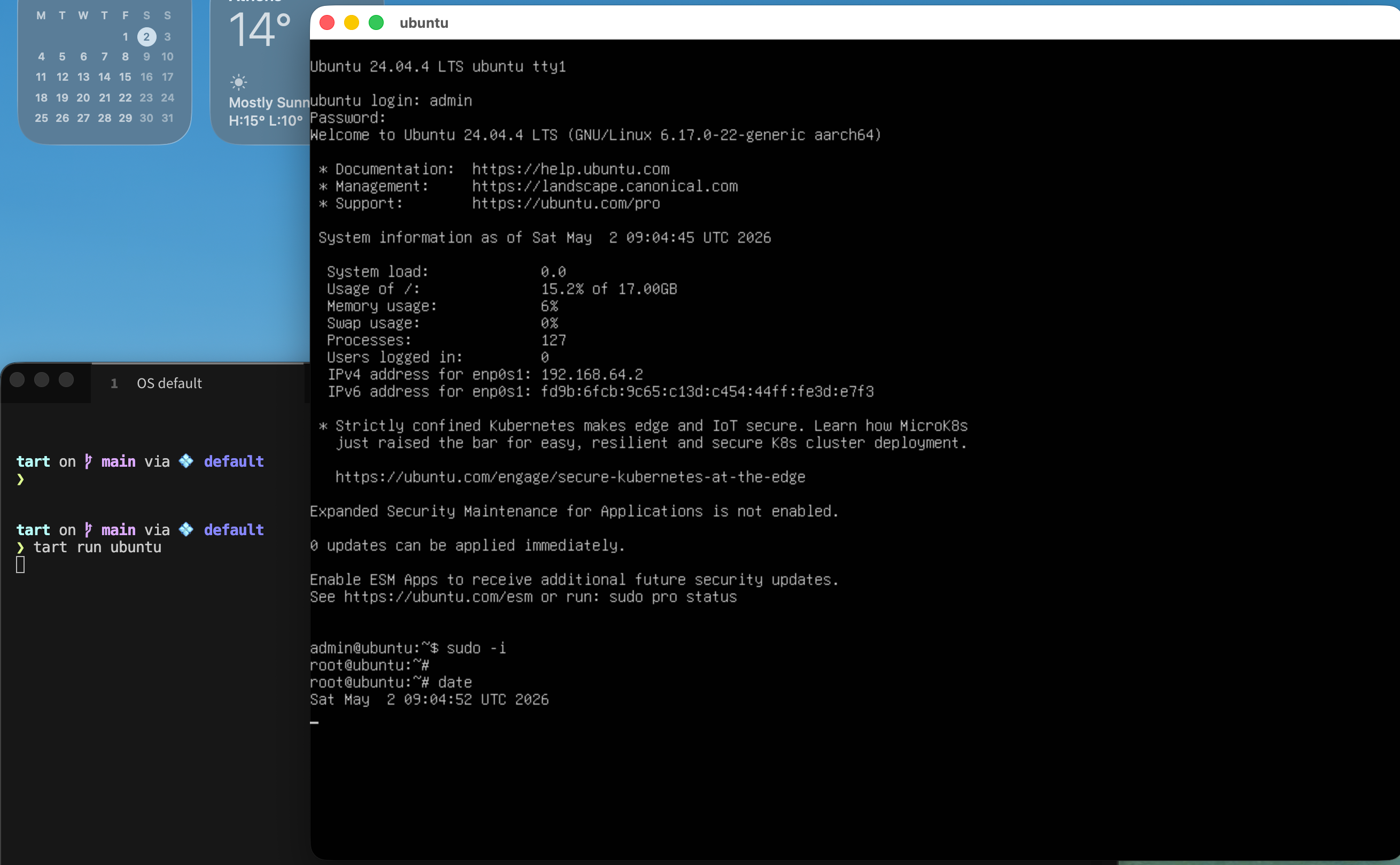
We can also change the default values
like cpu and/or memory settings, as disk size above
❯ tart set ubuntu --memory 8192
❯ tart set ubuntu --cpu 4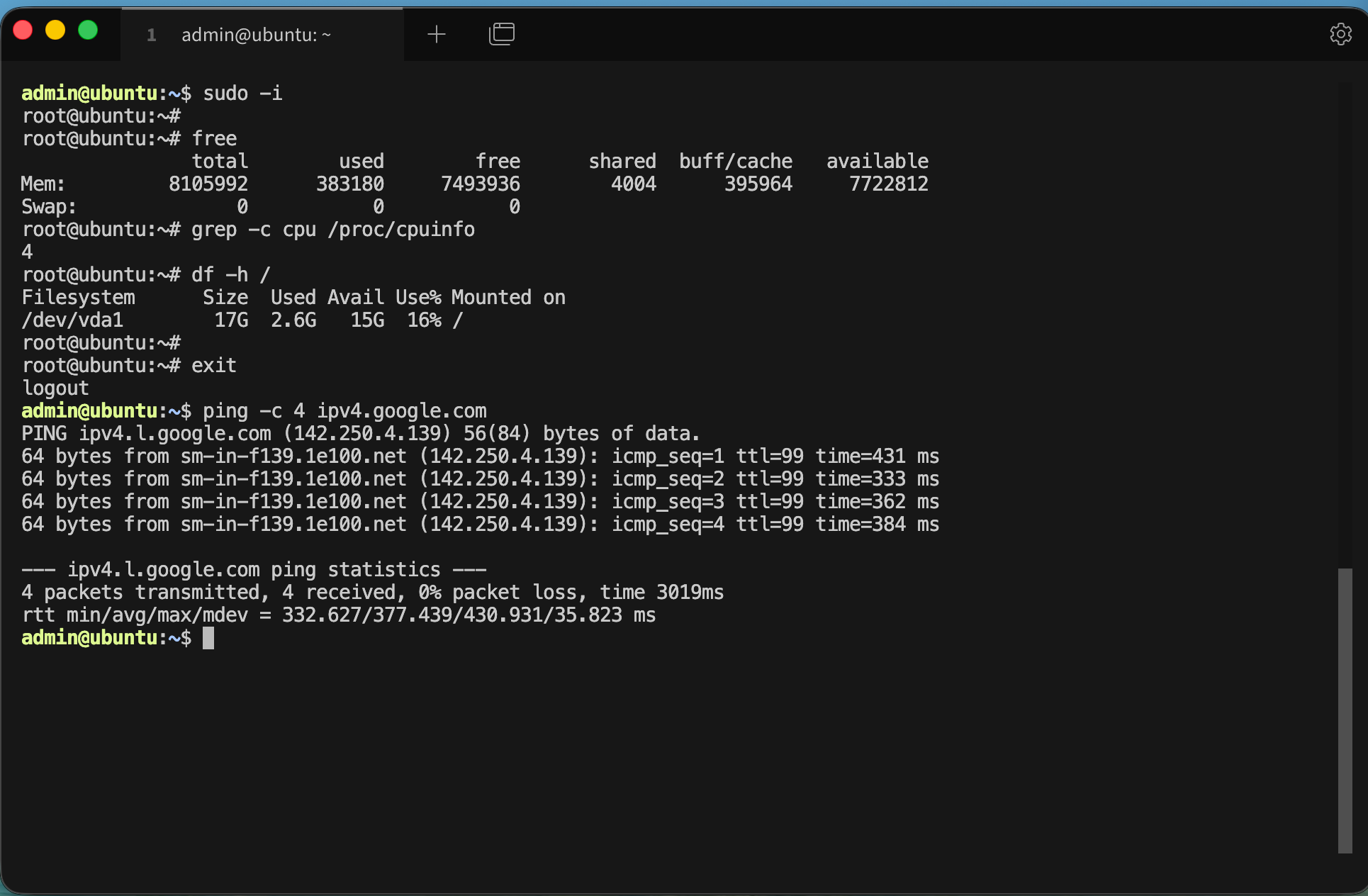
We can start the VM without graphics
❯ tart run ubuntu --no-graphics &Is this vm running ?
✦ ❯ tart list | grep -i ubuntu
local  ubuntu                                      20   3    6 seconds ago running

OCI    ghcr.io/cirruslabs/ubuntu:24.04             20   5    14 hours ago  stopped
OCI    ghcr.io/cirruslabs/ubuntu@sha256:9e71b46... 20   5    14 hours ago  stopped
We can find the IP of the virtual machine
✦ ❯ tart ip ubuntu
192.168.64.2
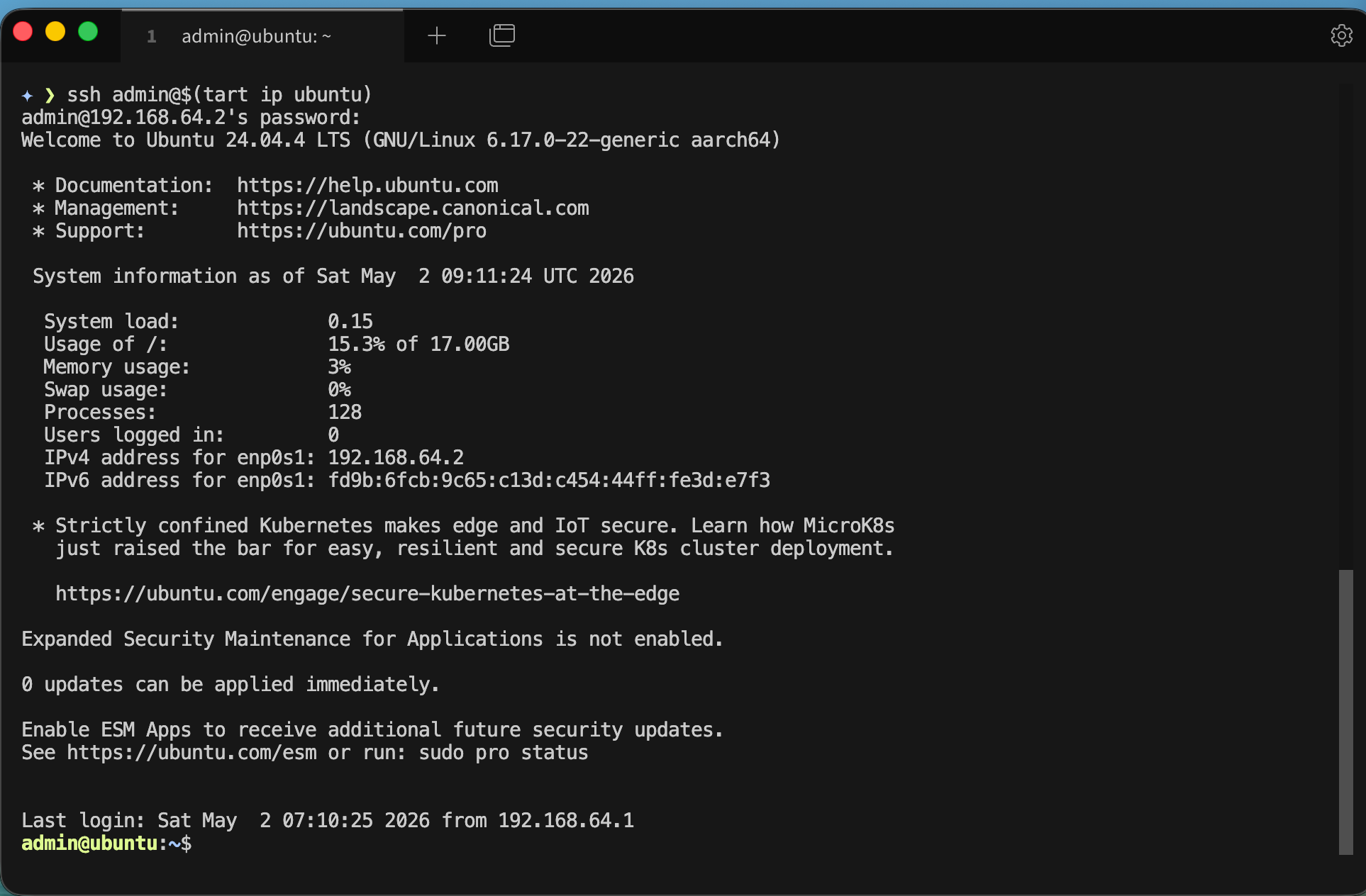
… and we can ssh into the VM
✦ ❯ ssh admin@$(tart ip ubuntu)
admin@192.168.64.2's password:
We can even add it to our tailscale network
I guess you already know how to add machines to your tailnet
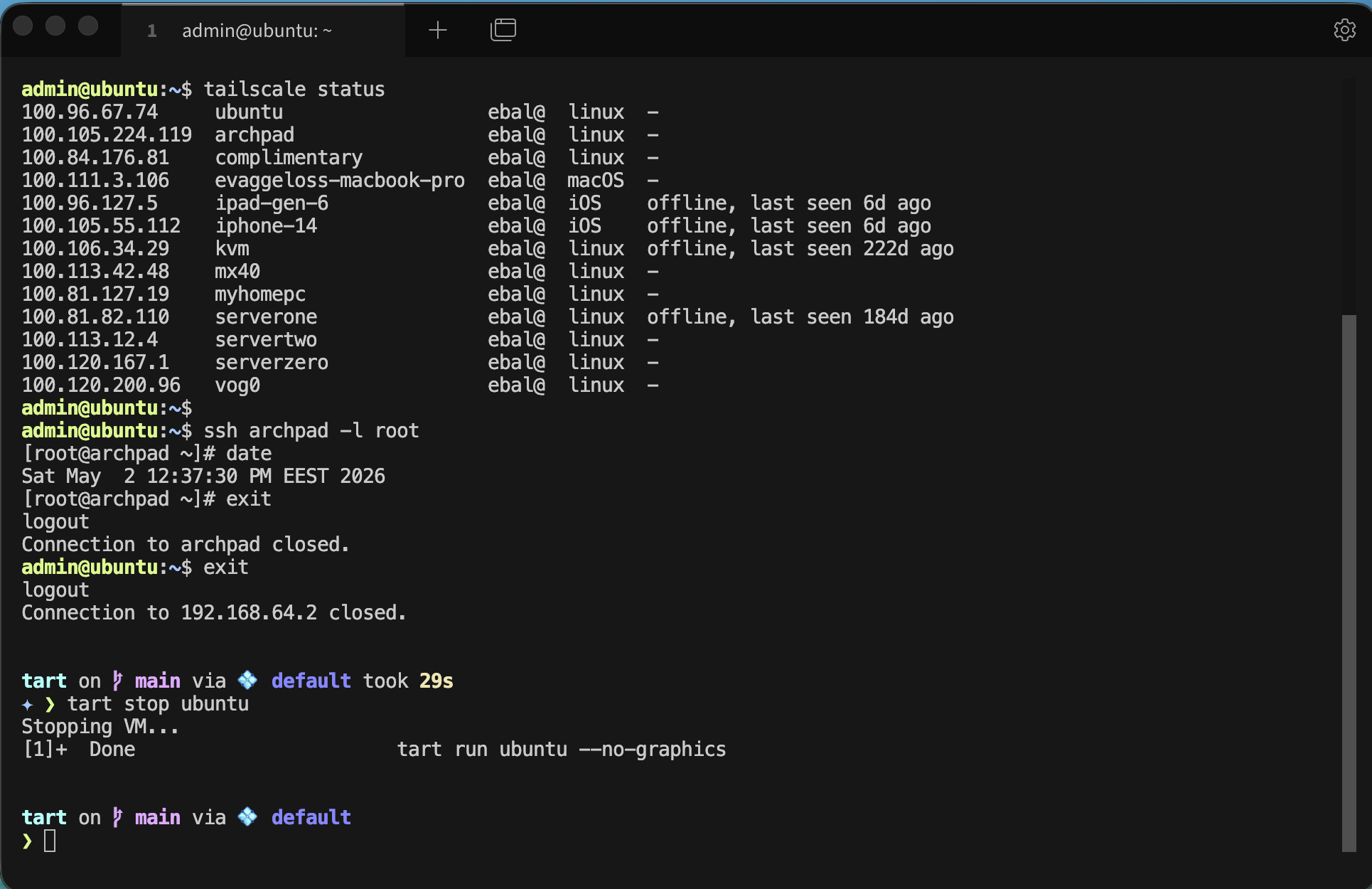
and don’t forget to stop or delete your VMs if you do not need them
tart stop ubuntu
tart delete ubuntu
That’s it !
Evaggelos
Want to run modern LLMs locally — with an OpenAI-compatible API, multimodal support, and strong performance on Apple Silicon? This beginner-friendly guide walks you through everything from installation to your first inference request.
No prior ML experience required.
What is vllm-mlx?
vllm-mlx is a community-driven inference server built specifically for Apple Silicon Macs. It uses MLX, Apple’s machine learning framework designed for M-series chips, and exposes an OpenAI-compatible HTTP API so you can drop it in wherever you’d use the OpenAI SDK.
Think of it as a full, self-contained AI server stack that runs entirely on your Mac.
How does it differ from official vLLM?
| Feature | vLLM (official) | vllm-mlx |
|---|---|---|
| Backend | CUDA (NVIDIA GPUs) | MLX (Apple Silicon) |
| Platform | Linux + NVIDIA | macOS + Apple Silicon |
| Multimodal support | Limited | Built-in (vision, audio, embeddings) |
| API compatibility | OpenAI | OpenAI + Anthropic |
| Architecture | Plugin-based | Standalone framework |
| Built on | vLLM engine internals | mlx-lm, mlx-vlm |
Important: vllm-mlx is not a plugin or fork of official vLLM. It’s a separate framework built from the ground up for Macs.
Architecture overview
When you run vllm-mlx serve, you get a layered system:
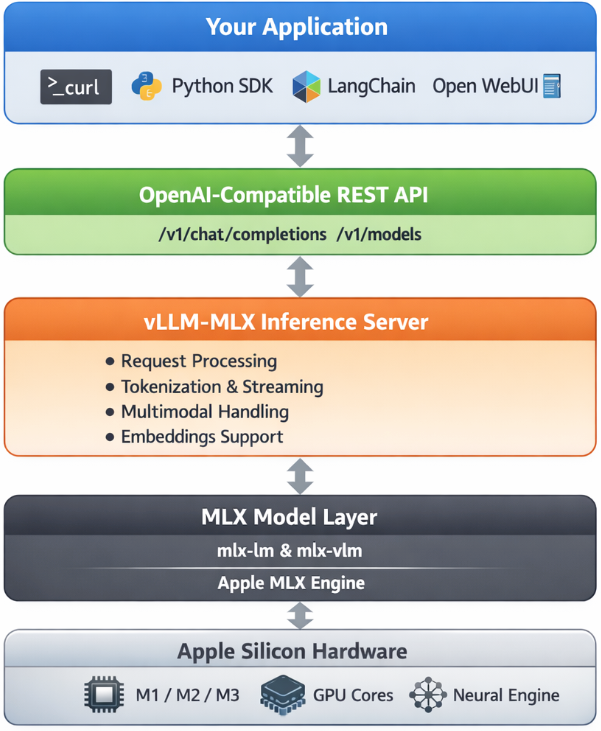
Why use vllm-mlx?
It’s the right tool if you want:
- A full-featured local AI server on Apple Silicon
- Text and multimodal inference in a single server
- OpenAI-compatible APIs out of the box
- Fully offline inference — no cloud, no data leaving your machine
System requirements
- macOS with Apple Silicon (M1/M2/M3/M4)
- Python 3.10+
- 16 GB RAM minimum recommended (larger models require more)
Step 1 — Create a clean Python environment
Never install ML tooling into your global Python. Use an isolated virtual environment:
python3 -m venv ~/.venv-vllm-mlx
source ~/.venv-vllm-mlx/bin/activate
Once activated, your shell prompt should change to something like:
(venv-vllm-mlx) yourname@macbook %Alternatively, with virtualenv:
virtualenv venv-vllm-mlx
cd venv-vllm-mlx
source ./bin/activate
Step 2 — Install vllm-mlx
pip install vllm-mlxVerify the installation:
pip list | grep vllmYou should see vllm-mlx in the output.
Step 3 — Start your first model server
We’ll use a 4-bit quantized Llama 3.2 model — small, fast, and a good starting point.
vllm-mlx serve mlx-community/Llama-3.2-3B-Instruct-4bit --port 8010This command will:
- Download the model from HuggingFace (first run only)
- Load it into the MLX backend
- Start an HTTP API server on port 8010
You’ll see log output showing the model loading and the server starting on 0.0.0.0:8010.
Step 4 — Verify the server
Health check
curl -s http://localhost:8010/health | jq .Expected output:
{
  "status": "healthy",
  "model_loaded": true,
  "model_name": "mlx-community/Llama-3.2-3B-Instruct-4bit",
  "model_type": "llm",
  "engine_type": "simple",
  "mcp": null
}
List available models
curl -s http://localhost:8010/v1/models | jq .Expected output:
{
  "object": "list",
  "data": [
    {
      "id": "mlx-community/Llama-3.2-3B-Instruct-4bit",
      "object": "model",
      "created": 1772701579,
      "owned_by": "vllm-mlx"
    }
  ]
}
Step 5 — Send a chat request
Use the OpenAI-compatible /v1/chat/completions endpoint:
curl -s http://127.0.0.1:8010/v1/chat/completions
  -H "Content-Type: application/json"
  -d '{
    "model": "mlx-community/Llama-3.2-3B-Instruct-4bit",
    "messages": [
      {"role": "user", "content": "Hello! What is the capital of Greece?"}
    ],
    "max_tokens": 100
  }' | jq .
Expected response:
{
  "id": "...",
  "object": "chat.completion",
  "choices": [
    {
      "message": {
        "role": "assistant",
        "content": "The capital of Greece is Athens."
      }
    }
  ]
}
You’re now running a local LLM server on your Mac.
Running larger models (advanced)
For high-memory Macs (64 GB+ recommended), you can run much larger models with additional flags:
vllm-mlx serve Qwen/Qwen3.5-35B-A3B-GPTQ-Int4
  --port 8010
  --max-tokens 262144
  --reasoning-parser qwen3
| Flag | Purpose |
|---|---|
--max-tokens 262144 |
Sets a large context window (256k tokens) |
--reasoning-parser qwen3 |
Enables Qwen-specific reasoning output format |
What you can do next
With your local server running, you can connect it to the broader AI tooling ecosystem by pointing any OpenAI-compatible client at http://localhost:8010/v1:
- Open WebUI — browser-based chat UI
- LangChain or LlamaIndex — agent and RAG pipelines
- OpenAI Python SDK — just set
base_url="http://localhost:8010/v1" - Embeddings and multimodal models — swap in a different model and the same API applies
Why Apple Silicon works so well here
On a discrete GPU setup (NVIDIA), model weights must be copied over PCIe from system RAM to VRAM before inference can begin. Apple Silicon eliminates this bottleneck entirely — the CPU and GPU share the same unified memory pool. Combined with Apple’s high memory bandwidth, this makes MLX extremely efficient for inference on models that fit in RAM.
Multimodal routing
When using a vision or audio model, the server adds an extra routing step:
Image / Audio input
        ↓
Multimodal Router (mlx-vlm / audio pipeline)
        ↓
LLM reasoning
        ↓
Text output
No additional services are required — it’s built into the same server process.
How vllm-mlx differs from official vLLM under the hood
Official vLLM:   App → vLLM Engine → CUDA kernels → NVIDIA GPU
vllm-mlx:        App → vllm-mlx Server → MLX tensors → Apple GPU
These are entirely different acceleration stacks. vllm-mlx doesn’t use or depend on any CUDA code.
That’s it. A local, fully offline, OpenAI-compatible LLM server running natively on your Mac.
🚀 Curious about trying out a Large Language Model (LLM) like Mistral directly on your own macbook?
Here’s a simple step-by-step guide I used on my MacBook M1 Pro. No advanced technical skills required, but some techinal command-line skills are needed. Just follow the commands and you’ll be chatting with an AI model in no time.
🧰 What We’ll Need
- LLM: A CLI utility and Python library for interacting with Large Language Models → a command-line tool and Python library that makes it easy to install and run language models.
- Mistral → a modern open-source language model you can run locally.
- Python virtual environment → a safe “sandbox” where we install the tools without messing with the rest of the system.
- MacBook → All Apple Silicon MacBooks (M1, M2, M3, M4 chips) feature an integrated GPU on the same chip as the CPU.
🧑🔬 About Mistral 7B
Mistral 7B is a 7-billion parameter large language model, trained to be fast, efficient, and good at following instructions.
Technical requirements (approximate):
- Full precision model (FP16) → ~13–14 GB of RAM (fits best on a server or high-end GPU).
- Quantized model (4-bit, like the one we use here) → ~4 GB of RAM, which makes it practical for a MacBook or laptop.
- Disk storage → the 4-bit model download is around 4–5 GB.
- CPU/GPU → runs on Apple Silicon (M1/M2/M3) CPUs and GPUs thanks to the MLX library. It can also run on Intel Macs, though it may be slower.
👉 In short:
With the 4-bit quantized version, you can run Mistral smoothly on a modern MacBook with 8 GB RAM or more. The more memory and cores you have, the faster it runs.
⚙️ Step 1: Create a Virtual Environment
We’ll create a clean workspace just for this project.
python3 -m venv ~/.venvs/llm

source ~/.venvs/llm/bin/activate
👉 What happens here:
python3 -m venvcreates a new isolated environment namedllm.source .../activateswitches you into that environment, so all installs stay inside it.
📦 Step 2: Install the LLM Tool
Now, let’s install LLM.
pip install -U llm👉 This gives us the llm command we’ll use to talk to models.
🛠️ Step 3: Install Extra Dependencies
Mistral needs a few extra packages:
pip install mlx

pip install sentencepiece
👉 mlx is Apple’s library that helps models run efficiently on Mac.
👉 sentencepiece helps the model break down text into tokens (words/pieces).
🔌 Step 4: Install the Mistral Plugin
We now connect LLM with Mistral:
llm install llm-mlx👉 This installs the llm-mlx plugin, which allows LLM to use Mistral models via Apple’s MLX framework.
Verify the plugin with this
llm pluginsresult should look like that:
[
  {
    "name": "llm-mlx",
    "hooks": [
      "register_commands",
      "register_models"
    ],
    "version": "0.4"
  }
]
⬇️ Step 5: Download the Model
Now for the fun part — downloading Mistral 7B.
llm mlx download-model mlx-community/Mistral-7B-Instruct-v0.3-4bit👉 This pulls down the model from the community in a compressed, 4-bit version (smaller and faster to run on laptops).
Verify the model is on your system:
llm models | grep -i mistraloutput should be something similar with this:
MlxModel: mlx-community/Mistral-7B-Instruct-v0.3-4bit (aliases: m7)🏷️ Step 6: Set a Shortcut (Alias)
Typing the full model name is long and annoying. Let’s create a shortcut:
llm aliases set m7 mlx-community/Mistral-7B-Instruct-v0.3-4bit👉 From now on, we can just use -m m7 instead of the full model name.
💡 Step 7: One last thing
if you are using Homebrew then most probably you already have OpenSSL on your system, if you do not know what we are talking about, then you are using LibreSSL and you need to make a small change:
pip install "urllib3<2"only if you are using brew run:
brew install openssl@3💬 Step 8: Ask Your First Question
Time to chat with Mistral!
llm -m m7 'Capital of Greece ?'
👉 Expected result:
The model should respond with:
Athens🎉 Congratulations — you’ve just run a powerful AI model locally on your Mac!
👨💻 A More Technical Example
Mistral isn’t only for trivia — it can help with real command-line tasks too.
For example, let’s ask it something more advanced:
llm -m m7 'On Arch Linux, give only the bash command using find
 that lists files in the current directory larger than 1 GB,
 do not cross filesystem boundaries. Output file sizes in
 human-readable format with GB units along with the file paths.
 Return only the command.'
👉 Mistral responds with:
find . -type f -size +1G -exec du -sh {} +
💡 What this does:
find . -type f -size +1G→ finds files bigger than 1 GB in the current folder.-exec ls -lhS {} ;→ runslson each file to display the size in human-readable format (GB).
This is the kind of real-world productivity boost you get by running models locally.
Full text example output:
This command will find all files (
-type f) larger than 1 GB (-size +1G) in the current directory (.) and execute thedu -shcommand on each file to display the file size in a human-readable format with GB units (-h). The+after-exectellsfindto execute the command once for each set of found files, instead of once for each file.
🌟 Why This Is Cool
- 🔒 No internet needed once the model is downloaded.
- 🕵️ Privacy: your text never leaves your laptop.
- 🧪 Flexible: you can try different open-source models, not just Mistral.
though it won’t be as fast as running it in the cloud.
That’s it !
PS. These are my personal notes from my home lab; AI was used to structure and format the final version of this blog post.