





I am in the process of migrating my self-hosted email server to a new virtual private server. I also want to upgrade and test some new features, more specifically add oauth2 capabilities with an authentication and authorization server. To avoid big mistakes and keeping my current backend, I looked into how to proxy IMAP traffic to a new mail setup.
Fortunately, dovecot, has the ability to act as an imap proxy. The setup is really easy. I will run everything local on my archlinux homepc, so I do not need to expose anything till I am ready. My preferred way to run services is via containers and docker compose make this really easy.
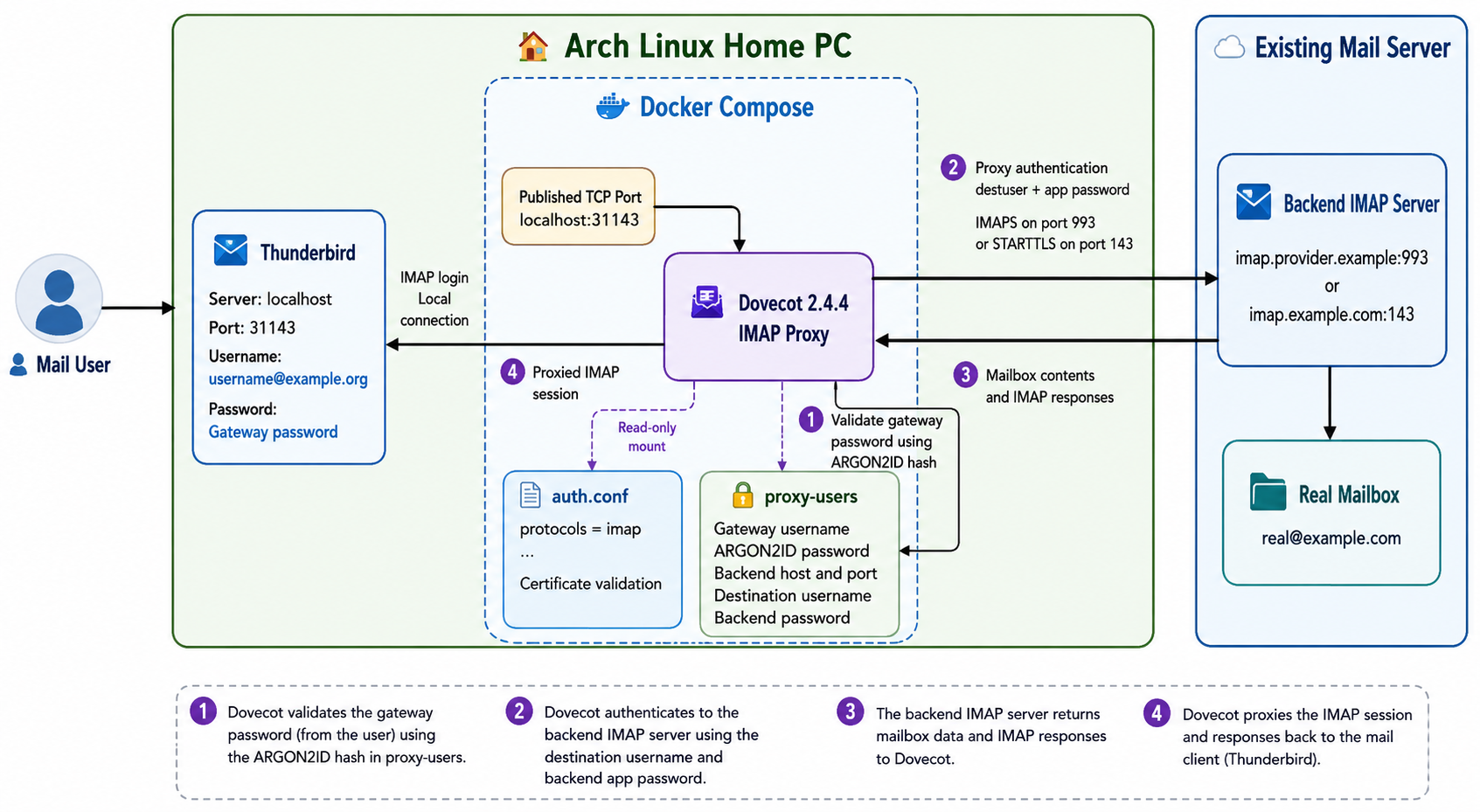
dovecot docker compose
Let’s start with the dovecot docker compose setup.
docker-compose.yml
---
services:
  dovecot:
    image: dovecot/dovecot:2.4.4
    container_name: dovecot
    restart: unless-stopped
    ports:
      - 31143:31143
    volumes:
      - ./auth.conf:/etc/dovecot/conf.d/auth.conf:ro
      - ./proxy-users:/etc/dovecot/proxy-users:ro
Note: You can either use latest tag if you prefer. It is a best practice to avoid latest so you always know what is the running version, but you can also use dovecot/dovecot:latest if you like.
Run the below command to download the container image:
docker compose -v pulldovecot configuration
Now, let’s dive into the configuration files.
auth.conf
# Tells Dovecot to only load and listen for the IMAP protocol.

# Enable only the IMAP protocol.
protocols = imap

# Authentication used by the IMAP client.
auth_mechanisms = plain login

# Required when the IMAP client connects without TLS.
# Safe only on a private, non-published Docker network.
auth_allow_cleartext = yes

# Authenticate the local gateway account and return proxy fields.
passdb passwd-file {
    passwd_file_path = /etc/dovecot/proxy-users
}

# Tells Dovecot which Certificate Authorities (CAs) to trust.

# Use ca-certificates to check TLS/SSL
ssl_client_ca_file = /etc/ssl/certs/ca-certificates.crt

# enforces strict certificate validation
ssl_client_require_valid_cert = yes
Let’s explain everything.
This is a local instance, so there is no need to be extravagance configuration.
- Enable only the IMAP protocol.
- Enable plain login for the imap client e.g. thunderbird.
- Allow clear text password, as we do not have TLS (for now).
- Use a text file for username, password and proxy to the real imap mail server.
- Enable TLS/SSL check (our real imap server uses startTLS) and
- Validate the certificate of our real imap server.
Start the dovecot docker compose service
docker compose -v up
No worries if it fails, the
Username and Password
Now the important thing, how to create a new user and how to proxy to the real imap mail server !
But before that, let’s create a new secure password:
docker compose exec dovecot doveadm pw -s ARGON2ID
This is a test password.
a full example
❯ docker compose exec dovecot doveadm pw -s ARGON2ID

Enter new password: <test>
Retype new password: <test>

{ARGON2ID}$argon2id$v=19$m=65536,t=3,p=1$I4BtU8w1KdKI6DNxdJ4aNQ$gP+dEXRDp7vD7IBirwHPe3HqXPwKfbDV+nh8qsdBhaE
It is important to keep the output.
Next item on the list, to select a new username.
And I chose: username@example.org 🙂
For SSL (TCP Port: 993), the proxy settings are:
host=imap.provider.example
port=993
ssl=yes
destuser=real@example.com
pass=app-password
For starttls the proxy settings are:
host=imap.example.com
port=143 starttls=yes
destuser=real@example.com
pass=REAL_APP_PASSWORD
proxy_mech=CRAM-MD5
And I’ve added the CRAM-MD5 (encrypted password) just for additional info.
Now, let’s put everything together
vim proxy-users
{ARGON2ID}$argon2id$v=19$m=65536,t=3,p=1$I4BtU8w1KdKI6DNxdJ4aNQ$gP+dEXRDp7vD7IBirwHPe3HqXPwKfbDV+nh8qsdBhaE::::::proxy=y host=imap.provider.example port=993 ssl=yes destuser=real@example.com pass=app-passwordAnd make sure you change ownership and permissions before you start the container.
sudo chown 1000:1000 proxy-users
sudo chmod 600 proxy-users
Let’s recreate or stop/start dovecot docker compose and test it
docker compose -v down
docker compose -v up -d
thunderbird
finally let’s check our mail client
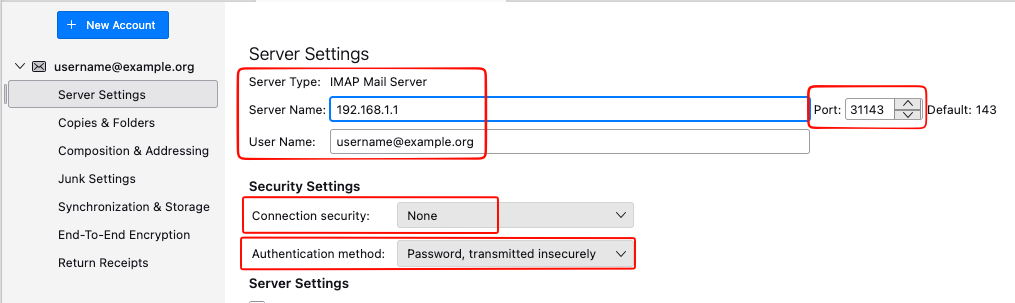
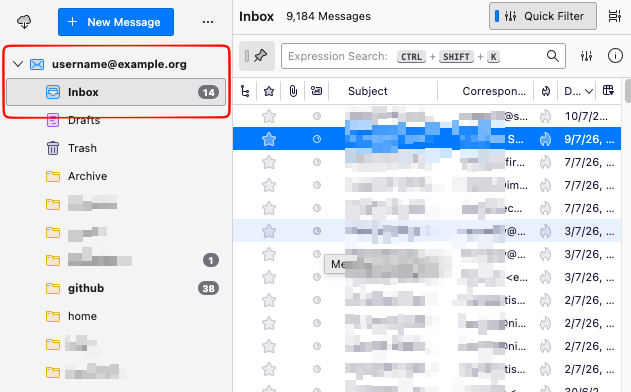
That’s it!
Evaggelos