





I want a simple way to experiment with LLMs from my (very old) archlinux machine that has no GPU. OpenRouter provides a pay-as-you-go solution by selecting the model you want for the job you need. It’s quite easy and also provides some free models!
Important limitation
Free OpenRouter models usually have rate limits, availability limits, and sometimes slower routing. Some may disappear, change provider, or become temporarily unavailable. It’s not always reliable.
Running Open WebUI with OpenRouter Free Models
In this post we will build a simple local AI chat setup using Open WebUI, LiteLLM, and OpenRouter free models.
The goal is to have a clean web interface where we can chat with an OpenRouter model, while LiteLLM acts as a small proxy layer between Open WebUI and OpenRouter.
Disclaimer: You do not need LiteLLM. OpenRouter provides an OpenAI API. I am going to share both setups, as I use LiteLLM as a proxy for other use cases too.
The final architecture looks like this:
Browser
  -> Open WebUI
  -> OpenRouter
  -> Free LLM model
or with LiteLLM
Browser
  -> Open WebUI
  -> LiteLLM
  -> OpenRouter
  -> Free LLM model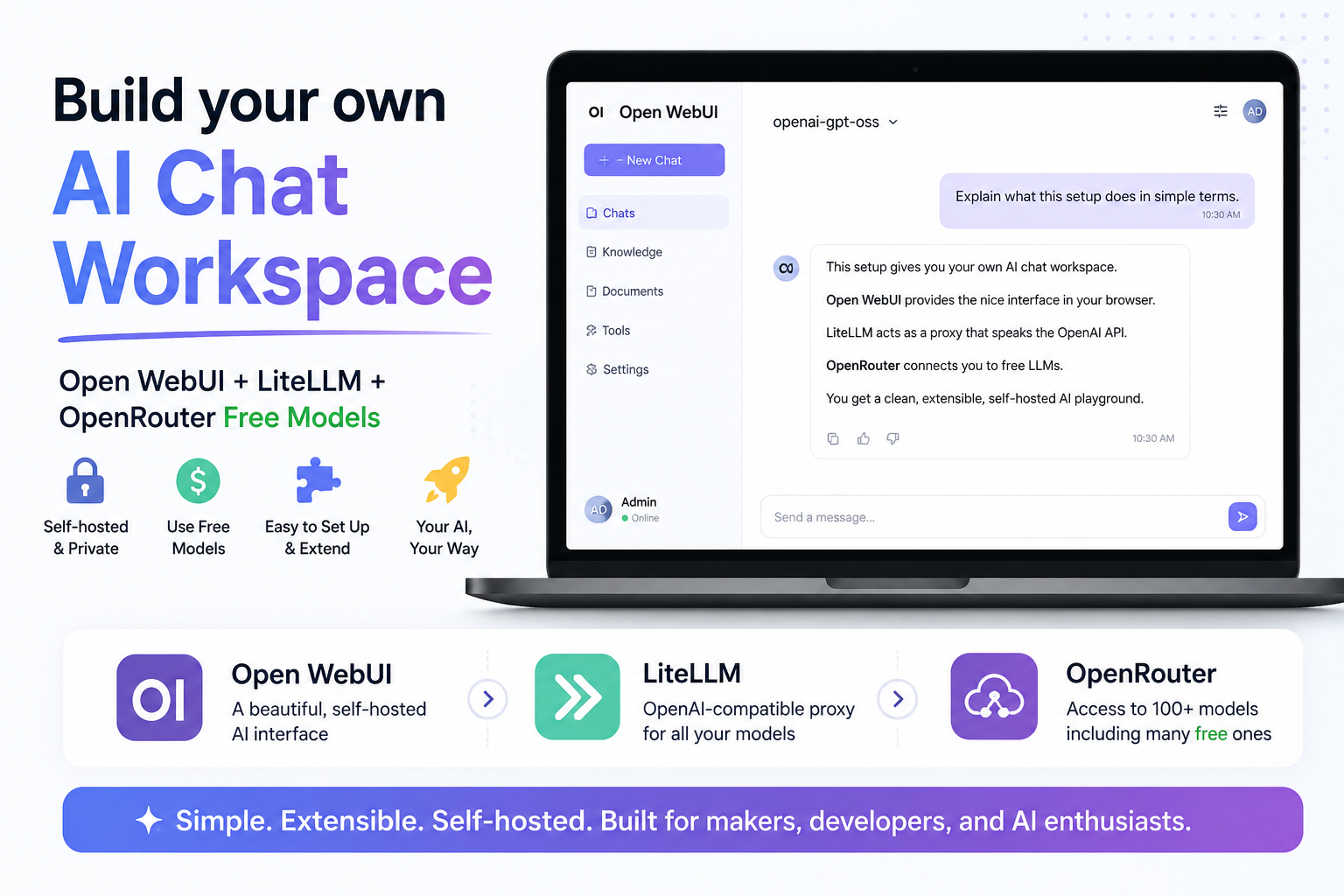
What are we building?
We are going to run two containers:
-
LiteLLM
A lightweight proxy that exposes an OpenAI-compatible API and forwards requests to OpenRouter or to any other LLM provider. -
Open WebUI
A self-hosted ChatGPT-like web interface that connects either to OpenRouter and/or to LiteLLM.
- Open WebUI will talk to OpenRouter in scenario A.
- Open WebUI will talk to LiteLLM, and LiteLLM will talk to OpenRouter in scenario B.
Requirements
You need:
- Docker
- Docker Compose
- An OpenRouter account
- An OpenRouter API key
You can create an API key from your OpenRouter account settings.
Project files
Create a new directory for the project:
mkdir openwebui
cd openwebui
Scenario A - OpenWebUI with OpenRouter
We will create a single docker compose file:
---
services:
  openwebui:
    image: ghcr.io/open-webui/open-webui:main-slim
    container_name: openwebui
    ports:
      - "8080:8080"
    volumes:
      - open-webui:/app/backend/data

volumes:
  open-webui:
In this scenario, I use Open WebUI slim edition.
Open WebUI provides a slim variant designed to reduce the initial container size by excluding pre-bundled AI models and heavy dependencies. Smaller initial size, but the first startup may take longer as the container downloads these necessary models.
Start OpenWebUI
Run:
docker compose -v up -dCheck that both containers are running:
docker compose -v psYou should see something like:
❯ docker compose -v ps -a

NAME      IMAGE                                    COMMAND          SERVICE    CREATED         STATUS   PORTS
openwebui ghcr.io/open-webui/open-webui:main-slim  "bash start.sh"  openwebui  31 minutes ago  Up 30 minutes (healthy)   0.0.0.0:8080->8080/tcp,  [::]:8080->8080/tcp
Setup OpenWebUI to OpeRouter
In bottom left, Go to:
Admin settings --> Settings --> Admin Settings --> Connections
Add OpenRouter as below
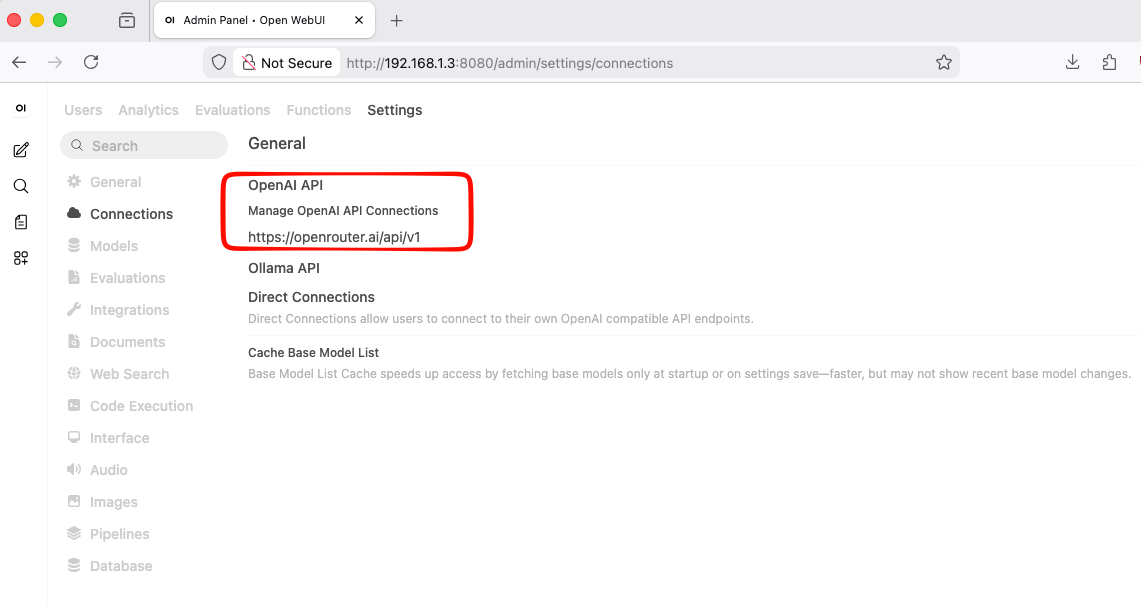
openwebui with openrouter
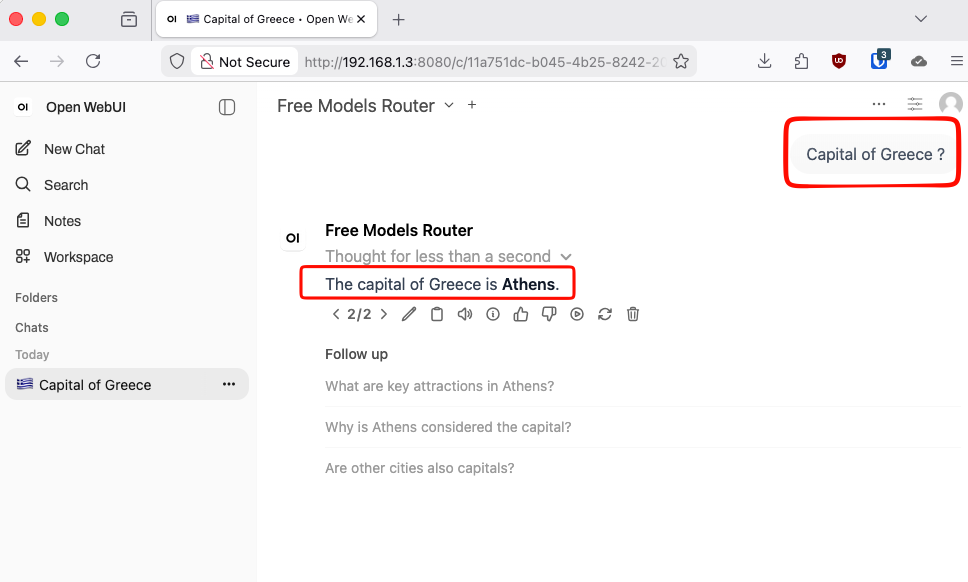
Scenario Β - OpenWebUI with LiteLLM to OpenRouter
We will create three files:
.env
docker-compose.yml
litellm_config.yaml
Environment file
Create a file named .env:
cat > .env <<'EOF'
OPENROUTER_API_KEY=sk-...
OPENROUTER_BASE_URL="https://openrouter.ai/api/v1"
OPENROUTER_MODEL="openrouter/openrouter/free"
OPENROUTER_MODEL_NAME="openrouter-free"
EOF
Replace this value with your real OpenRouter API key:
sk-...The simplest way to get free inference is with
openrouter/freewhich is a router that selects free models at random from the models available on OpenRouter.
LiteLLM configuration
Create litellm_config.yaml:
cat > litellm_config.yaml <<'EOF'
model_list:
  - model_name: os.environ/OPENROUTER_MODEL_NAME
    litellm_params:
      model: os.environ/OPENROUTER_MODEL
      api_base: os.environ/OPENROUTER_API_BASE
      api_key: os.environ/OPENROUTER_API_KEY
EOF
This file tells LiteLLM:
- expose a local model called
openrouter-free - forward requests to OpenRouter
- use the OpenRouter model defined in
.env - authenticate using the OpenRouter API key
So Open WebUI does not need to know the exact OpenRouter model name. It only talks to LiteLLM.
Docker Compose file
Create docker-compose.yml:
cat > docker-compose.yml <<'EOF'
---
services:

  litellm:
    image: docker.litellm.ai/berriai/litellm:main-latest
    container_name: litellm
    command: --config /app/config.yaml # --detailed_debug
    volumes:
      - ./litellm_config.yaml:/app/config.yaml:ro
    restart: unless-stopped
    env_file:
      - .env

  openwebui:
    image: ghcr.io/open-webui/open-webui:main-slim
    container_name: openwebui
    ports:
      - "8080:8080"
    volumes:
      - open-webui:/app/backend/data
    depends_on:
      litellm:
        condition: service_started

volumes:
  open-webui:

EOF
This starts two services.
docker compose -v up -dKeeping the same volume means that keeps your Open WebUI settings, users, and chat history even if the container is recreated.
Configure Open WebUI
Open your browser and go to the admin settings and configure the OpenAI-compatible connection.
Use this as the API base URL:
http://litellm:4000Depending on your Open WebUI version, it may ask for the full OpenAI-compatible base URL. In that case use:
http://litellm:4000/v1Test the setup
In Open WebUI, start a new chat. If everything is configured correctly, Open WebUI will send the message to LiteLLM, LiteLLM will forward it to OpenRouter, and the model response will appear in your browser.
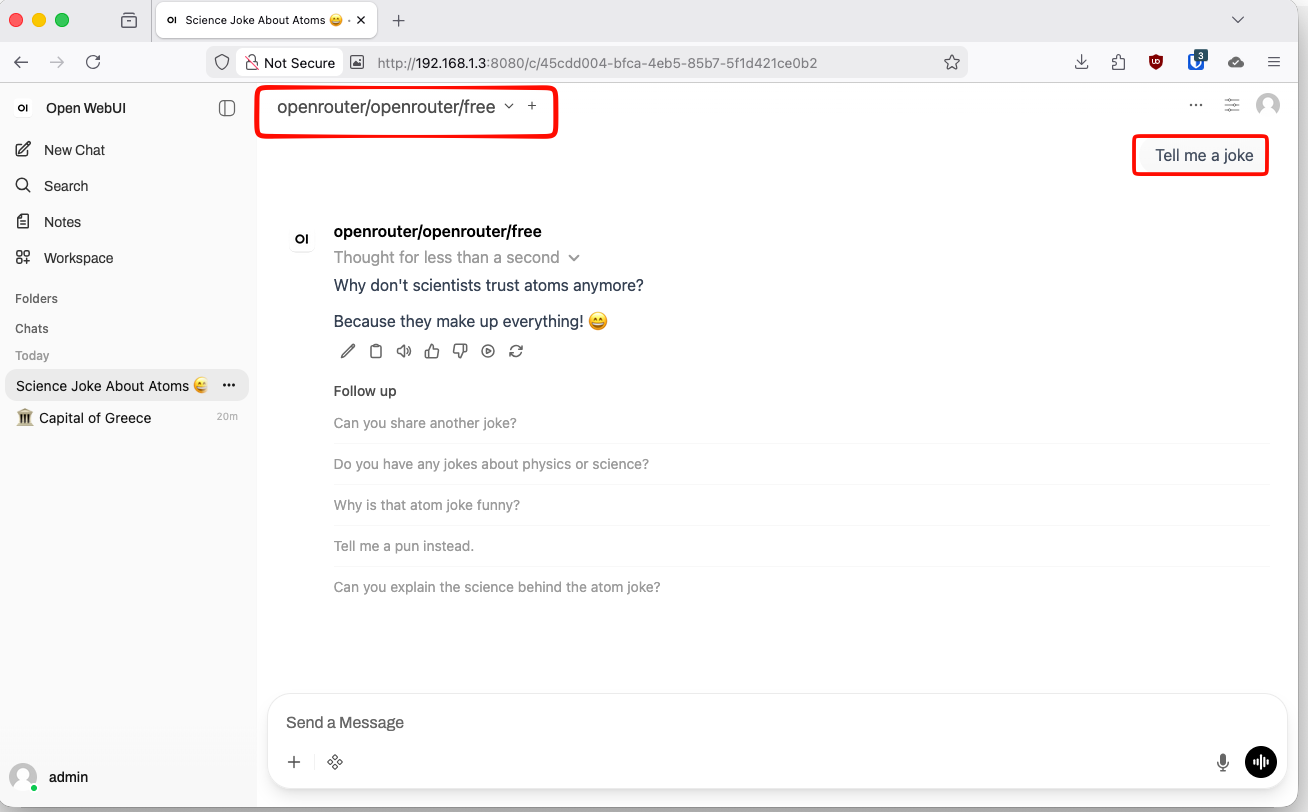
The OpenRouter model does not respond
Free OpenRouter models can have rate limits, queueing, or temporary availability issues.
Try another free model from OpenRouter and update:
OPENROUTER_MODEL=openrouter/openai/gpt-oss-120b:freeThen restart:
docker compose restart litellmand check LiteLLM logs with:
docker compose logs -f litellmThat’s it !
Evaggelos
LiteLLM AI Gateway (LLM Proxy)
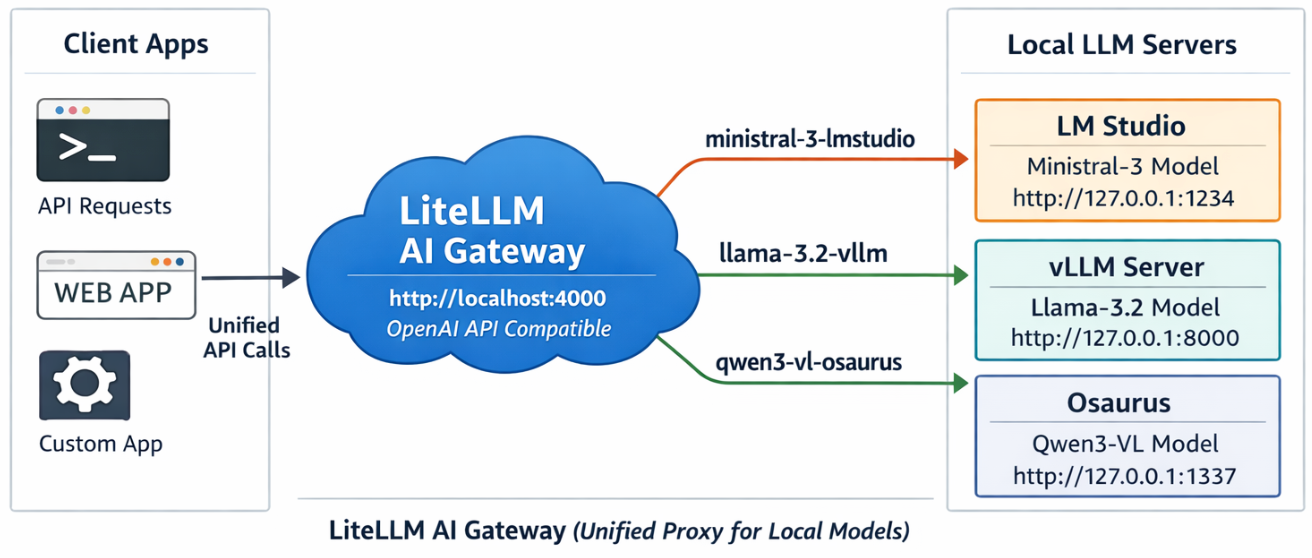
This project shows a simple pattern: run multiple local model servers, place LiteLLM in front of them, and expose one OpenAI-compatible endpoint for apps to use.
In this setup, Lite LLM sits on http://127.0.0.1:4000/v1 and routes requests to:
- LM Studio on port
1234 - vLLM on port
8000 - Osaurus on port
1337
That gives you one clean API for local testing, model switching, and app integration.
Why this setup is useful
If you already have local models running in different tools, LiteLLM gives you one gateway instead of several different endpoints.
That means you can:
- keep one API base URL
- switch models by alias
- expose multiple local backends behind the same interface
- plug the endpoint into apps that expect an OpenAI-style API
What this article shows
This guide walks through the full flow:
- LiteLLM exposes
/v1/modelsand returns the three configured aliases. - A chat app can select one of those LiteLLM model names and answer normally.
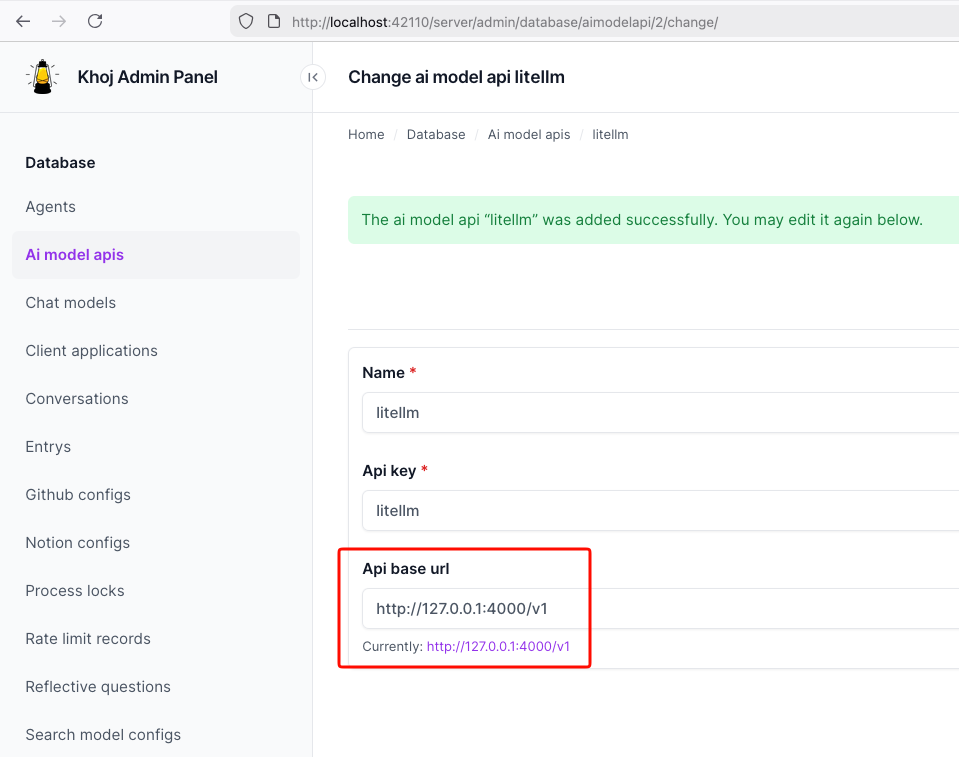
- Khoj can be pointed at LiteLLM by setting the API base to
http://127.0.0.1:4000/v1. - Khoj chat models can then use a LiteLLM alias such as
ministral-lmstudio.
Quick start
Use Python 3.12 or 3.13 for the LiteLLM virtual environment to avoid uvloop path a known incompatibility with Python 3.14’s asyncio internals.
Set up a virtual environment
virtualenv -p python3.12 venv-litellm/
cd venv-litellm/
source ./bin/activate

pip install "litellm[proxy]"
LiteLLM Configuration
Create config.yaml:
Below is an example based on my local setup.
model_list:
  - model_name: ministral-lmstudio
    litellm_params:
      model: openai/mistralai/ministral-3-3b
      api_base: http://127.0.0.1:1234/v1
      api_key: lmstudio

  - model_name: llama3-vllm
    litellm_params:
      model: openai/mlx-community/Llama-3.2-3B-Instruct-4bit
      api_base: http://127.0.0.1:8000/v1
      api_key: vllm

  - model_name: qwen3-osaurus
    litellm_params:
      model: openai/qwen3.5-0.8b-mlx-4bit
      api_base: http://127.0.0.1:1337/v1
      api_key: osaurus
You need the openai/ prefix for each model to use LiteLLM’s OpenAI-compatible provider.
Start LiteLLM
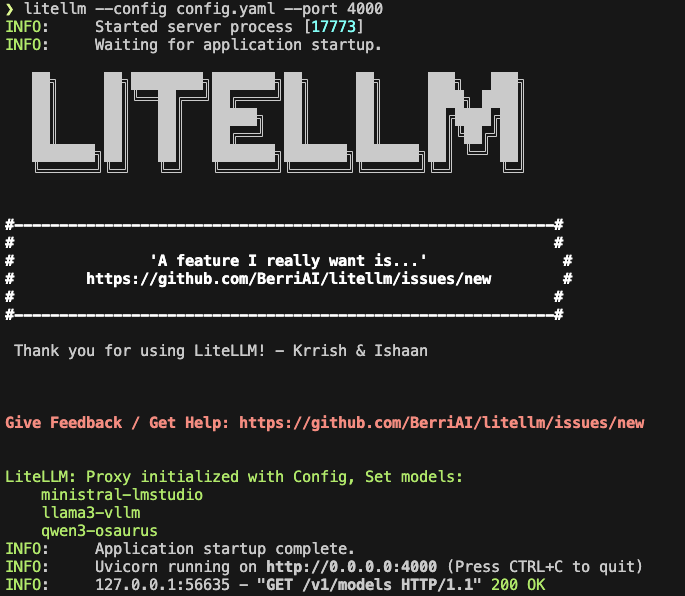
litellm --config config.yaml --port 4000If LiteLLM starts correctly, you should see the three model aliases loaded.
Test the proxy
List models:
curl -s http://127.0.0.1:4000/v1/models | jq .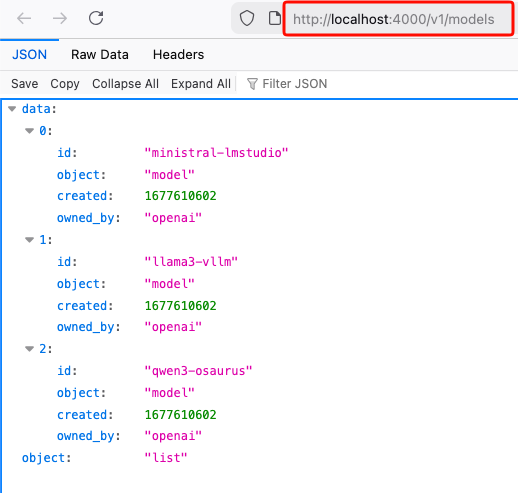
Test chat
Send a chat request:
curl -s http://127.0.0.1:4000/v1/chat/completions
  -H "Content-Type: application/json"
  -d '{
    "model": "ministral-lmstudio",
    "messages": [
      {"role": "user", "content": "Capital of Greece?"}
    ]
  }' | jq .
If everything is wired correctly, LiteLLM will forward the request to the matching backend and return a normal OpenAI-style response.
A typical result looks like this:
{
  "id": "chatcmpl-oukopuooxti6xg92g6qx9b",
  "created": 1773142359,
  "model": "ministral-lmstudio",
  "object": "chat.completion",
  "system_fingerprint": "mistralai/ministral-3-3b",
  "choices": [
    {
      "finish_reason": "stop",
      "index": 0,
      "message": {
        "content": "The capital of Greece is **Athens**.",
        "role": "assistant",
        "provider_specific_fields": {
          "refusal": null
        }
      },
      "provider_specific_fields": {}
    }
  ],
  "usage": {
    "completion_tokens": 10,
    "prompt_tokens": 539,
    "total_tokens": 549
  },
  "stats": {}
}
Connect LiteLLM to Khoj
You can use the same LiteLLM endpoint with any app that supports an OpenAI-style API. In this example, I use Khoj.
Once LiteLLM is running, Khoj only needs one API configuration:
- Name:
litellm - API key:
litellm - API base URL:
http://127.0.0.1:4000/v1
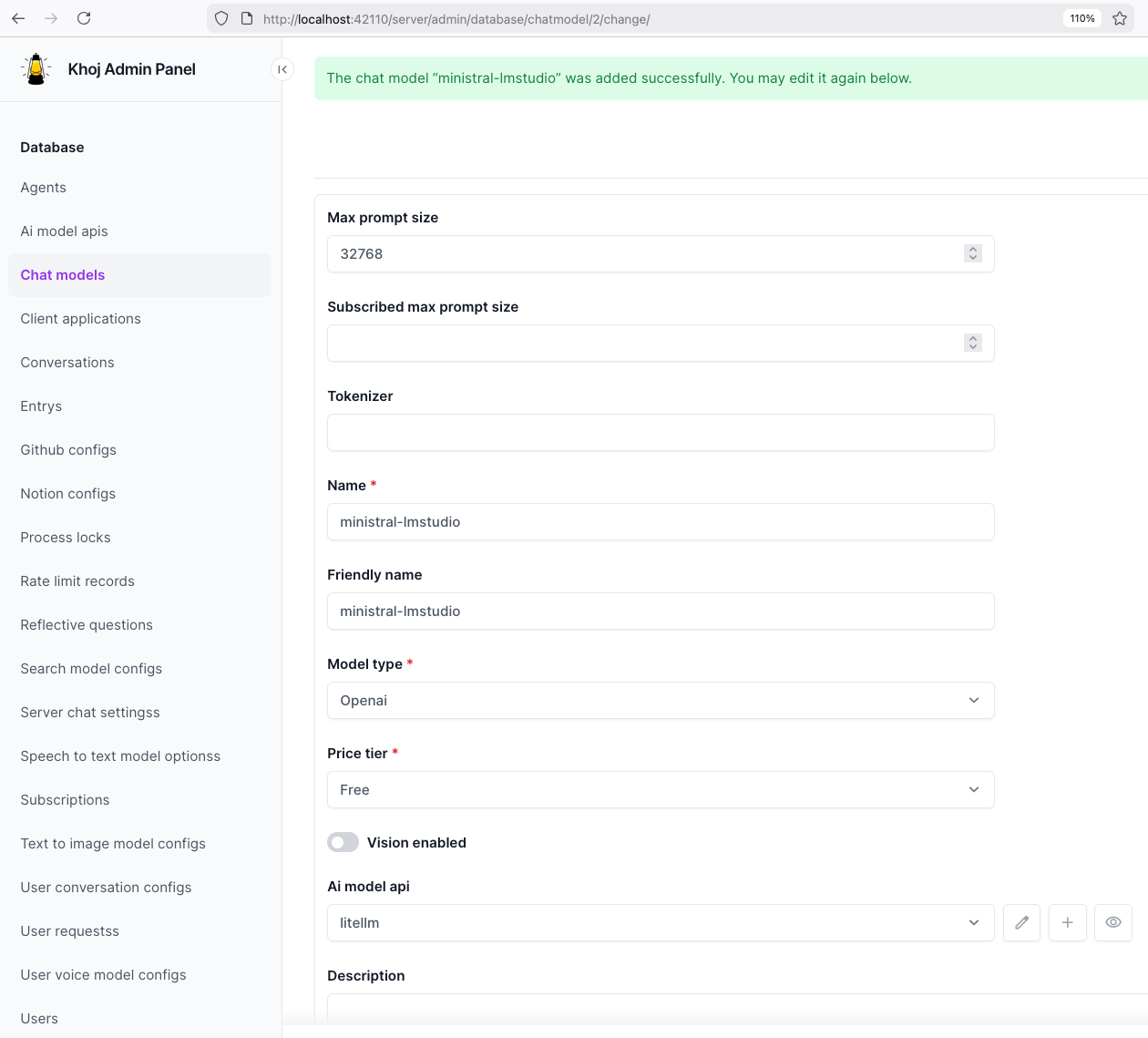
Then create a chat model in Khoj using one of the LiteLLM aliases, for example:
ministral-lmstudio
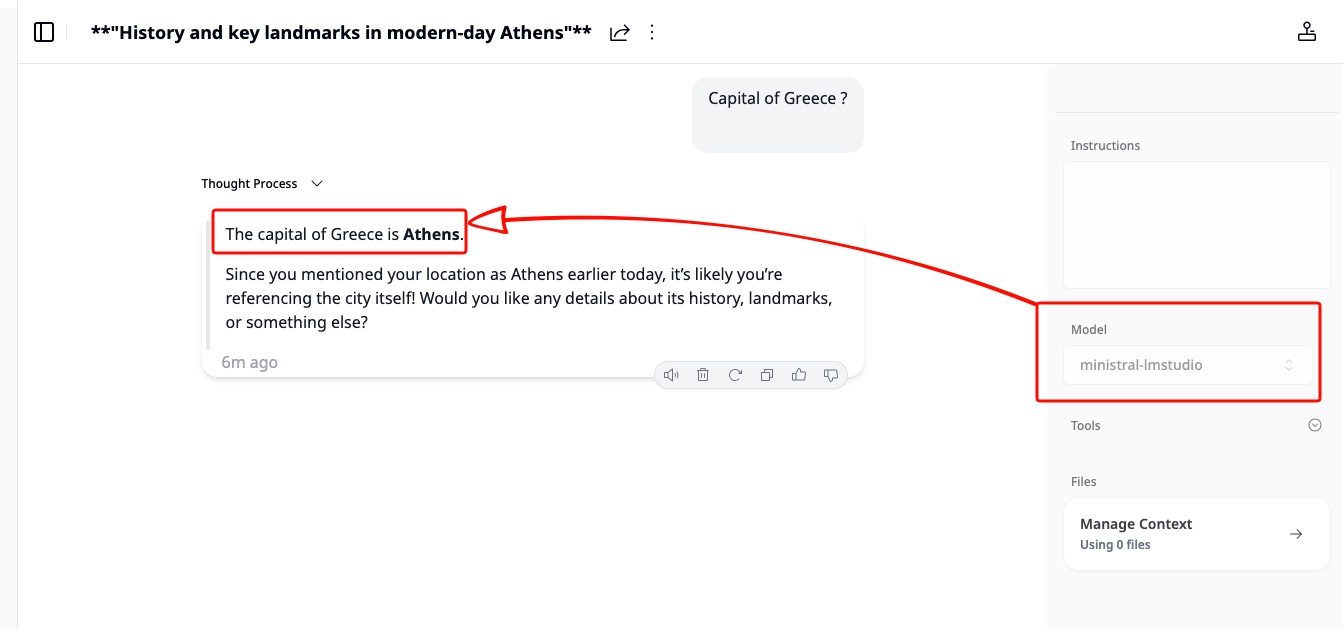
That is the key idea of this project: Khoj does not need to know whether the model is coming from LM Studio, vLLM, or Osaurus. It only talks to LiteLLM.
Khoj AI model API configuration
Khoj chat model configuration
Khoj using a LiteLLM chat model
That’s it!